

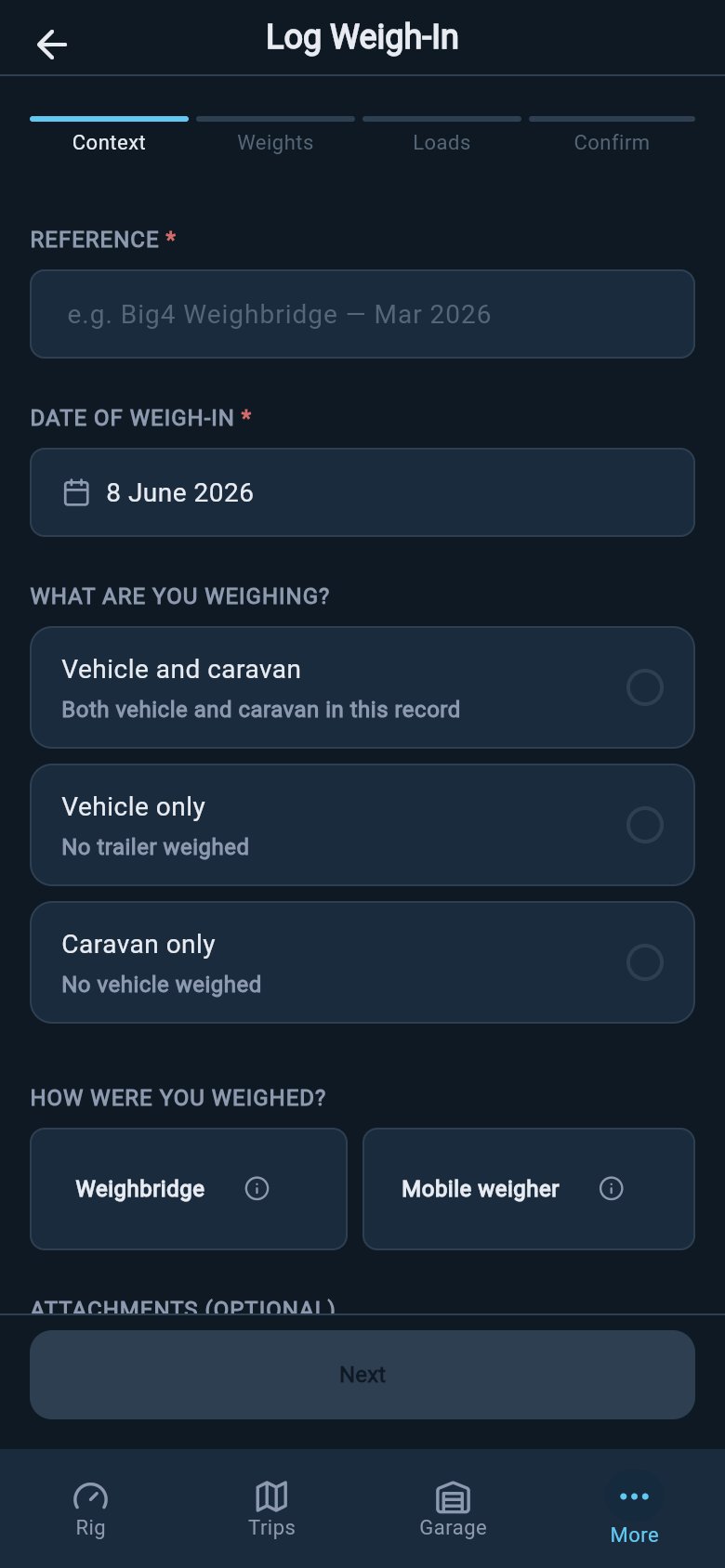
Step 1: Set the context
The first screen captures who, when, and what kind of visit this was. Fill in these four things.- Reference (required). Your own label for the ticket, such as the weighbridge name and the month. This is how you find the record again later, so make it something you will recognise.
- Date (required). The day you weighed.
- Rig Configuration. Tell loadmate what was on the scales: Hitched together, Separate (unhitched), Vehicle only, or Trailer only. If your vehicle has no trailer, you will only see Vehicle only.
- Weigh Method. Choose Weighbridge here. (The Mobile weigher option leads to a different screen, covered on its own page.)
Step 2: Pick the ticket card that matches your slip
loadmate shows ticket cards drawn to match common weighbridge slip layouts. Pick the one that looks like your paper, then read off platform A, B, C, and D in the order they are printed. A small guide at the top of each card shows which axle or section each platform sits under, so you copy numbers without guessing. The quickest way to choose is to look at two things you can see on the paper: was the rig hitched or separate, and how many weight rows the slip has.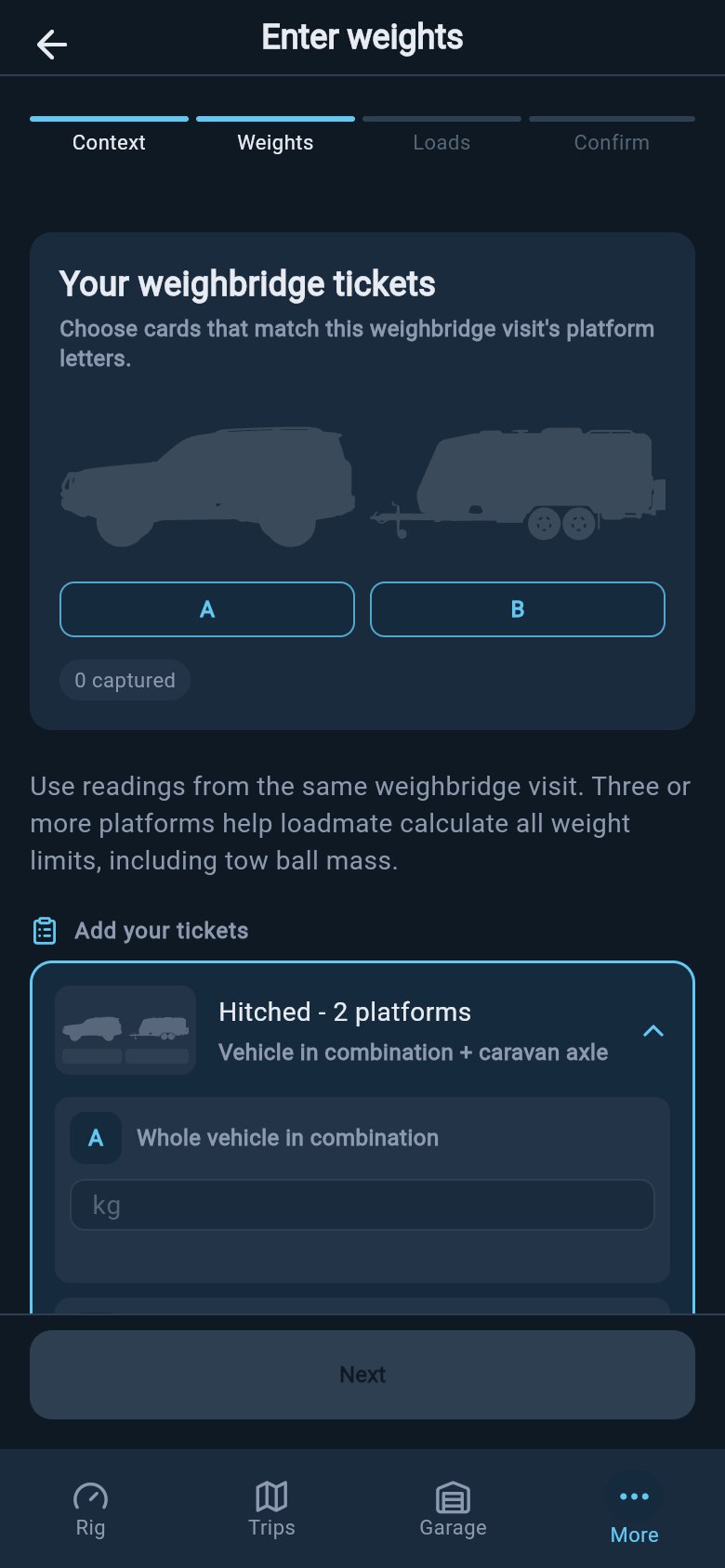
Decision aid: pick your card
Three points apply to every card:
- The gross or combined row is computed for you, so do not retype it.
- If a value is not on your slip, leave it blank rather than guess.
- If your slip uses unfamiliar labels such as steer, drive, trailer, or gross, ask the weighbridge operator which row belongs to which axle group before typing.
Hitched tickets
Use these when your vehicle and trailer were coupled together on the scales.- Hitched - 2 platforms suits a slip with two weights: the vehicle in combination on platform A, and the trailer axle on platform B.
- Hitched - 3 platforms suits a slip with three weights: front axle on A, rear axle on B, trailer axle on C.
Separate (unhitched) tickets
Use these when the vehicle and trailer were weighed apart.- Unhitched - 3 platforms suits a slip with front axle on A, rear axle on B, and the trailer total on C.
- Unhitched - 4 platforms suits a slip with four weights: front axle, rear axle, coupling, and trailer axle, entered as A, B, C, and D in the printed order.
Vehicle-only and trailer-only tickets
Use these when only one part of the rig was on the scales.- Platform A only (vehicle) is a single vehicle total on A.
- Platforms A and B (vehicle) splits the vehicle into front axle on A and rear axle on B.
- Platform A only (trailer) is a single trailer total on A.
- Platforms A and B (trailer) splits the trailer into the coupling weight on A and the axle group on B.
Reading platform A, B, C, and D off your slip
Once you have the right card, copy the weights across exactly as they are printed, one platform at a time. Match each printed row to the matching letter on the diagram.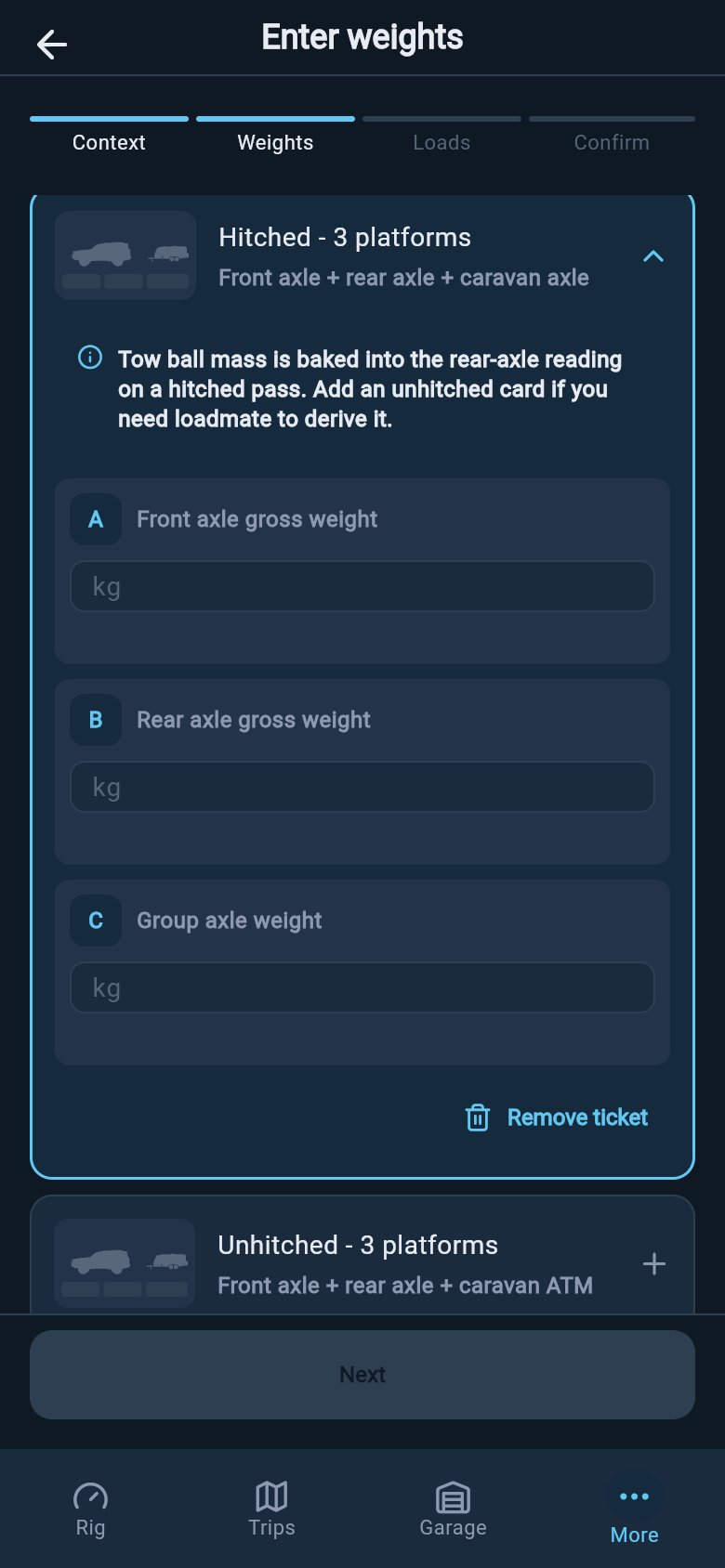
- Copy in printed order. The diagram letters follow the order your slip lists its platforms.
- Do not retype the gross or combined row. loadmate works the total out for you. Typing it in by hand only risks a mismatch.
- Leave a field blank rather than guess. If a reading is not on your slip, an empty field is better than an invented one.
Check What we will bake in before you continue
After you complete a ticket, loadmate shows a panel called What we will bake in. It lists the values it has worked out from your readings and will carry forward, such as the derived coupling weight and the part and whole totals. Read it as your first cross-check: do these derived figures look about right for your rig? If they do, you are in good shape to continue.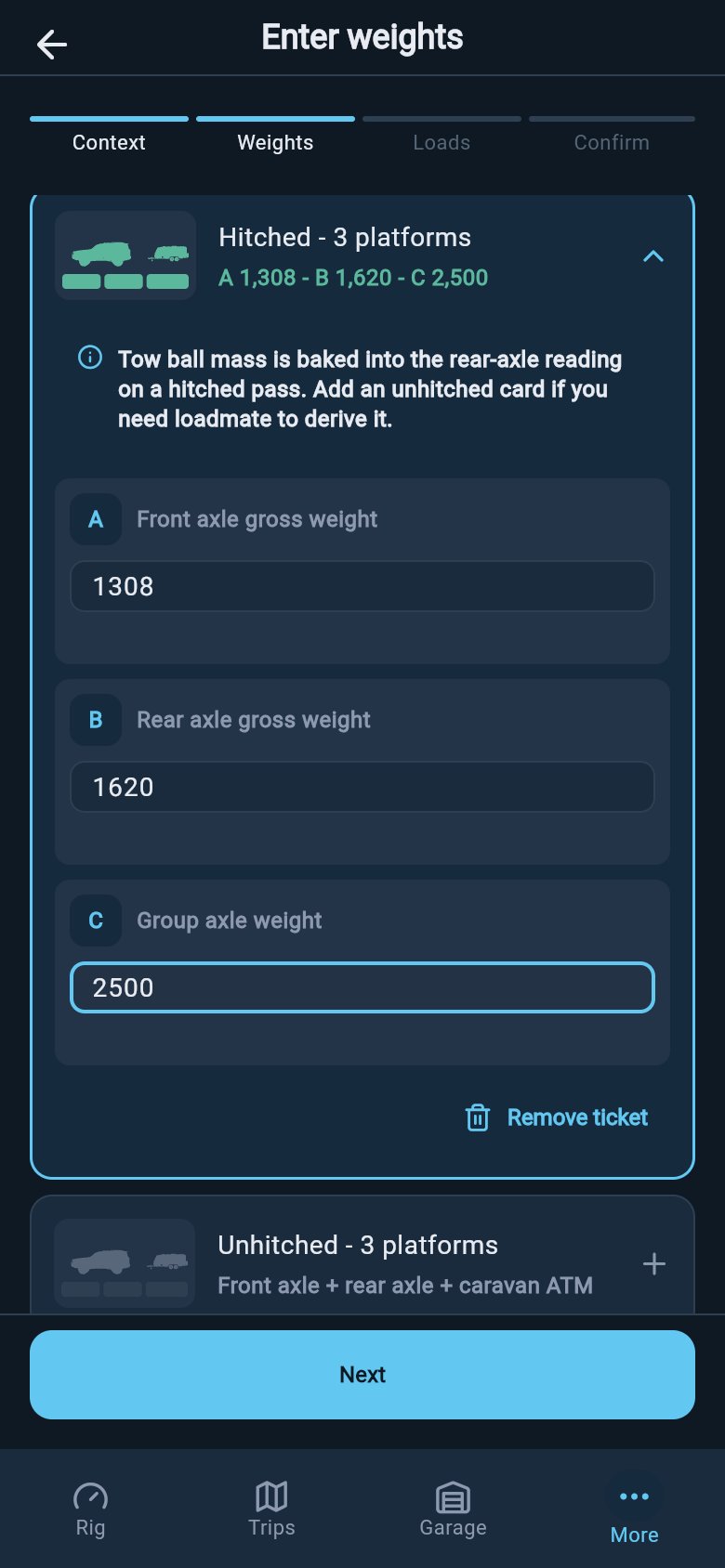
- A large gap between your typed coupling weight and the computed one. This is a cue to re-check which platform row went where on the card. Your entered value is the one loadmate uses; the warning is just asking you to make sure it is sitting on the right platform.
- A look-again prompt if a measured weight is over a limit. If your figures come in above the vehicle limit (GVM / MAM / GVWR), or above the trailer limit (ATM / MTPLM / Trailer GVWR / GTWR), loadmate flags it so you can look again. It is asking you to confirm the reading, not declaring you illegal.
If a number looks wrong
A flagged difference does not mean the weighbridge made a mistake, or that you did. Most often it means a platform row landed in the wrong letter on the card. The value you typed is always the one loadmate keeps, so nothing is overwritten behind your back. Treat a big gap as a friendly nudge: open the card again, line each printed row up against the diagram, and confirm A, B, C, and D are in the order your slip prints them. A minute spent re-checking the mapping here saves you from carrying a typo into your baseline. When you are ready to save, remember the final save needs Pro. You can still enter and review everything first.Next: cross-check and link your loads
With your readings in, the next step is to tell loadmate which loads were physically on the scales, so they count as measured rather than as drift. See Cross-check and link your loads to finish the record.loadmate helps you work from the numbers you enter. Keep your source documents handy, and use a weighbridge, truck scale, or local authority when you need official evidence.