

Open the log and pick the service type
Open the log-service sheet from the maintenance hub. From the More tab choose Service & Tasks, then start a new service from the recent service history section — Log first service when the history is empty, or View all to open your history and log from there. The sheet opens with a short set of fields grouped under Service, Cost, Next service due, and Details, so you only fill in what you have to hand.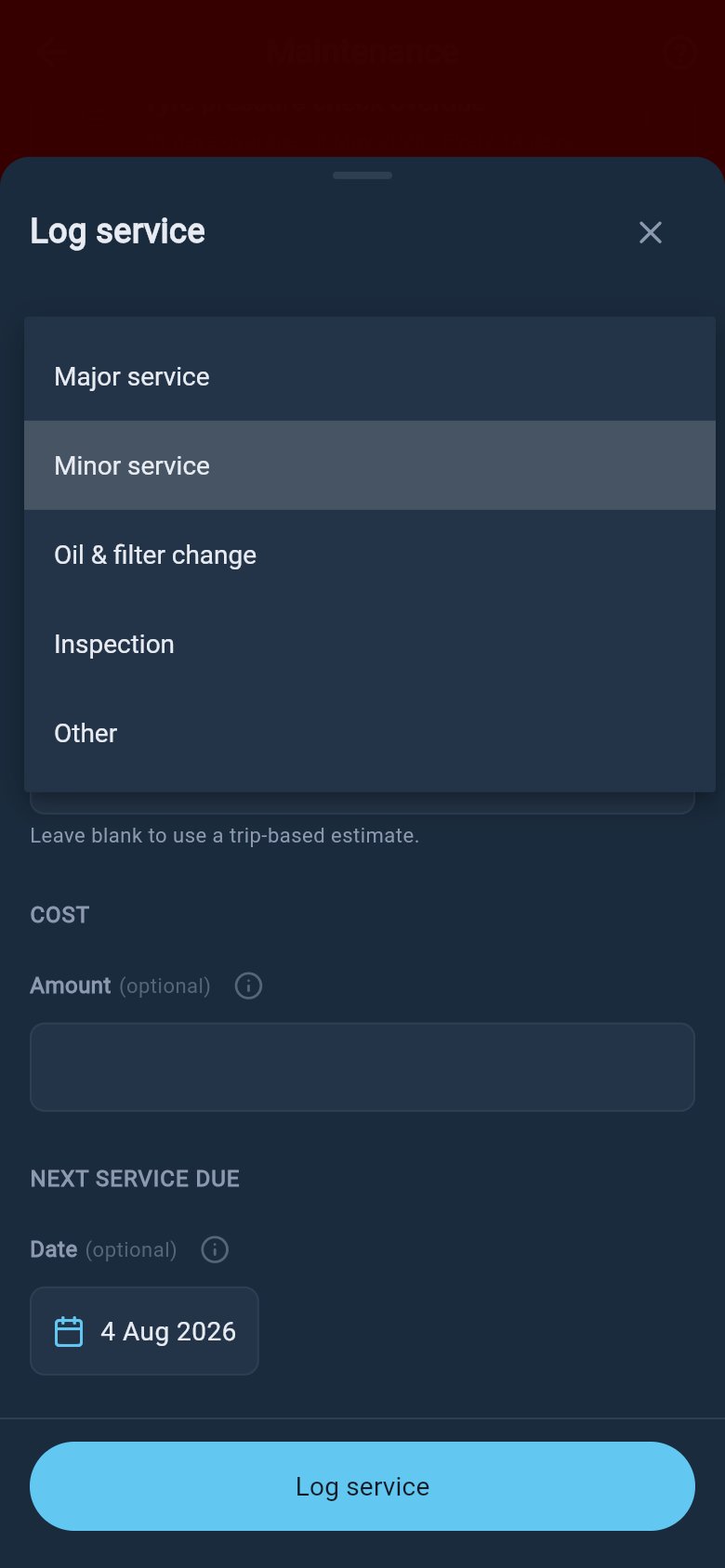
If the work you had done does not fit any of the named types, choose Other. Nothing is lost by doing so; the record is kept the same way, and you can describe the job in the notes field.
Set the date and odometer
Next, set when the service happened and what the odometer read at the time. The Date field defaults to today, which is right if you are logging the service the same day; tap it to choose an earlier day if you are catching up on a job from a week or a month ago. You cannot pick a date in the future, because a service that has not happened yet is not a record to log.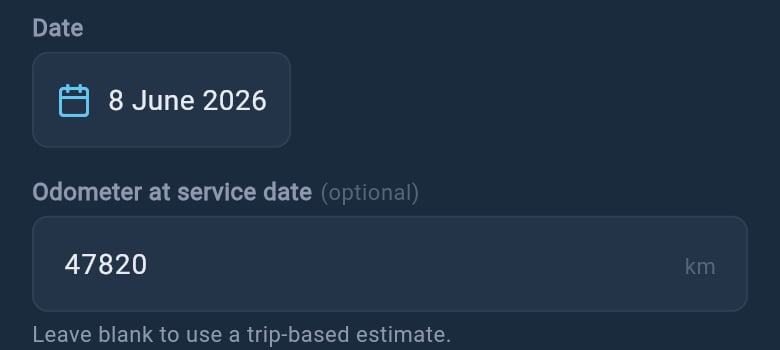
Add cost, provider, notes and receipts
The remaining fields are all optional and are there to make the record more useful to you later. The Cost field, under the Cost heading, records what you paid; it is captured and stored against the service so you have it for your own reference. The Workshop / provider and Notes fields, under Details, let you record who did the work and anything worth remembering, such as parts replaced or advice the mechanic gave you. If you have logged a provider before, the field offers it back as you type, so you do not retype the same workshop each visit. loadmate stores the cost, provider, and notes for you. It does not contact the workshop, send anything to the provider, or book the work. The provider field is simply a label on your own record, so you can recognise where the service was done when you look back.What about receipts and attachments?
What about receipts and attachments?
If a service record already has receipts or photos attached, they are kept with the record when you edit it. The log-service sheet itself does not add new attachments; you view a record’s attachments on its full service detail, opened from your service history. So the place to look back at a receipt is the saved record, not this entry sheet.
What happens when you save
When you save, the service is added to your service history straight away, so it appears in the recent list on the hub and in the full history. If you logged a Major service, loadmate also resets your service schedule to this completion point and works out the next-due date and odometer afresh from your set interval, so the schedule and your history stay in step. A Minor service, oil and filter change, inspection, or other service is recorded but does not move the schedule. If you entered the odometer yourself, that reading also becomes your rig’s current odometer, keeping it up to date as a natural side effect of logging the service rather than as a separate chore. Your Rig Score and the rig’s safety findings are marked to refresh, so the next time you open the rig page they take the new service into account. None of this happens instantly behind your back; it simply means the rig page is current the next time you visit. The reading you enter here also appears on Your odometer history as a Service reading.Review service history
See every service you have logged, edit a record, or pull up evidence for a warranty claim.
Set up the service schedule
Set the interval that drives your next-due date and odometer countdown.
Improve your Rig Score
See how logged maintenance feeds into your score and findings.