

Tell the three blocks apart
The reason loadmate can hold a save after you have already typed everything is that it checks your access right at the save, not at a greyed-out button. That is why you can open a form, fill it in, and only then see a banner or a sheet. It is working as intended, and it is the opposite of losing data: the work sits there, waiting for the right state. Each block announces itself differently. The demo rig shows a banner across the top and a short message when you try to edit. A lapsed Pro shows a caution banner. A free user’s first real save opens an upgrade sheet. Work through the four headings below to match what you saw, then follow the one fix that applies.Are you looking at the demo rig?
The demo rig is the sample setup loadmate gives you to explore, and it carries a banner across the top of the screen the whole time you are in it. The data looks real so you can see how everything works, but it is read-only by design. If you try to change something on the demo rig, loadmate shows a short message telling you demo data cannot be changed, and your edit is not saved. There is no free “leave demo” button. The only way out of the demo rig is upgrading to Pro. When you do upgrade, loadmate clears the demo data for you and gives you a clean slate to start your own real rig, so you are never stuck editing on top of the sample. Until then, the demo rig stays put so you can keep looking around.Has your Pro subscription ended?
If you had Pro and it has lapsed, loadmate keeps all of your data and full read access, but it switches your own rig to read-only until you renew. You will see a caution banner saying your Pro has ended, and tapping it takes you to the subscription screen. Nothing is deleted; your loads, weigh-ins, and warranty records are all still there to look at. To save again, renew your subscription. Renewal happens in the app store on your device, the same place you first subscribed. Renewing a lapsed Pro never wipes your data; your real rig is waiting exactly as you left it. For checking your status, restoring a purchase, or sorting out a status that looks wrong, see the manage-subscription page below; this page does not re-teach those steps.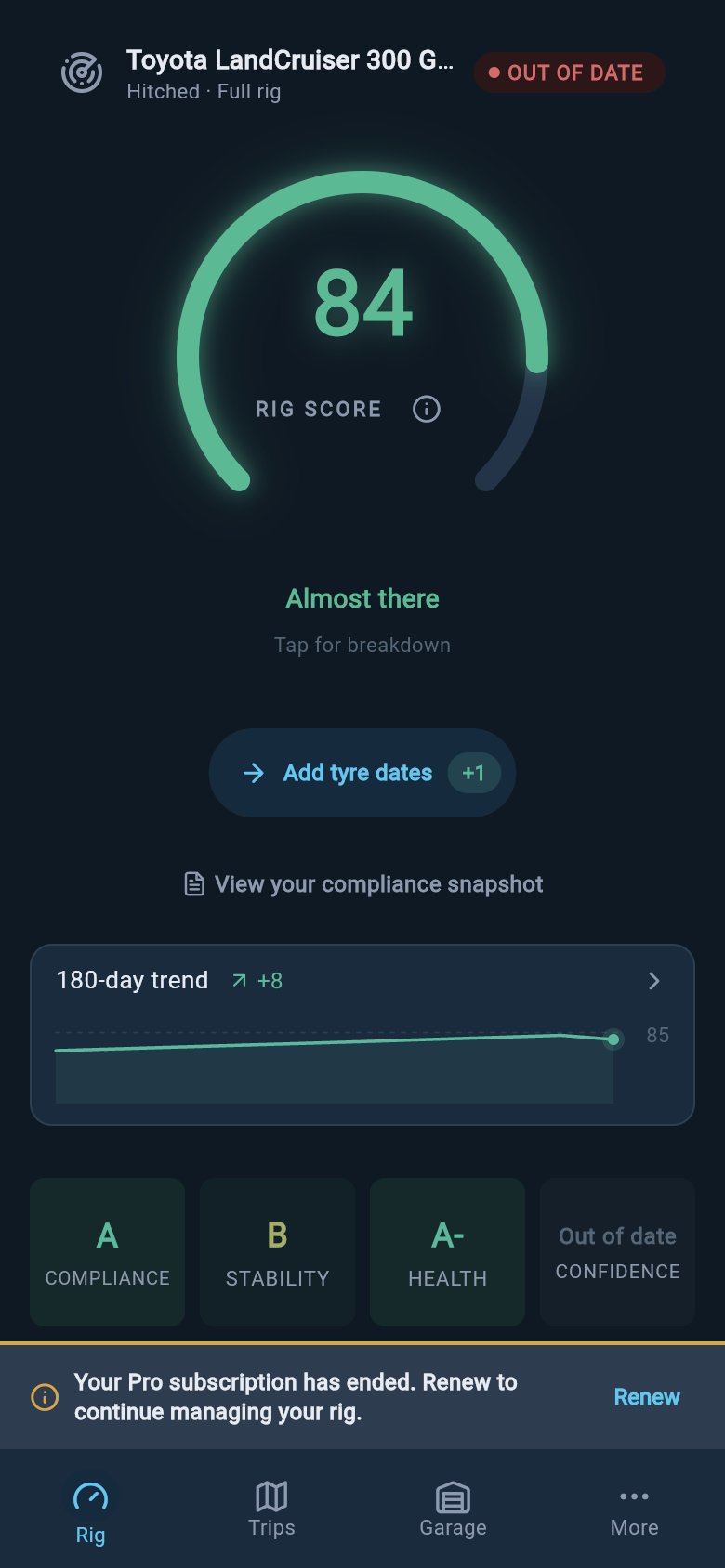
A lapsed Pro state keeps your data visible while telling you what needs renewing.
Did the upgrade sheet appear?
If you are on the free plan, the first time you try to save a real change on your own rig, loadmate opens an upgrade sheet showing the Pro price for your region. This is the expected free-to-Pro line, not an error. What you typed is held while you decide, so you can read the sheet, close it, and come back without retyping anything. Reading and exploring stay free; it is saving your own changes that needs Pro. If you would rather understand exactly what is free and what Pro adds before you decide, the free-and-pro page below lays it out. Either way, your half-finished entry is not lost just because the sheet appeared.Could not add a photo?
Adding a photo, to a warranty record, a vehicle, or a service entry, opens a chooser asking whether to use the Camera or your Photo Library. If you tap cancel, or if your device has not granted loadmate permission to use the camera or photos, the chooser closes and nothing is added. loadmate does not put up its own “permission denied” message here, so the only sign is that no photo appeared. This one is about your device, not loadmate. Open your device’s own settings, find loadmate in the app list, and turn on camera or photo access, then try adding the photo again. Once permission is granted, the chooser works normally and your photo attaches. This case can happen even to a Pro user, because it is a device permission rather than a subscription block.Work through it in order
If you are not sure which case you are in, walk the steps below from the top. They go from the most common cause to the least, and the last step catches the one situation that looks like a failed save but is really a queued one: a connection message means your change is waiting to sync, not blocked.1
Look for a banner at the top
Check the top of the screen. A demo banner means you are exploring the sample rig; a “Pro has ended” banner means your subscription lapsed. Either one explains the held save straight away.
2
Check whether an upgrade sheet appeared
If a sheet asked you to upgrade to Pro when you tapped save, that change needs Pro. Your typed work is held behind the sheet, not discarded.
3
If a photo failed, check device permission
If only a photo would not attach, open your device’s settings, turn on camera or photo access for loadmate, and try again.
4
If you saw a connection message instead
A connection message is different — the save is queued and will sync when you are back online, not blocked. See the no-connection page for what waits and what retries.
Where to go next
Free and Pro
See exactly what is free, what Pro adds, and why saving your own rig sits behind the upgrade line.
Manage your subscription
Renew a lapsed Pro, check your status, restore a purchase, or fix a status that looks wrong.
The demo rig
Learn what the demo rig is for, what you can and cannot do in it, and how upgrading clears it.
When loadmate cannot connect
A connection message means a queued save, not a blocked one — see what waits, retries, or needs support.
Reading is free for everyone, including demo and lapsed users. Saving a real change on your own rig requires Pro: a free user meets the upgrade sheet on the first save, a lapsed Pro is read-only until they renew in the app store, and demo data stays visible but cannot be edited. In every case the block is on the save, never on the work you already typed, and upgrading from demo clears the sample rig only after you purchase — renewing a returning Pro keeps your real data.