

What the issue record shows
Open an issue by tapping it on the Warranty hub. Its record is a calm, dated summary of one problem: what it is, when you first noticed it, and any evidence you saved. There is nothing to wade through, because the record only shows what you put in.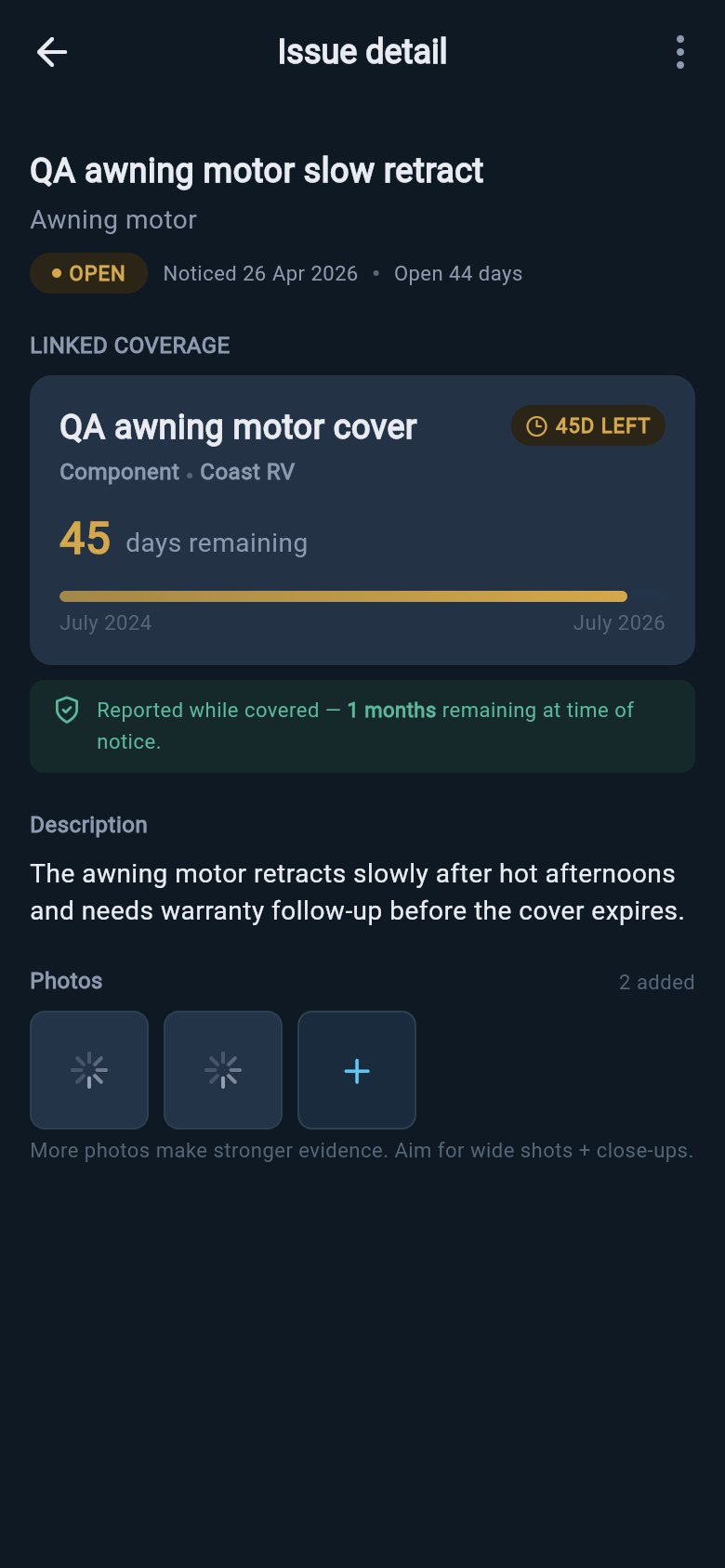
Open warranty issue detail
- The title and the date you noticed it. The title is your short name for the problem. The date is the day you first saw it, which is the detail that tends to matter most when you look back.
- The affected component, if you named one, in your own words, such as “hot water system” or “awning motor”.
- Your description, if you wrote one, kept exactly as you typed it.
- Your photos, shown as a small strip you can tap to view full screen.
- The linked-coverage card, showing the warranty you connected the issue to. If that cover was later deleted, the card simply notes the link is no longer there, and the rest of the issue stays untouched.
The record now keeps a dated timeline of the calls, emails, and visits you log against this problem, including who you dealt with on each one. What it does not do is keep a separate address book of contacts, and it never fetches or imports anything on its own — you add each update yourself, in your own words.
Your claim’s history
An issue is no longer just a single dated note. Once you have logged a problem, it carries a running timeline of everything that happens next — every phone call, email, and visit you record, newest first — together with a status that shows where the claim stands: open, in progress, resolved, or disputed. This is the evidence trail you build yourself, one update at a time, so that months later you can show exactly what was said and when. It has its own page, and so does the tidy PDF you can save from it.Track a warranty claim
Log each call, email, and visit, note what was promised and by when, and set the status as the claim moves along.
Save an evidence PDF
Turn the whole dated record into a professional PDF you can hand to a dealer, maker, or consumer-protection body.
Edit an issue
You can change almost everything about a logged issue after the fact. This is handy when you remember a detail later, or realise you logged the wrong date.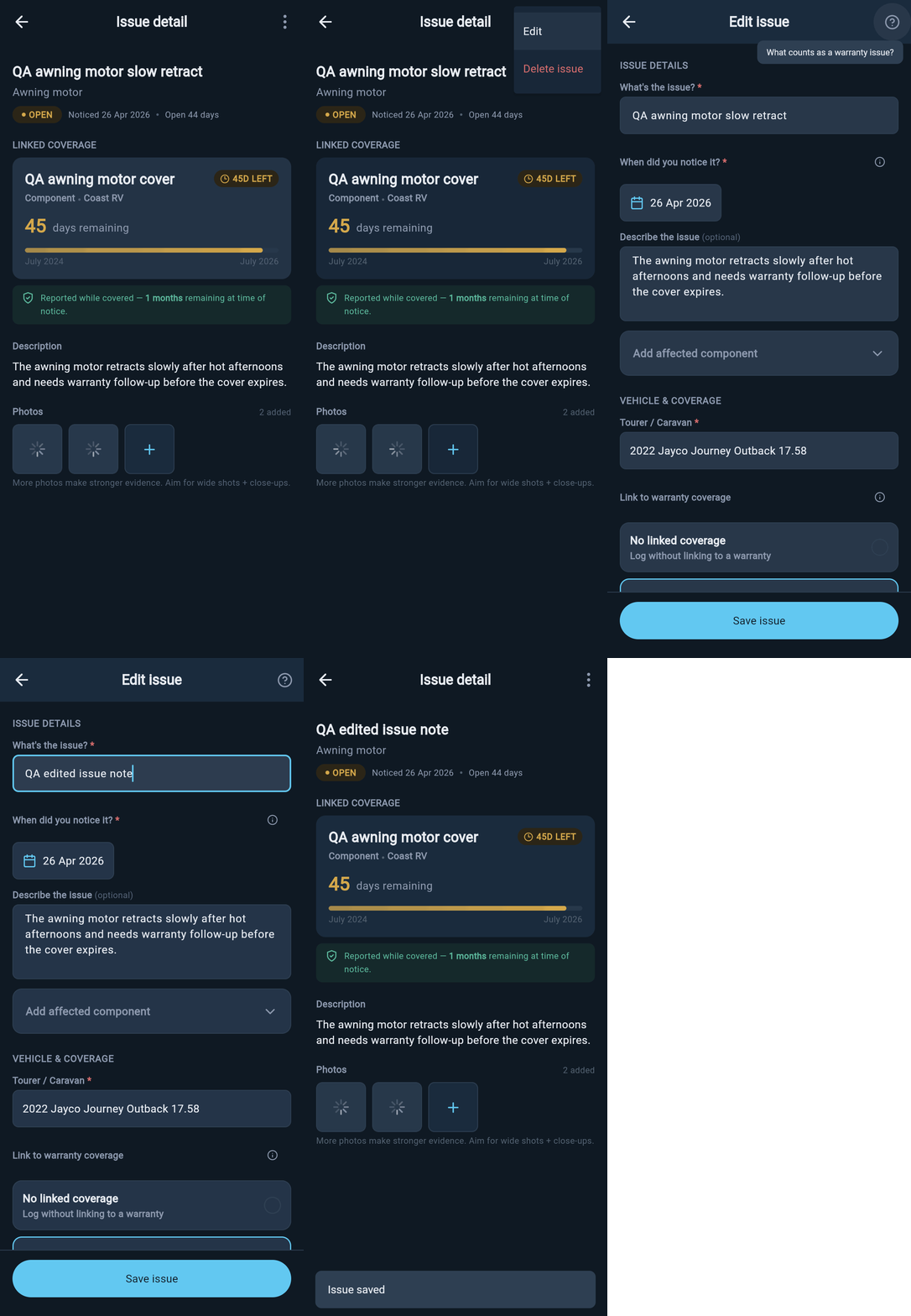
Editing a warranty issue
Add or remove photos
Photos are dated evidence. A clear picture of a cracked seal or a leaking tap, saved on the day you noticed it, backs up what you wrote far better than a description on its own. You can add to an issue’s photos, or remove one, at any time.
Warranty issue photos
Photos belong to the issue you add them to. Removing a photo here does not touch the same image anywhere else on your device or in any other record.
Remove an issue
If a problem was logged by mistake, or you no longer want to keep it, you can delete the whole issue from its record.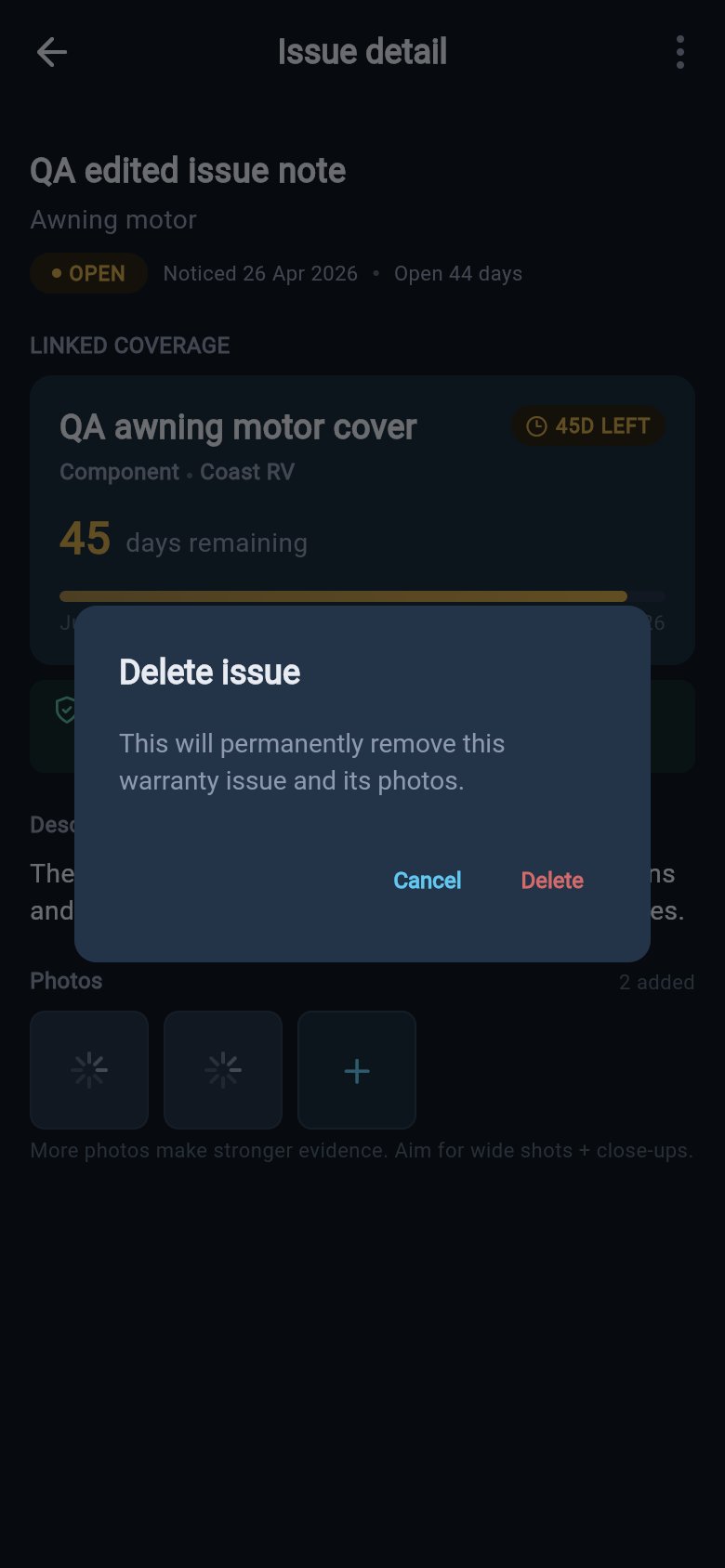
Delete issue confirmation
What Warranty does not do
Warranty keeps your own dated history: your cover, the warnings as it nears expiry, the problems you log, and the running record of what happens as you chase each one. The point is that it is simply there, ready, when a dealer or maker asks “when did you first notice this?” or “was it still under warranty?”. You answer from a record you made at the time, not from memory.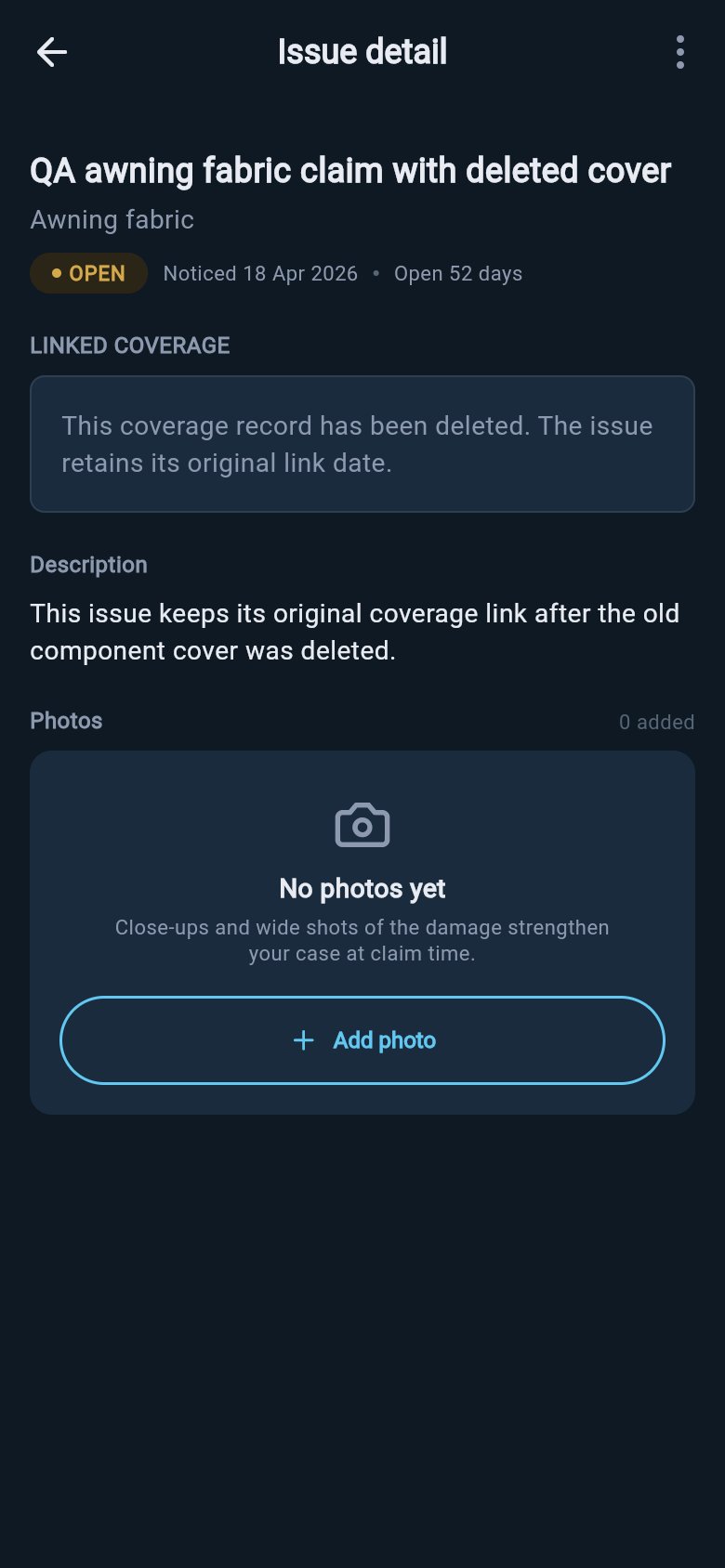
Deleted coverage fallback
- Lodge, submit, or chase a claim for you.
- Contact a dealer, supplier, or manufacturer on your behalf.
- Interpret your warranty terms, predict an outcome, or give legal advice.
- Link to your service records, or change anything about your insurance.
Where to go next
The issue record is one piece of your rig’s dated history. These pages cover the rest.Track a warranty claim
Keep a dated record of every call, email, and visit, and set the status as the claim moves along.
Save an evidence PDF
Save the whole claim as a tidy, branded PDF to hand to a dealer, maker, or consumer-protection body.
Log a warranty issue
Record a new problem the moment you notice it, with the date, a photo, and a link to the cover that applies.
Warranty expiry warnings
See how loadmate counts down to each expiry date and where it warns you before cover lapses.
Review service history
Look back over every service you have logged, for warranty evidence or your own peace of mind.
Looking around is free for everyone, including demo and lapsed users: you can open any issue, view its photos and linked coverage, and reach the edit form without Pro. Saving a change on your own rig requires Pro, whether that is editing an issue, adding or removing a photo, changing the linked coverage, or deleting the issue. Demo data stays visible so you can see how a record looks, but it cannot be edited.