

Reading a completed trip is free for everyone, including demo. Demo trips are read-only, so you can look around a finished demo trip without changing anything. Starting a new trip from one (Duplicate) is a Pro action.
The completed trip story
Open a finished trip from your Trips list. The top of the screen sets the scene. There is a small Completed badge and a tag naming the rig you took. A line tells you when you got back: Returned today, Returned yesterday, or Returned 6 days ago. Then comes the headline of the trip itself, the route you travelled. Below that sits a route map and the headline numbers for the whole trip.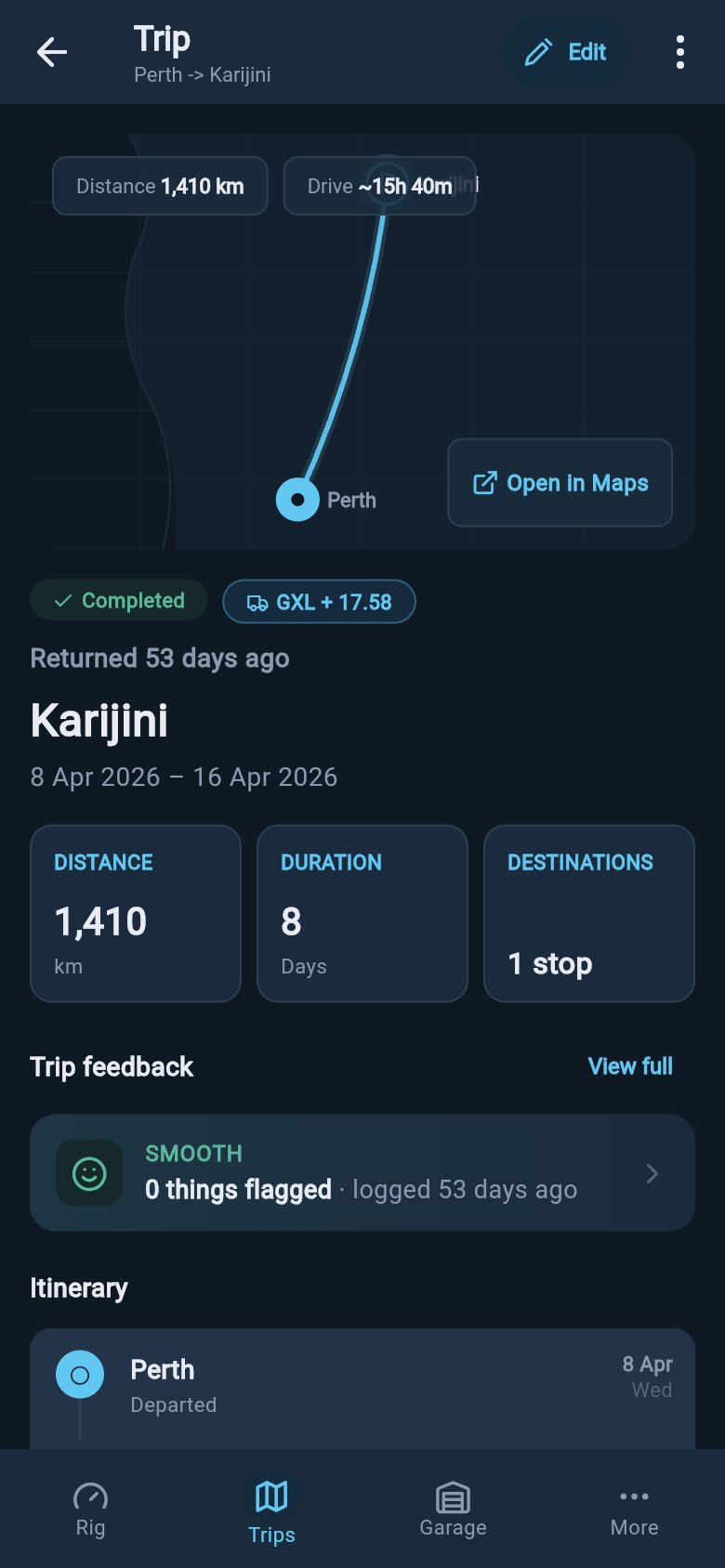
- Distance — how far you travelled, shown in the units you use (kilometres or miles).
- Duration — how many days you were away.
- Destinations — how many stops the trip had, such as “Direct”, “1 stop”, or “3 stops”.
Open in Maps
The route map at the top is a still picture of where you went. Tap Open in Maps and loadmate hands the route to your phone’s own maps app: your start, your stops, and your destination. You can then see it on a full, live map there.loadmate does not give you turn-by-turn directions or a moving map inside the app. Open in Maps simply passes the route to the maps app you already use, where the real navigation lives.
What the headline numbers mean
What the headline numbers mean
- Distance is the length of the route you planned and travelled, in your own units. If a trip never had a measurable distance, this row stays out of the way rather than showing a zero.
- Duration counts the days from when you left to when you returned.
- Destinations counts the stops on the route. A straight there-and-back reads as “Direct”. A touring loop shows the number of stops you made.
Your saved feedback
After a trip, loadmate asks you a gentle question: how did it go? Whatever you answered comes back here as a preview. The feeling of the trip lives alongside the route and the numbers. The preview leads with the tone you chose:- Smooth — nothing of concern. The trip towed the way you expected.
- Mixed — mostly fine, with a thing or two worth noting.
- Rough — something needed attention, or the trip felt unsettled.
Why this can happen
Inside the full view, each thing you flagged carries its own Why this can happen section. Tap it open and loadmate reads your symptom against the rig you actually towed that day — the snapshot it saved when you submitted the feedback — and explains the connection in a couple of plain sentences, using your own numbers. Report sway, for example, and it checks what your tow-ball weight was carrying that day — nose weight or tongue weight in your region’s words — against the steady band for your setup: “On this trip your tow ball mass was about 7% of the van’s weight — below the steady band for your setup (9–11%). A light ball lets the van steer the car instead of following it. Moving weight forward of the van’s axles is the usual fix.” A Learn more in the glossary link sits underneath if the term is new to you. loadmate is careful about what it claims here:- When the numbers point somewhere, it says so and names the usual fix.
- When your setup looked right, it says exactly that — and points to the things it cannot see, like crosswinds, passing trucks, or tyre pressures. If you noted those conditions yourself, it acknowledges them: “You noted crosswinds on this trip, which fits.”
- When there was not enough setup data from that trip, it says that too, and suggests a weigh-in so the picture is complete next time.
- When something needs a workshop first — a brake that grabbed, damage, heat, or a smell — the setup explanation stands aside entirely. Inspection advice always comes before load theory.
These explanations describe your setup; they never judge a past trip. And they never touch your Rig Score — the score and its limits always come first.
When a smooth trip earns it
If you logged a smooth trip and the numbers genuinely back it — everything under its limits, tow-ball weight in the steady band, a ready-band score at departure — a small card appears beside the preview: That steadiness was you. It quotes the figures from the day you set off. Trips feel planted when the setup is right, and this is loadmate telling you yours was. If anything was over a limit that day, the card never appears, however smooth the trip felt. If you have not given feedback yet and a trip is still recent, this section shows a calm prompt instead of nagging you: How did this trip go? with a Log feedback action. If more time has passed and you never logged anything, it simply reads No feedback saved yet, with no prompt. For how the feedback questions work and how to fill them in, see Finish a trip and give feedback.You do not re-enter feedback here. This is the saved copy. To change it, open it with View full and tap Edit.
Worth a workshop check
Some of the things you can flag in feedback are always worth a professional look: a brake that grabbed or pulled, a symptom that never settled, something that happened more than once, or anything involving damage, heat, or a smell. When your answers match one of those, the trip’s feedback carries a Worth a workshop check card. It lists the reasons in plain words — “Sway or wandering didn’t settle during the trip”, “Damage, heat or smell was reported” — so you can see exactly why it is suggesting a check. Under the reasons sits one button: Add to Maintenance. Tap it and loadmate creates a real maintenance task for the right asset, carrying the urgency your answers suggested — urgent flags are marked to check before your next tow. Until you tap it, this card is a recommendation and nothing more. The moment a task exists, the card switches to task language and links you to it.In the United States this card reads Worth a shop check — same card, your region’s words.
Follow-up tasks from this trip
Sometimes a trip leaves you with a job to do, such as a wheel to inspect or a service to bring forward. If your feedback created one of these, it appears here under Follow-ups from this trip. Tapping the row opens the real job over in your Maintenance area. Each row is labelled “Created from trip feedback”, with a View action. An All maintenance link sits at the top of the section so you can jump to the full list. Because of that, only genuine, saved jobs ever show up here. You will never see an inspection or a tyre check that loadmate dreamed up. And if a trip left nothing to follow up on, this section simply does not appear. No empty box, no nagging line. Its absence is the good news. For what a maintenance task is and how it is tracked once it lands, see your Maintenance area through the All maintenance link.Reuse this trip
The trips you enjoy are the ones you will want to do again. Rather than re-type every stop, you can start a fresh planned trip from a finished one.1
Open the finished trip and tap Duplicate
On the completed trip, tap Duplicate. This begins a new planned trip built from this one. Its route, its stops, the same rig, and your notes all carry across.
2
Pick the dates
A Choose new dates sheet opens. loadmate explains that it will copy the route, stops, rig, notes, and attachments. So the only thing it asks for is when you are going. You set two dates: a Start date and a Return date.
3
Create the new trip
Tap Create trip and loadmate builds the new planned trip and opens it, ready for you to adjust anything before you travel.
Duplicate is a Pro action. The “Choose new dates” sheet opens for everyone so you can see how it works, but creating the new trip needs Pro. On a demo trip, loadmate shows the demo read-only message instead, because demo data cannot be changed.
Quick share
From a finished trip you can send a quick, plain-text summary to family or friends: where you went and when. Tap Share and your phone’s normal share options open, with the route and the dates ready to go. Send it by message, email, or anywhere else you share things.This plain-text Share is free for everyone. There is no Pro gate on it.