

Find the vehicle or trailer
Open your garage and tap the vehicle or trailer you want to update. That opens the asset’s profile. From there, choose the section that holds the value you need to correct:- Edit specs for the legal rating numbers — the loaded vehicle limit, the combined limit, braked towing capacity, axle limits, the trailer’s loaded limit, and the maximum coupling load.
- Edit baseline weight for the empty starting weight loadmate begins from before it adds passengers, cargo, accessories, trailer load, and coupling load.
Field guide for common mix-ups
The acronyms blur together, and the same document often carries half a dozen of them. Use this table to put each figure where it belongs — and, just as important, where it does not.
If a value is printed on a trailer plate, use it for the trailer. If it is printed on a vehicle plate or in the vehicle manual, use it for the tow vehicle. If a seller’s brochure disagrees with the plate, treat the plate as the figure to trust.
Edit specifications
Open Edit specs when a legal rating number is wrong or incomplete. The form arrives pre-filled with what you saved before, so change only the fields that need correcting and leave the rest alone.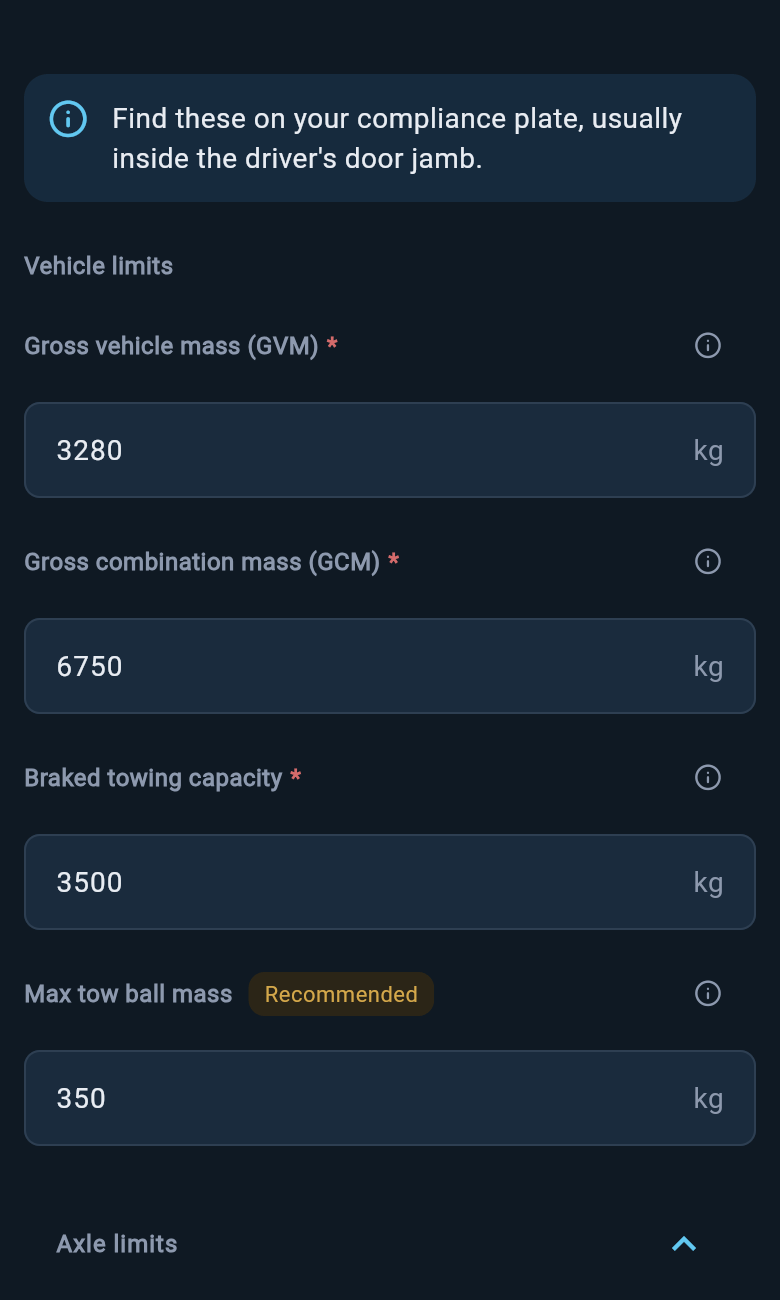
Vehicle specifications form
- Loaded vehicle limit — GVM in Australia, MAM in the UK, GVWR in the US and Europe/international. Required.
- Combined vehicle and trailer limit — GCM in Australia, GTW in the UK, GCWR in the US and Europe/international. Required. loadmate will not accept a combined limit lower than the vehicle’s own loaded limit, because the combination can never legally weigh less than the vehicle alone.
- Braked towing capacity. Required.
- Maximum coupling load — tow ball mass, nose weight, or tongue weight. Marked Recommended: optional, but worth adding if your plate lists it.
- Front and rear axle limits. Optional, tucked under an expandable Axle limits section.
Take each number from one physical document at a time. Reading every figure off the same compliance plate, label, or specification sheet keeps your ratings consistent and avoids quietly mixing values from two different sources.
Edit a tow vehicle’s starting weight
Open Edit baseline weight when the empty starting weight needs adding or correcting. This is the weight loadmate begins from before it adds people, cargo, accessories, trailer load, and coupling load — so if it drifts, every load and compliance check downstream of it drifts too. The tow vehicle’s baseline form has two tabs, and you pick the one that matches what you actually have. Use Factory when you are working from the manufacturer’s published kerb, curb, tare, or unladen weight.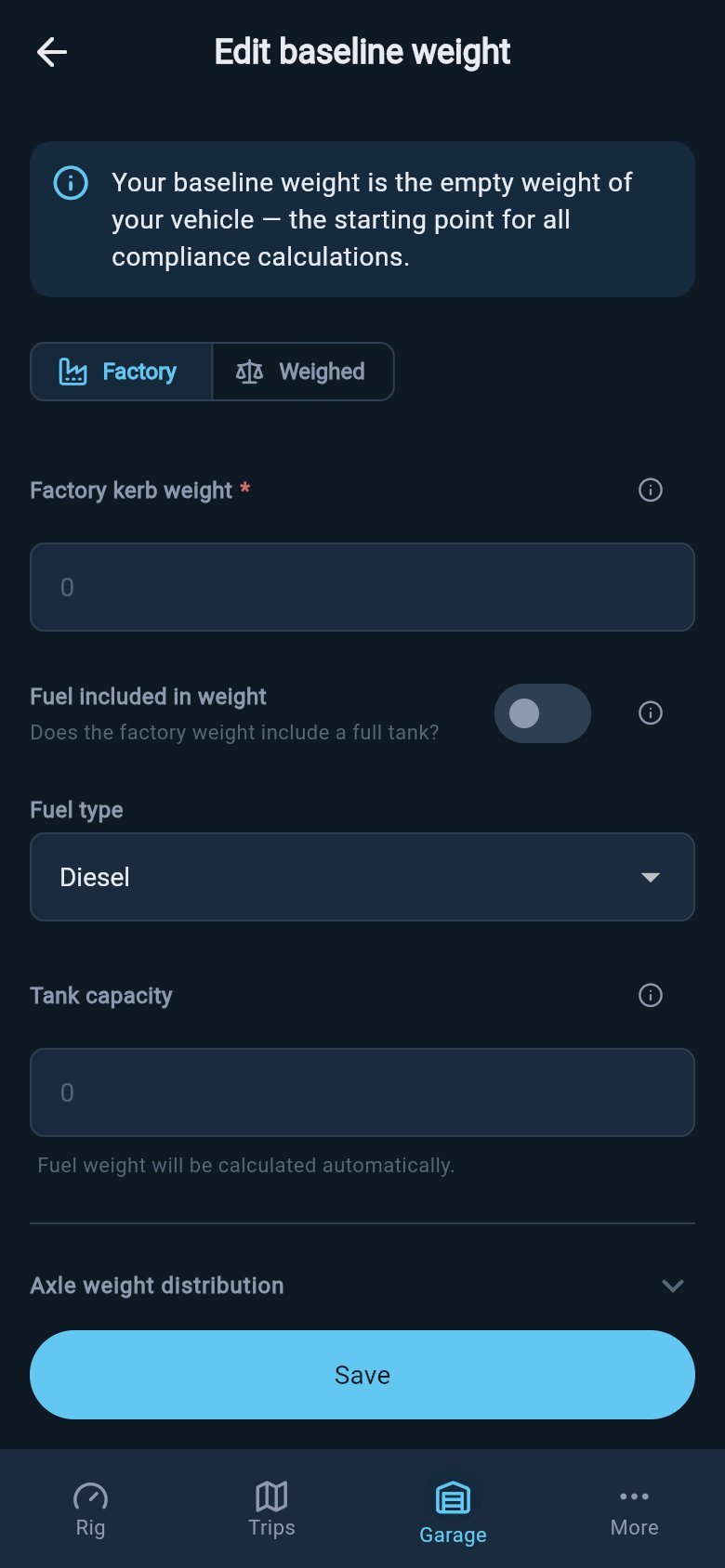
Factory baseline weight
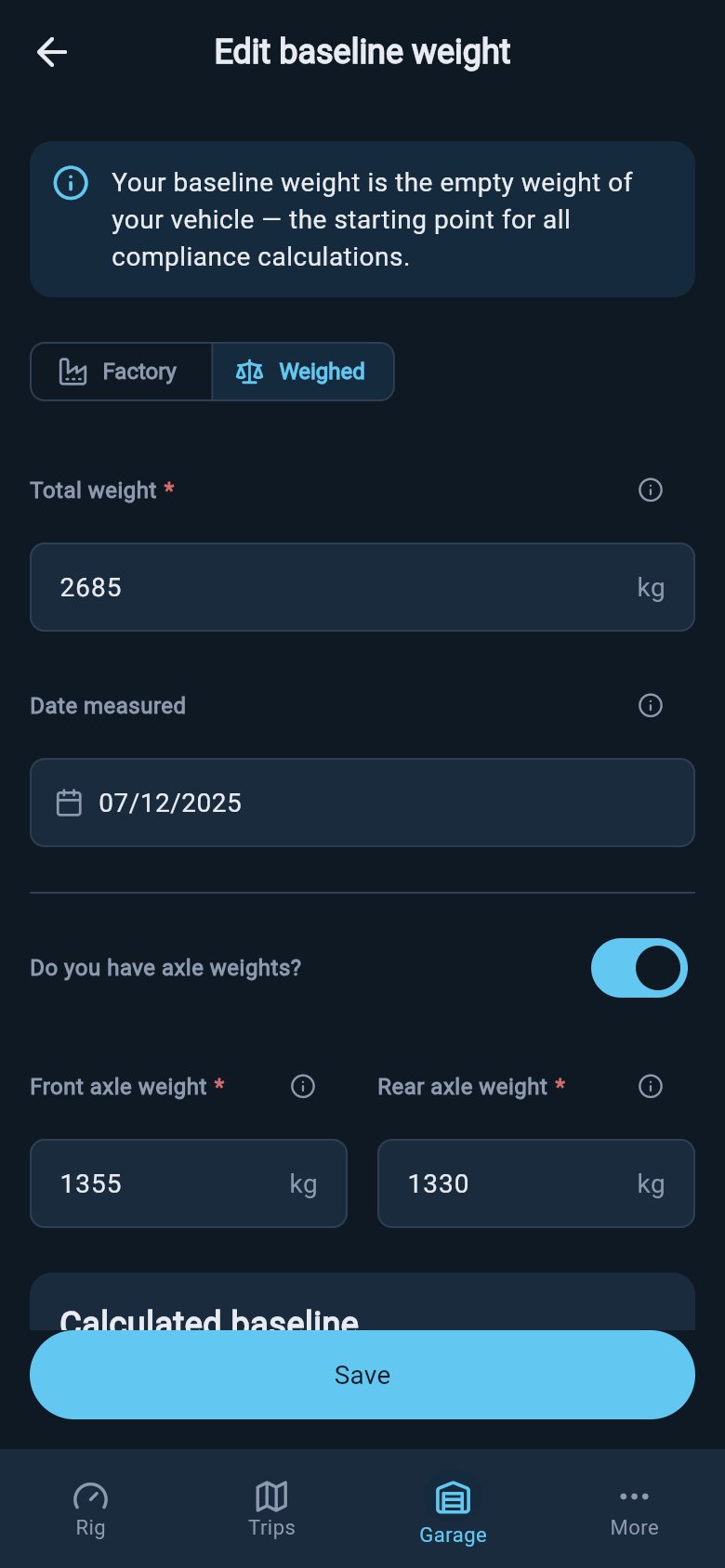
Weighed baseline with axle weights
Edit a trailer’s starting weight
A trailer’s Edit baseline weight form is laid out differently from the tow vehicle’s, because what matters for a trailer is how its empty weight divides between the coupling and its axles — not a front and rear axle split. There is no “Do you have axle weights?” toggle here. You still choose between two tabs at the top:- Factory when you are working from the trailer manufacturer’s published tare, unladen, or MiRO weight.
- Weighed when you have a measured trailer weight from a weighbridge or mobile weighing service, with the date it was taken.
- Enter Weight when you know the exact tow ball, nose, or tongue weight at the empty trailer’s coupling — for example from a ball-weight scale. You type that figure in, and loadmate shows it as a percentage of the trailer’s weight so you can sanity-check it.
- Estimate % when you do not have a measured coupling weight. You drag a slider to set the tongue weight as a percentage of the trailer’s weight, and loadmate works out the coupling load and the axle-group load from it.
A tow-ball scale or coupling-weight reading does not replace the vehicle’s or trailer’s starting weight. It only tells you the load pressing down through the coupling. Use Record a weigh-in for measured weights, and Update tow-ball weight for the coupling reading.
What happens when you save
There is no extra “recalculate?” prompt on the specs and baseline forms. When you save, loadmate quietly rebuilds the compliance limits from your new figures and marks your Rig Score as needing a refresh. The next time you open the Rig tab, it works out a fresh score against the corrected numbers. So a corrected rating or starting weight can move your score up or down, and that is exactly what should happen. The score is not punishing you for editing; it is showing you a truer picture of the rig now that the limits match your documents. If the Rig tab shows a new warning or a missing-data line, open it to see what the change affected and what to do next.Saving a real change to your own vehicle or trailer data needs Pro. You can open these forms, read your current figures, and look around for free, but committing an edit on your own rig is a Pro action. Demo data stays visible so you can explore the screens, but it cannot be edited.
Units follow your region
You type figures in the units you already use. If your region is set to imperial, the fields read and accept pounds, and loadmate converts to its internal store for you; if your region is metric, you work in kilograms. You never do the maths yourself — enter the number as your plate or ticket prints it, in the unit shown beside the field, and loadmate handles the rest.Keep a note of the source
loadmate stores the rating or weight value, not the document it came from. Keep your own record of where each figure originated — a photo of the compliance plate, the towbar label, the specification sheet, or the weighbridge ticket. If a figure is ever questioned, that photo is your evidence. loadmate is not the source of truth for a rating. The figure on your plate, label, manufacturer’s documents, or measured ticket is. loadmate holds the value so it can run your checks against it, and warns you when the rig is approaching a limit — but it is your plate that draws the line.Try it now
Open one of your saved assets, go to Edit specs, and confirm each rating still matches your compliance plate or source document. Then open Edit baseline weight and check whether the starting weight is factory-based or measured. Correct anything that has drifted, save, and return to the Rig tab to see the refreshed score.Where to go next
Add a trailer
Setting up a caravan or trailer? Add it here, then come back to fine-tune its ratings and baseline.
Record a weigh-in
Replace an estimated baseline with a measured one from a weighbridge or truck scale.
What is the Rig Score
Understand how your ratings and starting weight feed the score you see.
Add a tow vehicle
Setting up a new rig from scratch? Start here, then come back to fine-tune the ratings.
loadmate works from the numbers you enter. Keep your source documents handy, and use a weighbridge, truck scale, or local authority when you need official evidence.