

The new-trip form opens for everyone, so you can see exactly what it asks for. Saving a trip to your own rig needs Pro, and demo data is read-only — you can look around a demo trip but not save changes to it.
Open the new-trip form
Open the Trips tab from the bottom of the screen. Your upcoming and completed trips are listed there. To start a new one, tap Add, the button with the plus sign near the bottom of the list. There is no “what kind of trip?” question first. Tapping Add takes you straight into the planning form. On a phone it slides up from the bottom of the screen. On a tablet or a wide window it opens as a panel in the middle. Either way it asks for the same things, in the same order.The form is headed Planned trip. A planned trip is one with a destination and dates. That is the kind loadmate uses to check your readiness before you set off.
Set the destination and dates
These are the two things loadmate really needs. Once it knows where you are headed and how long you will be away, it can work out which checks matter and roughly how far you are going.1
Type where you are going
In the Where are you going? field, start typing the town, park, or place. As you type, loadmate offers matching suggestions. Tap the right one and the address fills itself in. Choosing a suggestion, rather than typing free text, is what later lets loadmate sketch the route and work out the distance.
2
Pick your leaving and returning dates
Tap Leaving to choose the day you set off, and Returning to choose the day you get home. Both are needed. The pre-trip checklist uses that window to decide what to watch: a service that falls due while you are away, say, or a tyre that crosses an age warning before you return. The Returning date cannot fall before the Leaving date. loadmate will ask you to fix the order if it does.
3
Set where you are leaving from (optional)
By default loadmate departs from Current location. If you are setting off from somewhere else, such as a friend’s place or a storage yard, open Starting from and type the starting point. Leave it alone and loadmate assumes you are leaving from where you are now.
Choose the route shape
Under the destination, loadmate shows a small callout describing the shape of your trip, such as Round trip — returns to home, with a Change link beside it. Tap Change to open the shape picker. There are three shapes to choose from:- Round trip
- One-way
- Loop
You travel out to your destination and come back to where you started. This is the everyday holiday shape: home to the coast and home again. loadmate measures the full there-and-back distance.
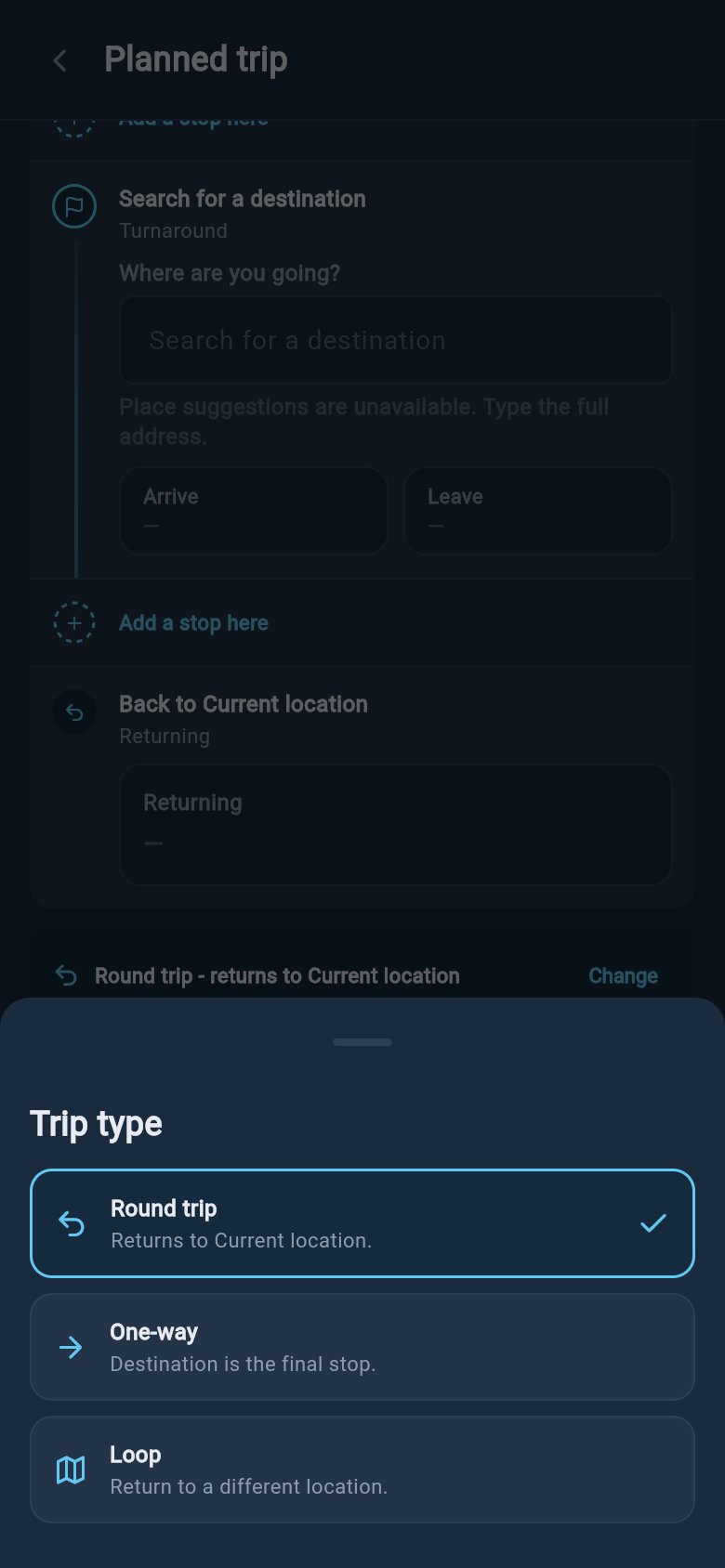
You can switch the shape at any time while you are filling in the form. Changing it only affects how loadmate draws and measures the route. It does not lose the destination or dates you have already entered. Switching away from Loop simply drops the separate return place.
Add stops along the way
If your trip has stops between home and your destination, add them as stops so the route reflects the real drive. A stop might be an overnight halt, a town to fuel up and stretch, or a relative to visit.1
Add a stop
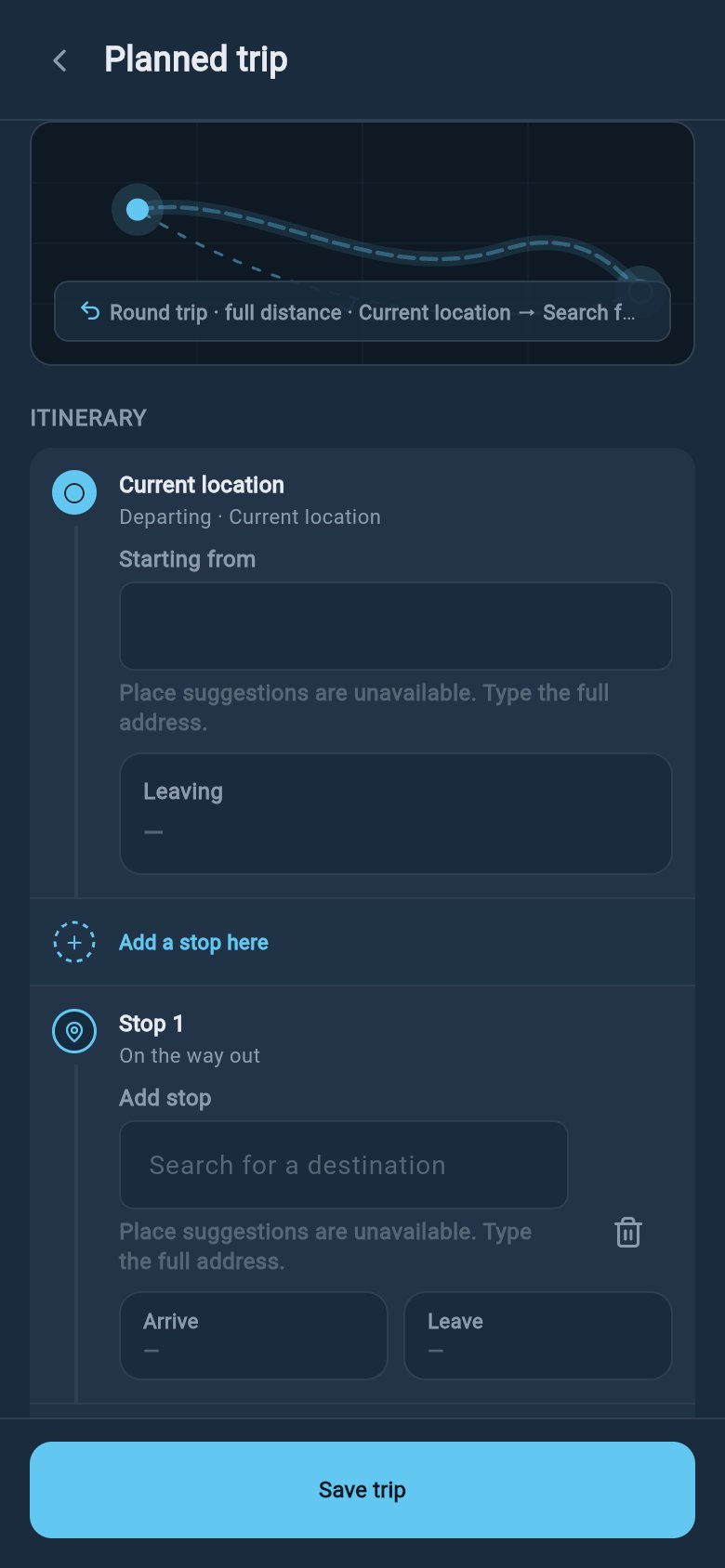
Tap Add stop and type the place. You will also see Add a stop here between points on the timeline. As with the destination, the suggestions help you land on the right spot.
2
Give the stop its own dates (optional)
Each stop can carry its own Arrive and Leave dates, so loadmate knows roughly when you will be where. These dates must sit inside your trip window, between your Leaving and Returning dates, and a stop’s Leave cannot be before its Arrive. loadmate will gently point out any date that does not fit.
3
Edit or remove a stop
Tap a stop to change its place or dates. Tap the bin icon to remove it if your plans change. Add as many as your trip needs.
Choose the rig you are taking
This is the quiet but important one. Your rig is the tow vehicle paired with the trailer or caravan you are towing: the exact setup you will have on the road. The form shows it on a Configuration row near the bottom. If you only have one rig, it is already chosen and you can move on. If you have more than one vehicle or trailer, tap Change on that row to open Choose trip rig and pick the pairing you will actually tow. This matters because the pre-trip checklist reads from that exact rig, not from every asset in your garage. Your weights, your loads, your score, and your tyre and service status all come from the rig you choose here. For those checks to be worth trusting, it helps to make the chosen rig current before you lean on it. None of this happens on the trip form. It lives on the rig itself. A quick pass now saves surprises later:Loads match what you are taking
Add, remove, or adjust gear so your load list reflects this trip.
Water, gas, and fuel levels
Set fill levels for tanks and bottles so the weight is realistic.
Tyre details are entered
Add manufacture dates and load ratings so the tyre checks can read.
A recent weigh-in if you have one
A fresh weighbridge or scale reading lifts the confidence in every number.
Add notes and photos
If you want to keep trip details in one place, open Add more details near the bottom of the form. There you will find:- Notes — a free-text field for anything you want to remember: a campground booking reference, a gate code, who you are meeting, what time check-in is.
- Attachments — tap Add files to attach up to five photos, such as a snapshot of a booking confirmation or a map you saved.
Distance and the route map
While you are filling in the form
While you are filling in the form
loadmate draws a small route preview that updates as you add the destination, the stops, and the route shape, so you can watch the trip take shape at a glance. This preview is a simple sketch, not a street map. It is just there to show the order of your stops.
After you save
After you save
Once the trip is saved, loadmate works out the distance for the route and fetches a small route map from Google. The map appears on the trip alongside a rough drive estimate. It is a picture of the route and a distance figure, a calm reference rather than a live map.
After you save
Tap Save trip when the destination, dates, and rig read the way you want. The trip lands in your list on the Trips tab, under your upcoming trips. From there it sits quietly until departure draws near. The active checks begin about two weeks before you leave, and that is when the readiness checklist comes to life. Readiness is a short pre-departure list. It fills itself in as your leaving date approaches, showing what needs attention while there is still time to act. It shows a plain count, such as 3 pre-trip checks pending, or No outstanding checks when you are clear. There is no score and no progress bar, so it never feels like a test.What does readiness actually check?
What does readiness actually check?
Readiness combines two things. First, items tied to your trip window: a service or warranty falling due while you are away, or a tyre crossing an age threshold by your return. Second, a few current findings from your chosen rig that matter before departure. It is not a safety score. Your Rig Score is shown separately on the Rig tab. For the full list of what can appear, see The pre-trip checklist.
How do I change, copy, or remove a trip later?
How do I change, copy, or remove a trip later?
Open the trip from your list to edit its dates, destination, stops, notes, or rig. You can also duplicate a trip to reuse it as a starting point, or cancel and delete one that is no longer happening. Editing the dates can shift which readiness items appear, because the window has moved. After a change, reopen the trip and glance at the checklist again. Starting, logging changes during, and finishing a trip are all covered on During your trip.