

First, your phone has to allow it
Before loadmate can send you anything, your phone has to give it permission. That is a setting on the phone itself, not inside loadmate, so it is the first thing to check.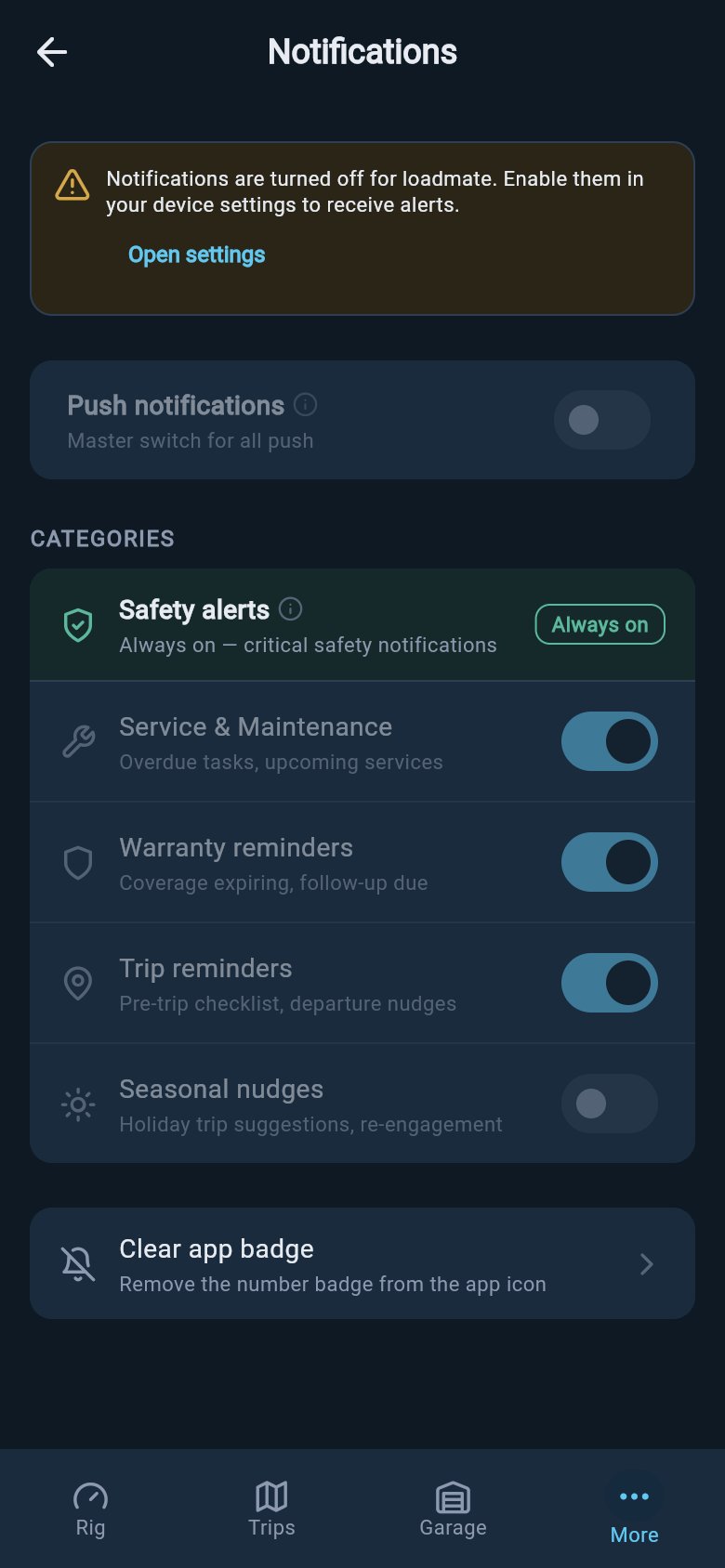
When your phone blocks notifications, a yellow banner and an Open settings button appear, and the switches below are greyed out.
When notifications are switched on, that yellow banner is replaced by a calm blue one reminding you that these settings control push notifications only — your in-app alerts in the Attention Feed are always shown either way.
The master switch: Push notifications
At the top of the list sits one switch that governs all the rest: Push notifications, with the note Master switch for all push beneath it. Think of it as the main tap. When it is on, the reminder categories underneath become live and you can pick and choose between them. When it is off, all of those categories dim together and stop responding — a single, easy way to silence every reminder without losing your individual choices.This switch only becomes available once your phone is allowing notifications. If it looks greyed out, that is the phone still blocking them — sort that out first using Open settings, then this switch will come to life.
What each category covers
Below the master switch, under the heading CATEGORIES, loadmate groups its reminders so you can keep the ones that matter to you and quieten the rest.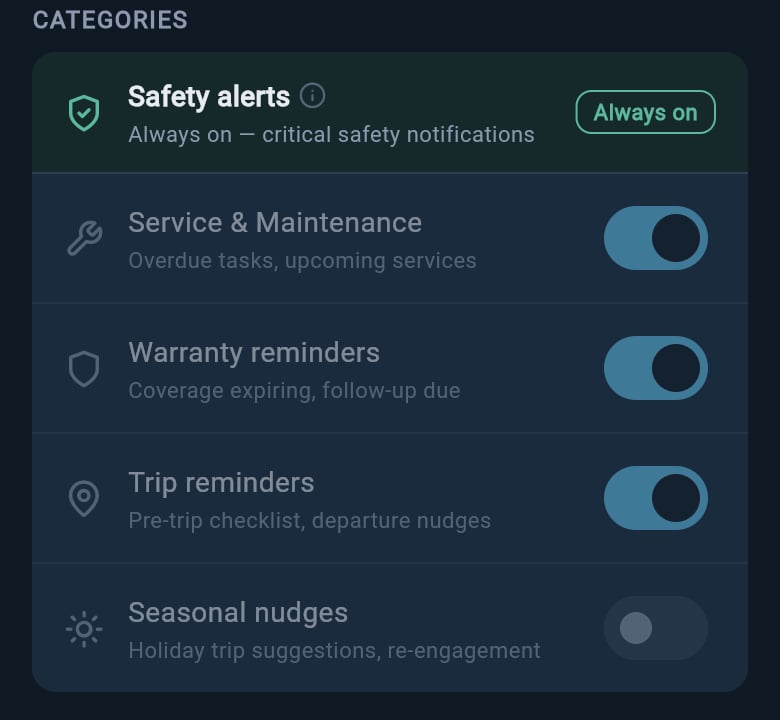
Safety alerts stays always on with no switch, while the four reminder categories beneath each have their own switch.
- Service & Maintenance — Overdue tasks, upcoming services. A nudge when a job you have recorded is coming due or has slipped past.
- Warranty reminders — Coverage expiring, follow-up due. A heads-up as a warranty window approaches its end, or when a recorded issue needs a follow-up.
- Trip reminders — Pre-trip checklist, departure nudges. A prompt to run through your checks before you set off.
- Seasonal nudges — Holiday trip suggestions, re-engagement. The occasional gentle suggestion as the seasons turn.
These four switches only come to life when two things are both true: your phone is allowing notifications, and the Push notifications master switch is on. If a row looks greyed out, check both — the phone first, then the master switch.
Push notifications vs in-app alerts
It is worth being clear about what these switches do and do not change. Everything on this page controls push notifications — the messages that reach you when loadmate is closed or in the background. They do not touch what you see inside the app. The Attention Feed — loadmate’s running list of things that need a look — is always shown, no matter how these switches are set. So if you prefer a quiet phone and turn most reminders off, nothing is lost. The same items are still waiting for you in the app the next time you open it.Clear the app badge
At the foot of the screen is a row called Clear app badge, with the note Remove the number badge from the app icon. That little number that sometimes sits on the loadmate icon on your home screen is the app badge. Tapping this row clears it, and loadmate confirms with a brief Badge cleared message. It only tidies the number on the icon — it does not dismiss anything inside the app or empty your Attention Feed, so the items themselves are still there for you when you open up.If notifications are not arriving
If reminders have gone quiet, work through these in order — they follow the same path the screen lays out, from the phone inward.1
Check your phone is allowing them
Open this Notifications screen. If you see the yellow Notifications are turned off for loadmate banner, tap Open settings, allow notifications for loadmate on your phone, then return here. This is the most common cause.
2
Check the master switch is on
With the phone allowing notifications, make sure the Push notifications switch near the top is on. If it is off, every category is silenced at once.
3
Check the specific category
Find the category for the reminder you were expecting — say Service & Maintenance for a service nudge — and confirm its switch is on.
4
Check there is something to remind you about
A reminder needs underlying detail to fire. If a service has no due date saved, or a warranty has no expiry recorded, there is nothing yet for loadmate to count down to. Add the missing detail and the reminder has something to work from.
Where to go next
These pages cover the data your reminders draw on, and the regional settings that shape how loadmate speaks to you.Region and units
Set your region so loadmate uses the right terms and units throughout the app.
Service records
Keep your service history current so Service & Maintenance reminders have something to count down to.
Warranty coverage
Record coverage and expiry dates so warranty reminders can warn you before a window closes.
Pre-trip checklist
See what your trip reminders nudge you towards before you set off.