

End the trip
While a trip is in progress, one button waits at the bottom of the trip: End trip. It only appears once a trip is under way. An upcoming trip has no “End trip” button, and there is no “Start trip” button to look for here either. Tap End trip when you are home and unhitched. loadmate then walks you through three short steps, in order: the odometer reading, a quick weight review (only if you logged weight changes on the road), and then feedback.1
Tap End trip
Open the trip and tap End trip at the bottom. This only appears while the trip is in progress.
2
Confirm the odometer
loadmate offers the projected reading. Accept it, type the real one, or skip.
3
Keep or revert any weight changes
If you logged changes while away, you decide whether they stay in your setup.
4
Add feedback, or do it later
Tell loadmate how the rig felt — or tap to be reminded another time.
The odometer prompt
The first thing you see is Update odometer. loadmate already knows roughly how far you travelled, so it offers a projected reading for your tow vehicle and asks if that looks right. You have three choices:- Accept — take the projected figure. This is the quick path when the trip went as planned.
- Enter actual — type the real number off your dashboard into the Actual reading field. Use this when you want it exact.
- Skip — move on without recording anything this time.
loadmate guards against winding the odometer back by accident. If the number you enter is lower than the reading already on file, it does not just accept it. It stops, shows you both readings, and offers to keep the latest one it holds or to correct the original setup figure. You choose. Nothing changes quietly behind your back. You can review or fix any reading later on Your odometer history.
Why does the trailer keep its own mileage?
Why does the trailer keep its own mileage?
A caravan or trailer wears with the distance it travels, not the distance a particular tow vehicle has done. By advancing the trailer’s reading on its own, loadmate can age its tyres and time its servicing on its real distance, whichever vehicle is on the front. If you sell the tow vehicle and buy another, the caravan’s history stays intact.
Keep or revert weight changes
This step only appears if you logged weight changes while you were away: filling or emptying water, buying supplies, dropping off gear, and so on. If you did, loadmate shows Trip weight changes and asks one plain question. Keep these changes in your load setup, or revert to how it was before the trip?- Keep changes — writes the changes you made on the road into your normal packing setup, then refreshes your Rig Score to match. Choose this when the new arrangement is how the rig will travel from now on. For example, you finally added that second water tank for good.
- Revert — leaves your usual setup exactly as it was before the trip. Choose this when the changes were just for this trip, like extra supplies you have since used up.
Add post-trip feedback
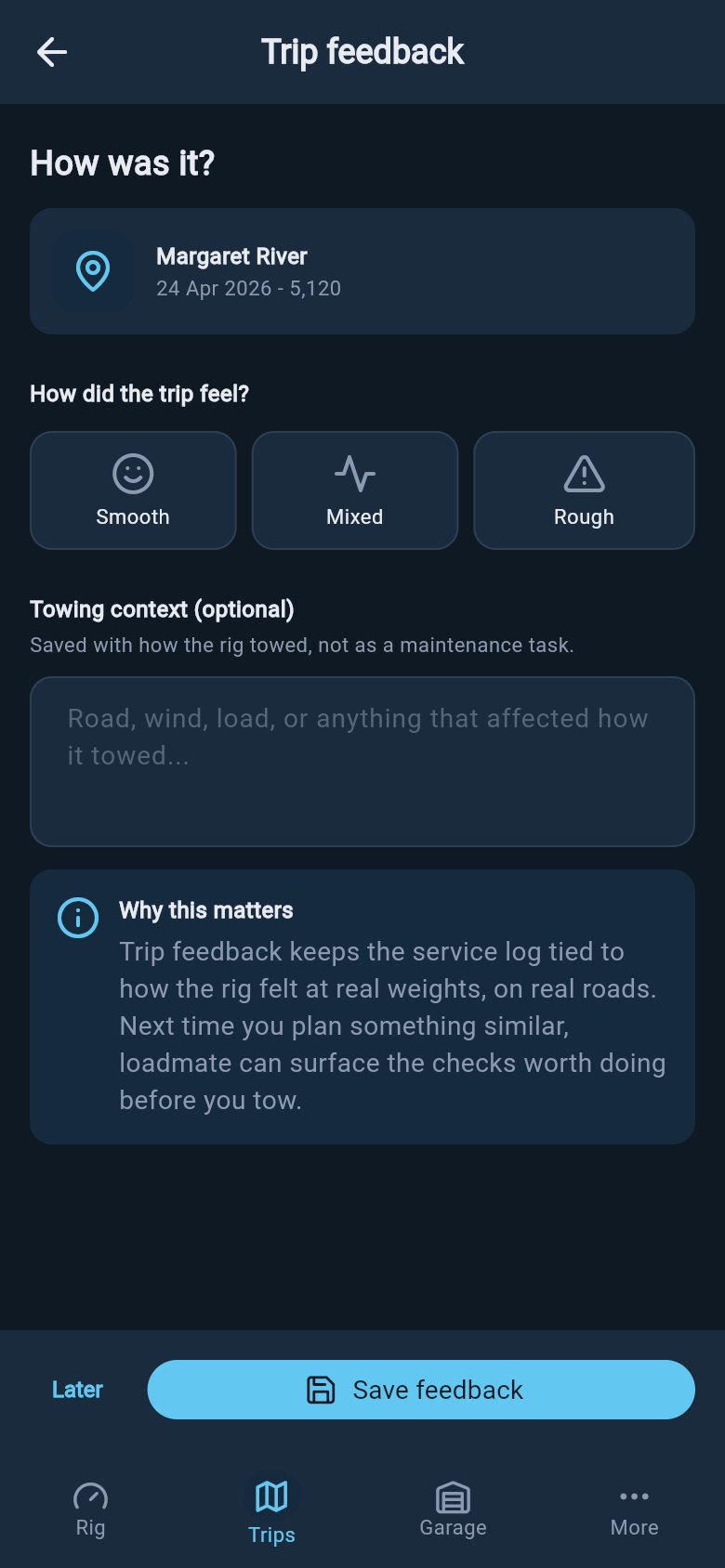
After the odometer and weight steps, loadmate brings you to the feedback screen with one question. Feedback is never required, and there is no rush. If now is not the moment, tap Later, and loadmate keeps the trip flagged so it can remind you. The window stays open for 30 days after the trip finishes, which is plenty of time to get home, unpack, and think about how it went.How did the trip feel?
The feedback starts with How did the trip feel? and three simple choices:- Smooth — the rig behaved itself.
- Mixed — mostly fine, but one or two things stood out.
- Rough — something genuinely concerned you.
Tell us what happened
On Mixed and Rough, loadmate shows a list of plain-language things you might have felt: sway or wandering, light steering, rear sag, braking that felt wrong, brake grab or pull, bouncing or pitching, tyre or wheel heat, engine or transmission strain, hitch or coupling noise, scraping or clearance, and load that moved. There is also a Something else row for anything not on the list. (On Mixed the heading reads Anything stand out?; on Rough it reads What happened?.) Tap whichever ones match. Nothing is required, so skip the lot if nothing in particular stood out. Tap a row to expand it, and loadmate asks three quick questions about that one thing:- When did it happen?
- How did you respond?
- Did it settle?
These answers do more than fill a log. Once you submit, loadmate compares what you felt against how your rig was actually set up on that trip and explains the connection on the completed trip — in plain words, with your own numbers. When your setup looked right, it says so. Answering never commits you to any action.
Tyre or hub heat, and “Something else”
Two of the rows ask slightly different questions:- Tyre or wheel heat asks Which wheel? (Trailer wheel, Vehicle wheel, or Not sure) and What did you observe? This is where you record a smell, smoke, a tyre-pressure (TPMS) alert, or a hot hub when you touched it.
- Something else is for anything the list does not cover. It needs a short note before you can save, so loadmate knows what you mean.
Anything different about this trip?
Tucked into the symptom step is an optional question: Different from how you usually pack? It lets you mark a one-off, such as a fully loaded car for a big shop or a heavier-than-usual water fill. That way the trip reads as a special case next to whatever you flagged, rather than a permanent change in how the rig behaves. Leave it alone if the trip was a normal one.Add a maintenance follow-up (optional)
On any of the three answers, Smooth, Mixed, or Rough, you can add a follow-up if something deserves a closer look. Tap Add a maintenance follow-up, and loadmate asks four small things:- What needs checking? — name it in plain words, such as “fridge stopped working”.
- Where should it be saved? — Tow vehicle, Trailer, Hitch or coupling, or Not sure.
- Maintenance area — Brakes, Tyres or wheels, Suspension or sway, Engine or drivetrain, Electrical, or Something else.
- Choose follow-up — what should happen next.
Separately from this card, some of the things you can flag are always worth a professional look: a brake that grabbed, a symptom that never settled, anything involving damage, heat, or a smell. When your answers match one of those, the completed trip shows a Worth a workshop check card listing the reasons in plain words, with an Add to Maintenance button. That is still a button you tap — nothing goes into Maintenance until you choose it. See Your completed trip for how that card works.
What feedback is for
When you submit feedback, loadmate quietly saves a snapshot of your rig exactly as it was on that trip: the weights, the balance, the setup. So if you report sway, heavy braking, or heat, that report carries the real state of the rig from that day. Months later, when you compare trips or show a mechanic, the picture is the true one from the time it happened, not whatever your rig looks like today. A vague memory of “it felt off near the hills” becomes something you can actually look back on. That snapshot now works for you straight away. On the completed trip, each thing you flagged carries a small Why this can happen section that reads your symptom against the rig you actually towed that day. Report sway, and loadmate checks what your tow-ball weight was carrying — nose weight or tongue weight in your region’s words — against the steady band for your setup, and tells you what it found in one plain sentence. When the numbers point somewhere, you get the usual fix. When your setup looked right, it says exactly that, and points to the things it cannot see, like wind or tyre pressures. And when a smooth trip’s numbers genuinely back it, the trip earns a quiet “That steadiness was you.” For the full read-back, see Your completed trip.Edit, plan similar, cancel, or delete a trip
From the trip itself you have a few housekeeping actions. Each one needs Pro.Edit
Change the dates, destination, notes, or the rig on the trip. Use Edit when the plan shifts or you got a detail wrong.
Plan a similar trip
Copies this trip into a fresh one with new dates, so a favourite route is ready to go again without re-entering everything.
Cancel trip
For a trip you have not taken yet. Cancel trip marks it as cancelled and tucks it into a tidy, collapsed Cancelled list. Nothing is lost; it just steps out of the way. (You will not see this on a trip you have already finished.)
Delete
Removes the trip and its details for good. loadmate asks you to confirm first, because this one cannot be undone.