

Why zones matter
A storage zone is a named place on the vehicle or trailer where gear sits. Once your zones are in place, loadmate knows where each load is positioned, so it can work out how the weight spreads across your axles and across the coupling. This is the difference between knowing you packed 40 kg of gear and knowing what that 40 kg is doing to the rig. Forty kilograms in a front tunnel boot pushes weight onto the coupling. The same 40 kg over the rear axle barely touches it. Without zones, loadmate only sees the total. With zones, it can see the balance. The tow hitch is the one zone that matters mechanically more than the rest. Its position is what loadmate uses to estimate the weight on the coupling, called tow ball mass in Australia, nose weight in the UK, or tongue weight in the US. Because it matters so much, both manual tables always keep a hitch row, and on a trailer photo the hitch point is placed automatically and cannot be removed.Choose photo or manual setup
When you open Configure storage, you choose how to describe your zones. You can take a side-on photo of the rig and tap where things sit, or you can list each zone by hand in a table. Both paths describe the same rig and feed the same numbers, so pick whichever suits the moment. You can start with the table and move to a photo later, or the other way round. Photo setup is the easier path when you can get a clear, square side-on photo. Instead of measuring every distance with a tape, you tap the places you can see. It also gives loadmate more to work with: because you tap each point on the image, loadmate captures the height of the zone above the axle line as well as its front-to-back position. That height detail is what helps centre-of-gravity reporting, and the manual table cannot capture it. Manual setup is the dependable fallback. If you cannot get a clean side-on photo, or you would simply rather type, you list each zone with a name and a distance. loadmate treats the missing height detail neutrally rather than marking you down for taking the simpler route.Photo setup is an estimate based on where you tap, not a survey measurement. Take your time placing each point, keep the camera square to the rig, and switch to manual setup if you cannot get a clean side-on photo.
Check the measurements first
Photo setup needs one known real-world measurement before loadmate can turn a flat photo into a measuring tool. The Configure storage screen shows a card for this, and the photo button stays disabled until the measurement is filled in. For a tow vehicle, that measurement is wheelbase: the distance from the centre of the front wheel to the centre of the rear wheel on the same side. loadmate uses it to scale the photo and to work out where each zone sits relative to the rear axle. You can usually find wheelbase in the owner’s manual, the specification sheet, or the vehicle data plate. If you measure it yourself, park on level ground and measure centre to centre between the wheel hubs. Enter wheelbase in millimetres on metric markets and inches on imperial markets; loadmate reads your figure in those units even though the entry field’s label may still read “mm”. For a trailer or caravan, loadmate needs total length and body length. Total length runs from the coupling to the rear of the trailer. Body length is the box or living section only, with the drawbar, A-frame, or tongue left out. Together these tell loadmate where the axle group and the hitch sit before you place a single zone. Check the compliance plate, owner’s manual, builder specification, or seller sheet first. The entry card lets you switch units, so you can type metres, millimetres, feet, or inches, whichever your paperwork uses. To change any of these values later, return to Configure storage and tap Edit on the dimensions card.Use photo measurement
Photo setup walks you through it one step at a time, with a guidance strip across the top that always tells you what to tap next.1
Add a side-on photo
Pick a photo from your camera or gallery. A clear, square, side-on shot works best, with the whole rig in frame and the ground roughly level.
2
Calibrate the photo
On a vehicle you tap two points: the centre of the front wheel, then the centre of the rear wheel. loadmate already knows your wheelbase, so those two taps tell it how many real millimetres each pixel is worth. On a trailer you tap four points in turn: the hitch coupling, the front of the body, the axle group, then the rear of the body. If the two points are not roughly level, loadmate refuses the calibration and asks you to try again, because a tilted photo would throw every distance off.
3
Place your storage zones
Now tap each place on the image where gear sits. On a tow vehicle, loadmate suggests a front-to-back set of starter names as you go — front nose, front cabin, rear cabin, boot or tray, then tow hitch — so the first few zones label themselves in the order most people tap them. Tap Skip guided zones at any point to name them freely instead. On a trailer the hitch is placed for you during calibration, and each further zone you tap is named Storage 1, Storage 2, and so on, which you can rename to suit the rig.
4
Adjust and check
Tap a marker to select it and fine-tune it, or drag it to a better spot. If the rig faces the other way in your photo, use Flip orientation so front and rear read correctly. A summary card shows how many zones you have placed and where the hitch sits.
5
Save
Tap Save storage locations. loadmate uploads the photo and stores each zone with its position and height.
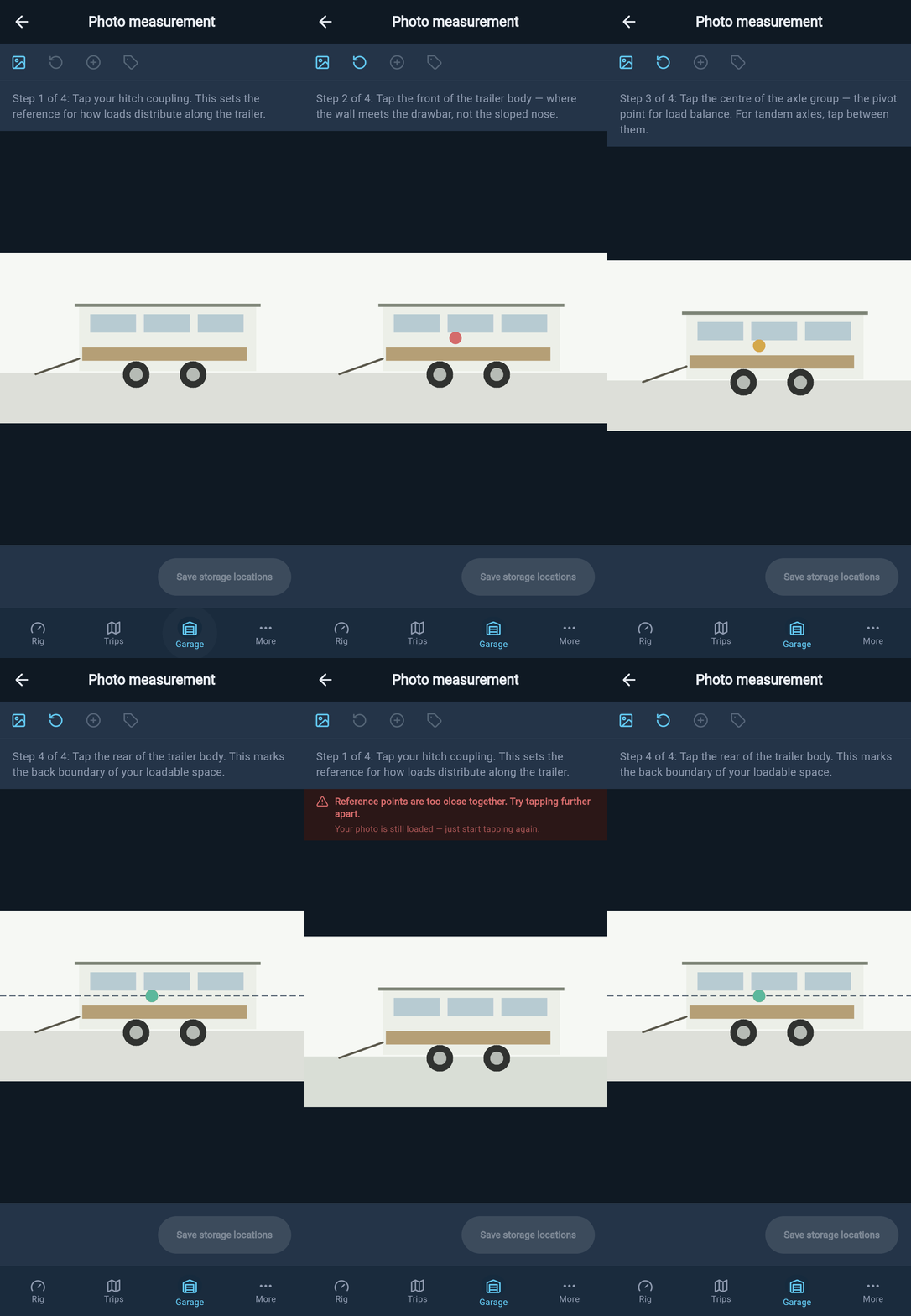
Photo measurement starts by tapping reference points on the side-on trailer image.
List your zones by hand
The manual table does the same job without a photo. You open it from the same Configure storage screen, then add each zone with Add storage zone. For every zone you set a name and a distance. The distance is measured front to back along the rig: from the rear axle on a tow vehicle, and from the centre of the axles on a trailer or caravan. A zone forward of that line is a positive number; a zone behind it can be entered as a negative number. Distances are shown in millimetres on metric markets and inches on imperial markets, matching whatever you use elsewhere in the app. On either manual table — vehicle or trailer — the tow hitch row is required. loadmate adds it for you and keeps it in place, and saving stays disabled until its distance is entered, because that one figure drives the coupling-load estimate. Open any zone to set a few extra details:- Side of the rig. Choose left, centre, or right, so a heavy water tank or a single drawer bank reads as off to one side rather than dead centre.
- A weight limit. Optional. Covered in the next section.
- Roof zone. On a tow vehicle only, mark a roof rack or roof box as a roof zone, so its height is treated as up high rather than near the ground.
Name the zones you recognise
Give each zone a name you would say out loud while pointing at the rig. Front tunnel, over axle, rear locker, tray, boot, and van cupboard all work, because you will recognise them again when you place a load. Aim to cover the places where weight is isolated or where you regularly store heavy gear: water tanks, fridges, tunnel boots, drawers, rear trays, roof racks, bike racks, gas lockers, under-bed lockers, and the like. You do not need a separate zone for every small shelf. If a little cupboard sits right beside a larger locker, one nearby zone is usually close enough for planning. There is no fixed limit on how many zones you can add, but past a point the extra detail stops changing anything useful. For a long storage area, place the zone at the practical centre of where the weight normally sits. On a roof rack, put it near the midpoint of the rack or the gear you usually carry there. Try to keep heavy roof loads centred between the axles, low if you can, and within the rack’s and the vehicle’s limits. loadmate treats one long area as a single point, so split a roof rack or long tunnel boot into separate zones yourself if you want finer detail.Use weight limits where they matter
If you set an optional weight limit on a zone, loadmate can warn you as that zone fills up. This is most useful for places with a real rating: roof racks, bike racks, rear trays, drawer systems, tunnel boots, and storage boxes with a listed capacity. The limit is entered in kilograms on metric markets and pounds on imperial markets. Leave the limit blank when you do not have a meaningful rating. Ordinary cupboards and lockers rarely carry a clear per-zone limit, and a guessed number makes the warning look more exact than it really is. The zone works perfectly well without one; the limit only adds a fill-up warning on top.Edit or switch setup later
To change a saved layout, open Garage, choose the vehicle or trailer, then open Configure storage. From there you can return to either Photo measurement or the manual table. In photo setup, tap or drag a marker to reposition it, or edit a zone in the list below the image. In the table, open any zone to change its details. Moving a zone is not the same as renaming it. If you move a zone that already has loads in it, that weight now sits somewhere different on the rig. When you change a zone’s distance on the table and loads are sitting in it, loadmate shows a short confirmation listing the affected zones before it saves, so a shifted score or balance reading never surprises you. Confirm to go ahead, or step back if you only meant to rename. If you started with the manual table and later add a photo, you are updating the same storage setup, not starting over. Review the zone names, positions, hitch point, and any weight limits before you rely on the score. The photo can add the height detail the table could not capture, so your centre-of-gravity picture may become a little more useful afterwards.What changes when you save
Storage geometry feeds the rig score. When a storage change saves, loadmate marks your score as needing a fresh calculation, and the Rig tab recalculates the next time you open it. A moved zone, a new hitch position, or a different side can shift the axle, coupling, stability, or centre-of-gravity readings. That is expected: the app is simply using the geometry you just gave it. If your trailer is hitched to a vehicle at the time, the change flows through to that vehicle’s combined picture too. Setting up storage zones describes your rig so the numbers can reflect it. It does not prove your loading is within legal limits.Looking around storage setup is free, including in the demo rig: open Configure storage, switch between photo and table, and see how zones are placed. Saving a real change on your own rig — adding, moving, or deleting a zone, setting a weight limit, or saving a calibrated photo — requires Pro. Demo data stays visible so you can explore, but it cannot be edited.
Where to go next
Add a tow vehicle
See where Configure storage sits on a vehicle profile, and what else lives there.
Add a load
Put gear into the zones you just set up, so loadmate can place its weight on the rig.
What is the rig score?
Understand the number your storage geometry helps shape, and how to read it.
Weigh-in overview
Turn your packed estimate into measured evidence at a weighbridge.
loadmate gives decision support for towing safety, not legal weight certification. For legal weight evidence, use a certified weighbridge, and remember that towing safely remains the operator’s responsibility.