

How loadmate counts down
Once a coverage record has a start date and a coverage period in months, loadmate works out the expiry date and counts down to it. You do not have to do the sums yourself, and you do not have to remember which of your warranties runs out first.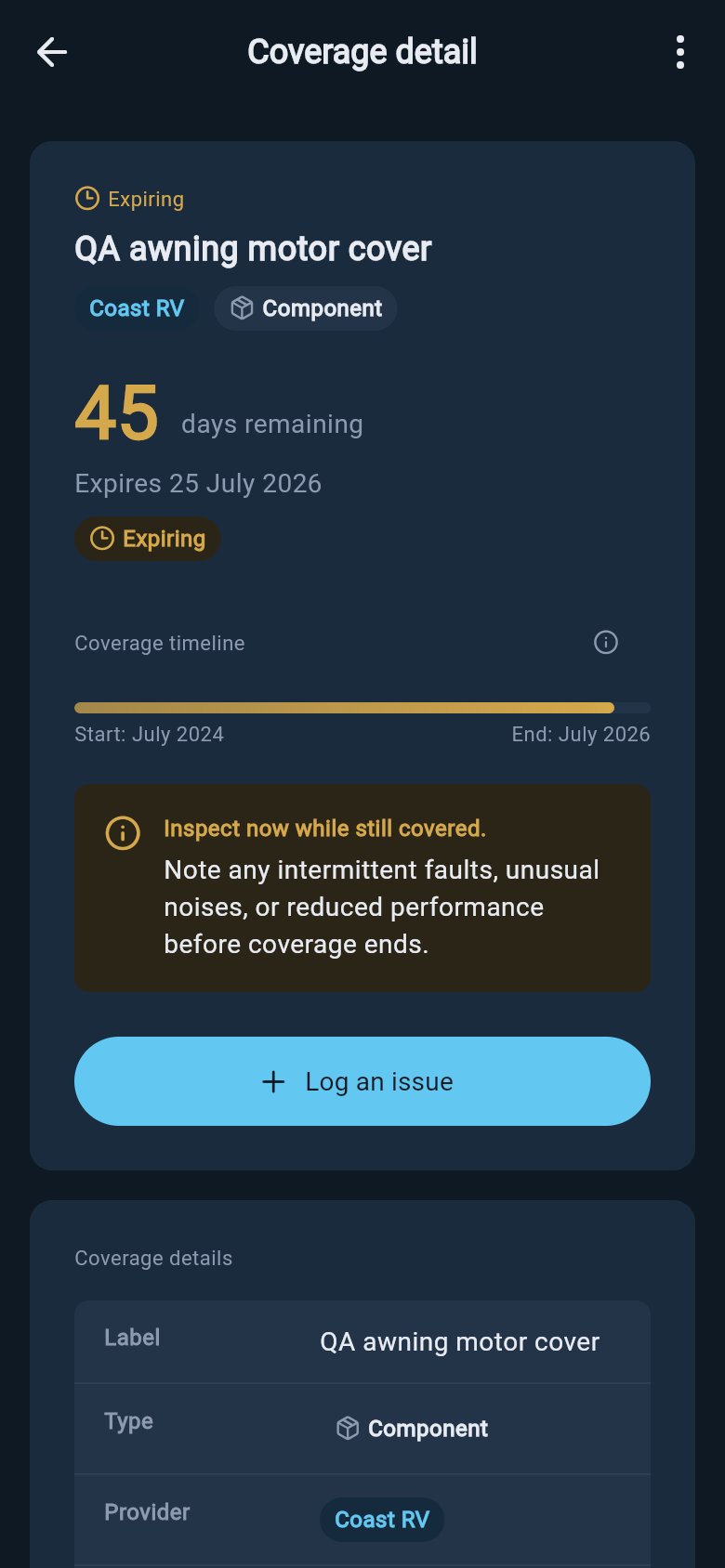
Warranty countdown detail
- Green means there is plenty of time — more than about three months (90 days) until expiry.
- Amber means it is getting close — inside about three months, under 90 days to go.
- Red means it is very close — the last month or so, under 30 days.
- A lapsed marker means the cover has already run out.
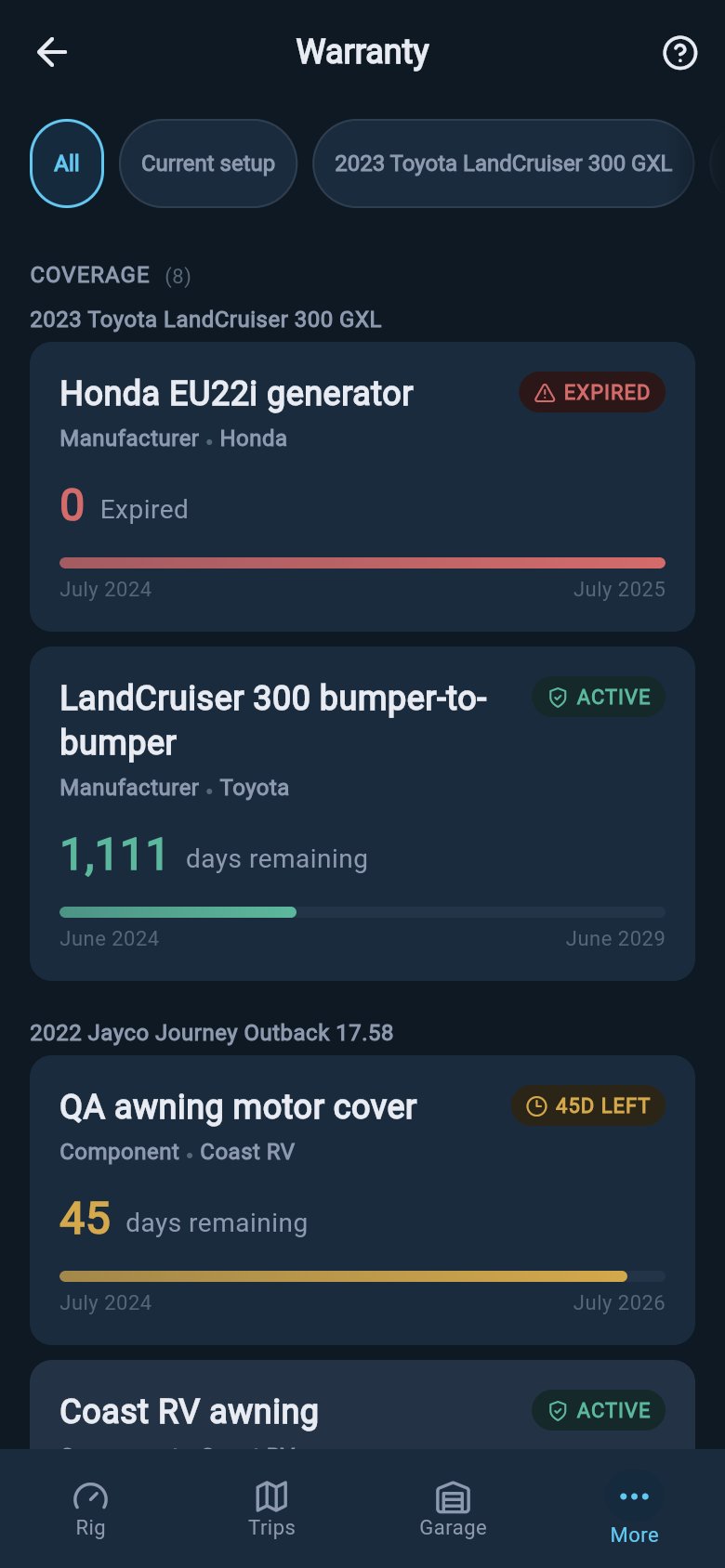
Expiring warranty on the hub
Where warnings appear
A badge on a card is easy to miss if you are not looking at the Warranty hub, so loadmate also surfaces an expiring warranty in the places you already check. You do not have to go hunting for it. Here is everywhere a warning can show up:- On the coverage cards and the Coverage Detail screen — the colour badge and the progress bar described above.
- On your rig’s attention list — when a warranty is roughly 45 days from expiring, it raises a warning so you have time to act while the item is still covered. This works for both the tow vehicle and the caravan or trailer, so cover on either one will surface.
- On the More tab Warranty row — a small badge counts the coverages that are within about 60 days of expiry. When nothing is close, the row stays quiet, so the badge only appears when there is something worth a look.
- On the Health tab — the warranty card there reflects the same coverage state, healthy, expiring soon, or lapsed, alongside the other ownership signals you already check.
- Before a planned trip — pre-trip readiness flags any cover that will expire during the dates of the trip, so a warranty running out mid-holiday does not catch you out on the road.
Acting on a warning
A warning is not just a colour. When loadmate flags a specific warranty, opening that record gives you something to do about it.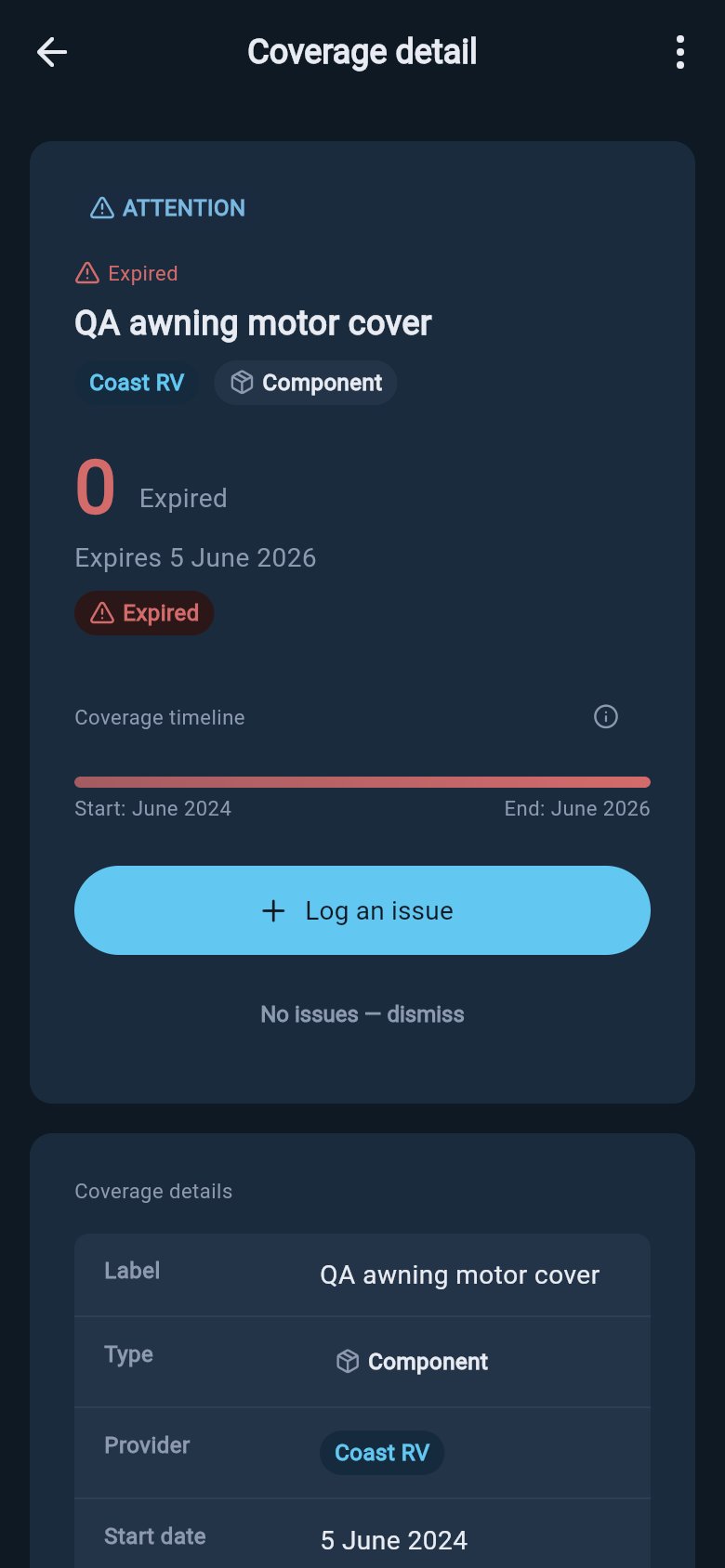
Acting on an expiry warning
1
Open the flagged record
Tap the warning on your attention list to open that warranty’s Coverage Detail. It opens ready for you to act, with the actions below shown at the bottom.
2
Log anything outstanding, while you are still covered
If something is not working as it should, choose Log an issue to record it now, with the date you first noticed it. That dated note is what you rely on later, and it only counts for certain while the cover is still in date. The issue form opens already linked to this warranty.
3
Or dismiss it if you have already handled it
If you have looked the item over and there is nothing to report, choose the dismiss action. It quietly clears this warning for 30 days, so the record stops nagging you while it runs out its last weeks. The badge and the date stay exactly as they were; only the attention-list nudge is paused.
The distance-limit clock
Some warranties have a distance or mileage cap as well as a time limit, and it is worth being clear about how loadmate handles that.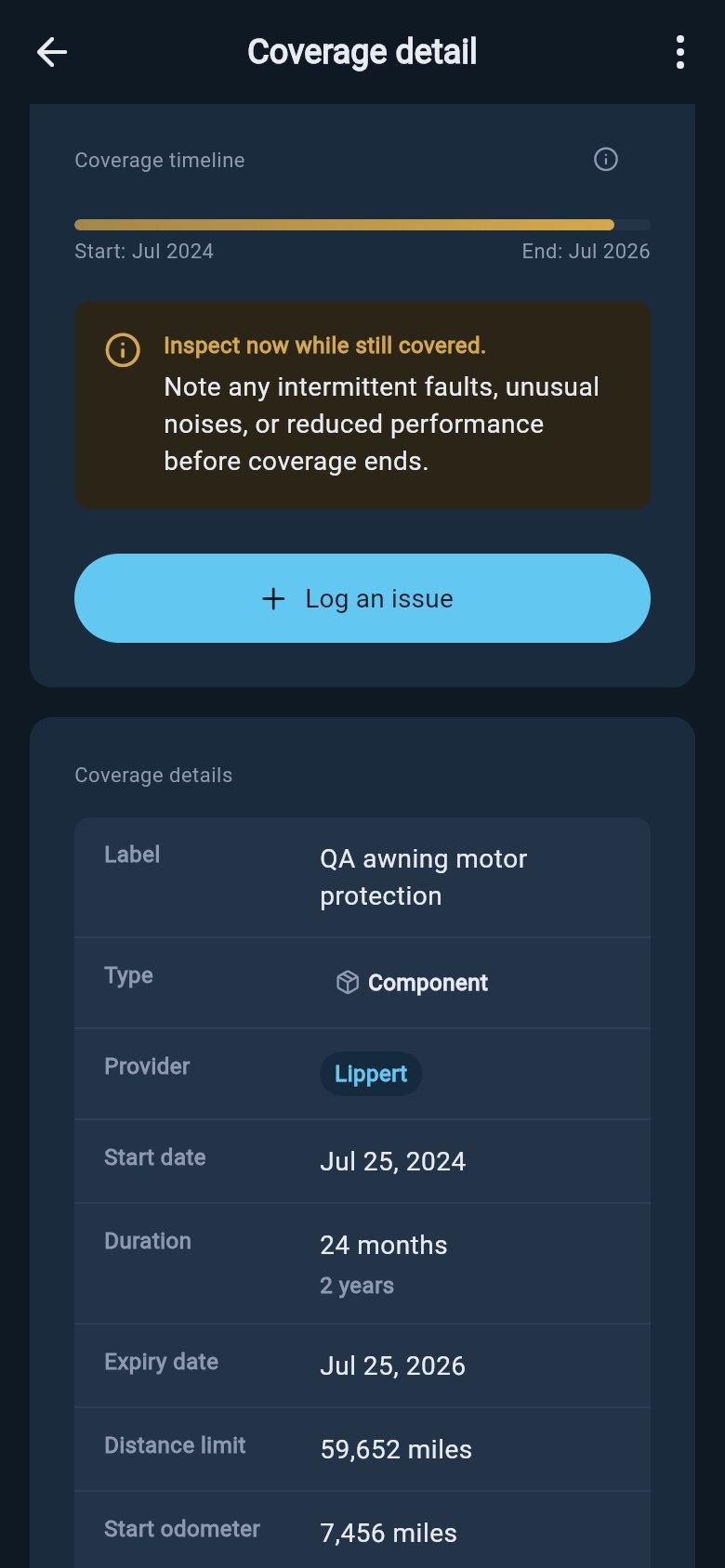
Distance limit on a warranty
If a warranty has a distance or mileage cap, loadmate stores the figure and shows it on the record, but the warnings count down from the time-based expiry date only. loadmate does not track your distance against the cap, so keep an eye on your own odometer against that limit yourself. A warranty can run out on distance well before its time runs out, and the badge will not know.
Where to go next
When a warning points you at something, the next step is usually to record it or check it against a trip.Log a warranty issue
Record a problem with the date you first noticed it, while the item is still covered.
Pre-trip checklist
See how a warranty expiring during your trip dates shows up alongside your other pre-trip checks.
Service records
Keep your service history in step, useful evidence to sit beside your warranty cover.
Exploring is free for everyone, including demo and lapsed users: the badges, the attention warnings, the More tab count, the Health tab card, and the help sheets are all open to look at. Saving a real change on your own rig, such as dismissing a warning or logging an issue, asks you to upgrade to Pro. Demo data stays visible so you can see how it all looks, but it cannot be edited.