

Why the garage is the foundation
Think of the garage as the filing cabinet for your rig. Each vehicle and each caravan is a record, and loadmate reads from those records constantly. The limit your vehicle is allowed to weigh fully loaded, the laden limit of your caravan, where your storage zones sit, your tyre details, your service history, your warranty dates — all of it hangs off the asset you set up here. This is also why setting things up carefully pays off. A wrong or missing baseline weight, for example, throws off every calculation that follows it. The garage does not do the safety maths itself; it holds the facts that the safety maths depends on. Spend the few minutes here, and everything downstream becomes trustworthy.When your garage is empty
The very first time you open the garage, there is nothing in it yet, and loadmate shows you that plainly rather than dropping you into a blank screen. You see a short headline, Your garage is empty, a line explaining that adding your first vehicle is how you get started with towing safety, and one clear button: Add your first vehicle.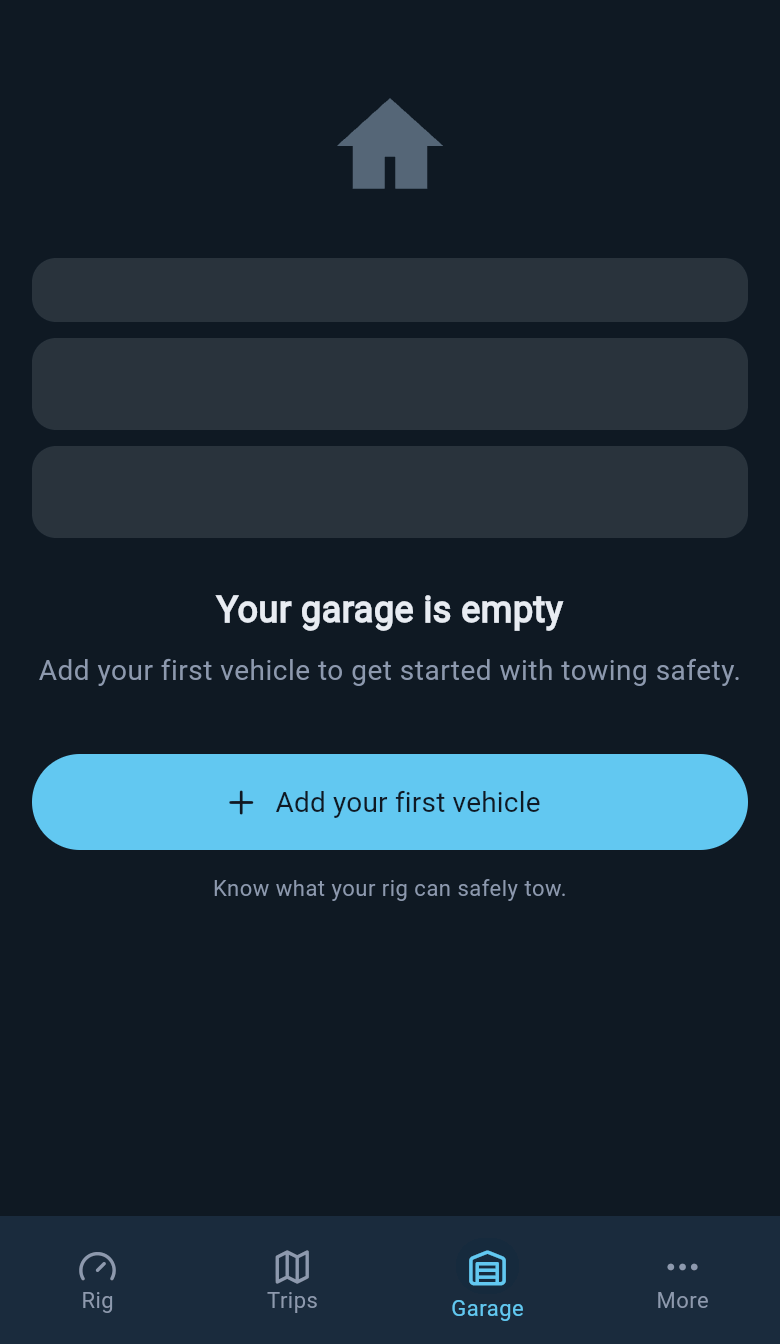
The empty garage, before you have added anything
Adding and editing your own assets is a Pro feature. If you are exploring loadmate in demo mode, you will see a ready-made example rig already set up so you can look around. That demo rig is view-only: you can open it and see how everything fits together, but it cannot be changed.
The asset list and what each card shows
Once you have more than one asset, the garage shows them as a scrollable list, grouped into Vehicles and Trailers so the two halves of your rig stay clearly separated. Your most recently used asset sits at the top of each group. Each asset appears as a card. The card leads with the name you will recognise — the nickname you gave it, if you set one, or its make and model if you did not. Below the name sits a short line of detail: the registration number and the current odometer reading, where you have entered them. If a card is the one you are currently travelling with, it carries a small Active badge on the right; the others show a chevron instead, telling you to tap through to open them. Tapping a card opens that asset’s full profile, where you edit its details and check its health. A long-press on one of your own assets opens the archive and delete controls, for when you sell or retire a rig. (A long-press on the demo rig does nothing — it is immutable.)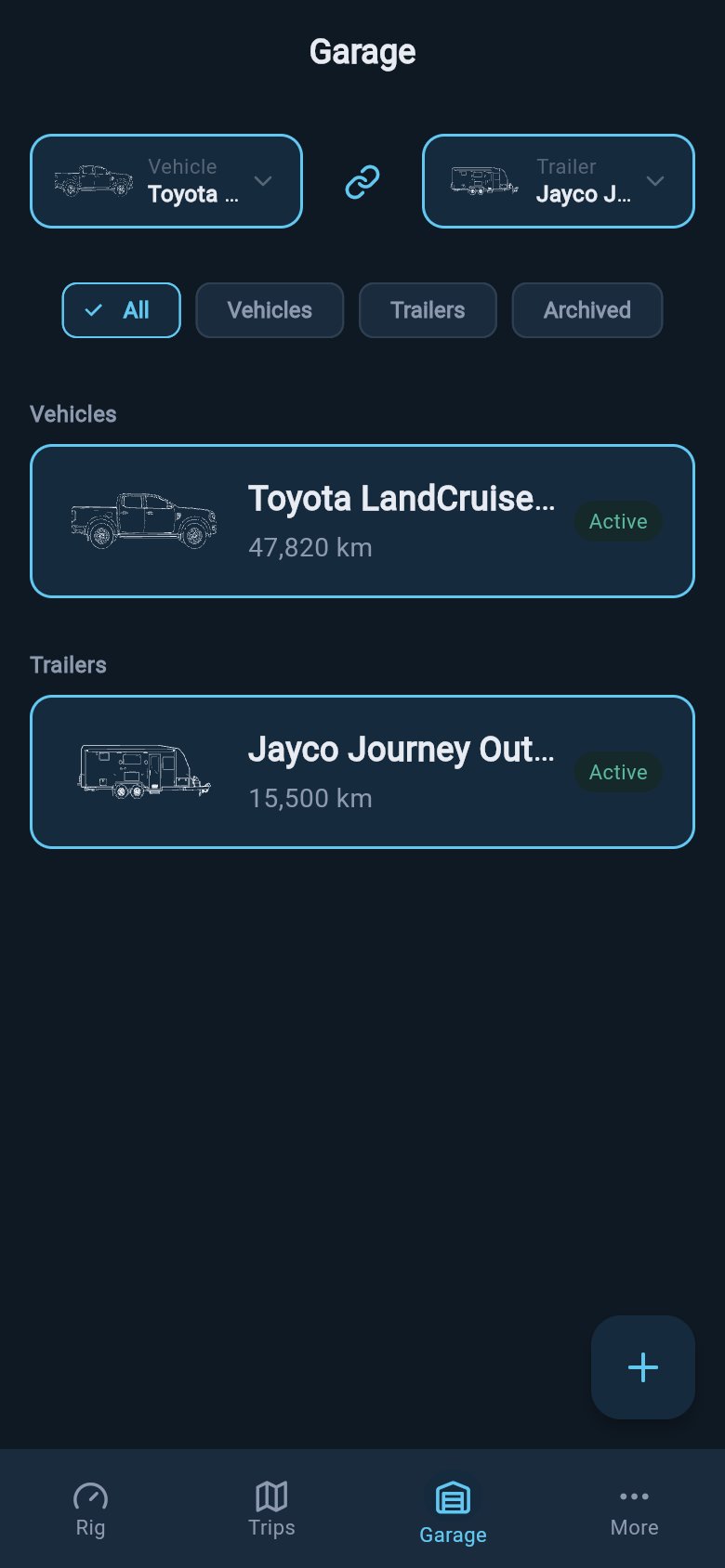
Your Garage shows the active rig at the top, then groups your vehicles and trailers below.
Sorting the list with the filter chips
Above the list sit four filter chips, so a fuller garage stays easy to scan:- All — every active vehicle and caravan together. This is the default.
- Vehicles — just your tow vehicles.
- Trailers — just your caravans and trailers.
- Archived — assets you have put away, such as a rig you have sold. These are kept for the record and shown dimmed; tap one to restore it if you change your mind.
Choosing your active rig
This is the part that makes the garage more than a list. You may own more than one tow vehicle, or more than one caravan, but you only travel with one of each at a time. The pair you are using is your active rig, and the strip at the top of the garage is where you choose it. The strip has two boxes — your active vehicle on the left, your active caravan on the right — with a chain link between them. Tap the vehicle box to open a sheet listing your vehicles, with the current one ticked; choose another to switch. Tap the caravan box to open the matching sheet for your caravans, including a No trailer option for travelling solo. If your active caravan is heavier than your active vehicle is rated to tow, the strip flags it with a small caution dot beside the caravan’s name — a quiet nudge that the pair you have chosen is over the towing limit and worth a closer look.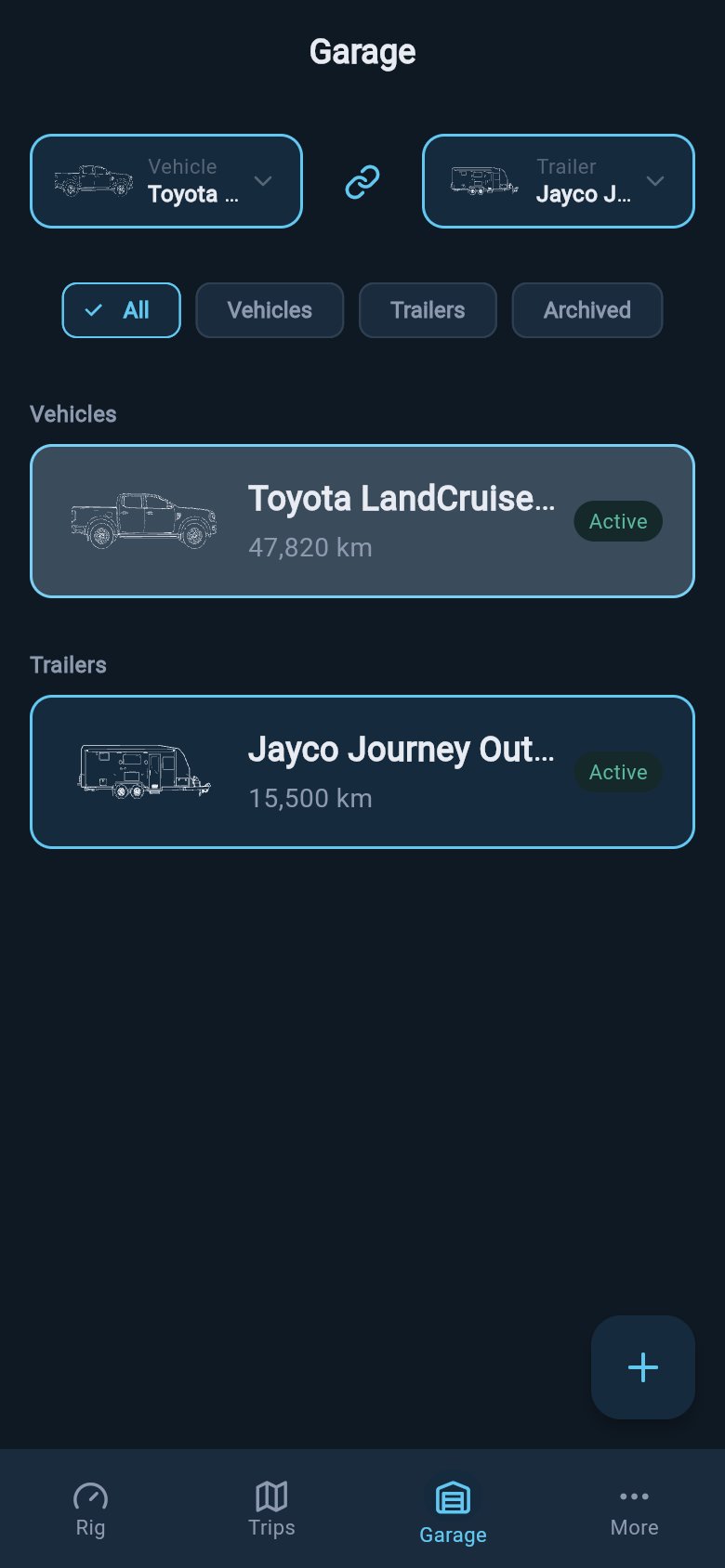
The selector strip shows the vehicle and trailer currently paired for this situation.
Hitching and unhitching
The chain link in the middle of the strip is more than decoration. When you have a caravan selected, it shows a joined link, meaning you are hitched. When no caravan is selected, it shows a broken link, meaning the vehicle is travelling solo. Tap the chain to change that. If you are hitched, tapping it asks you to confirm before unhitching. If you are not hitched, tapping it opens the caravan selector so you can hitch one up. The caravan selector does one more safety job here: if a caravan’s laden limit (ATM in Australia, MTPLM in the UK, Trailer GVWR in the US, or GTWR in Europe/international) is heavier than what your active vehicle is rated to tow, the sheet flags that caravan with a full amber caution band and a warning triangle before you hitch — so the warning reaches you while you can still act on it. Hitching and unhitching is not just a label change. It tells loadmate the rig has changed, so it marks the score for that vehicle as needing a fresh look and recalculates. A hitched rig and a solo vehicle are two different safety pictures, and the score reflects whichever one you are in.When you have just one vehicle, or only a caravan
A new garage often holds a single tow vehicle and no caravan yet. In that case loadmate shows the vehicle on its own and, just below it, a gentle prompt to add a caravan — because combined towing compliance and stability scoring need both halves of the rig to read from. You are not stuck; the prompt simply points at the natural next step. If instead you have added a caravan but no tow vehicle yet, the garage shows your caravan and a card inviting you to add a vehicle. In this caravan-only state there is no rig to choose yet, so the selector strip does not appear — it returns once you have added a vehicle to pair with. A caravan with nothing to tow it has no hitched compliance to check, so loadmate nudges you to complete the pair.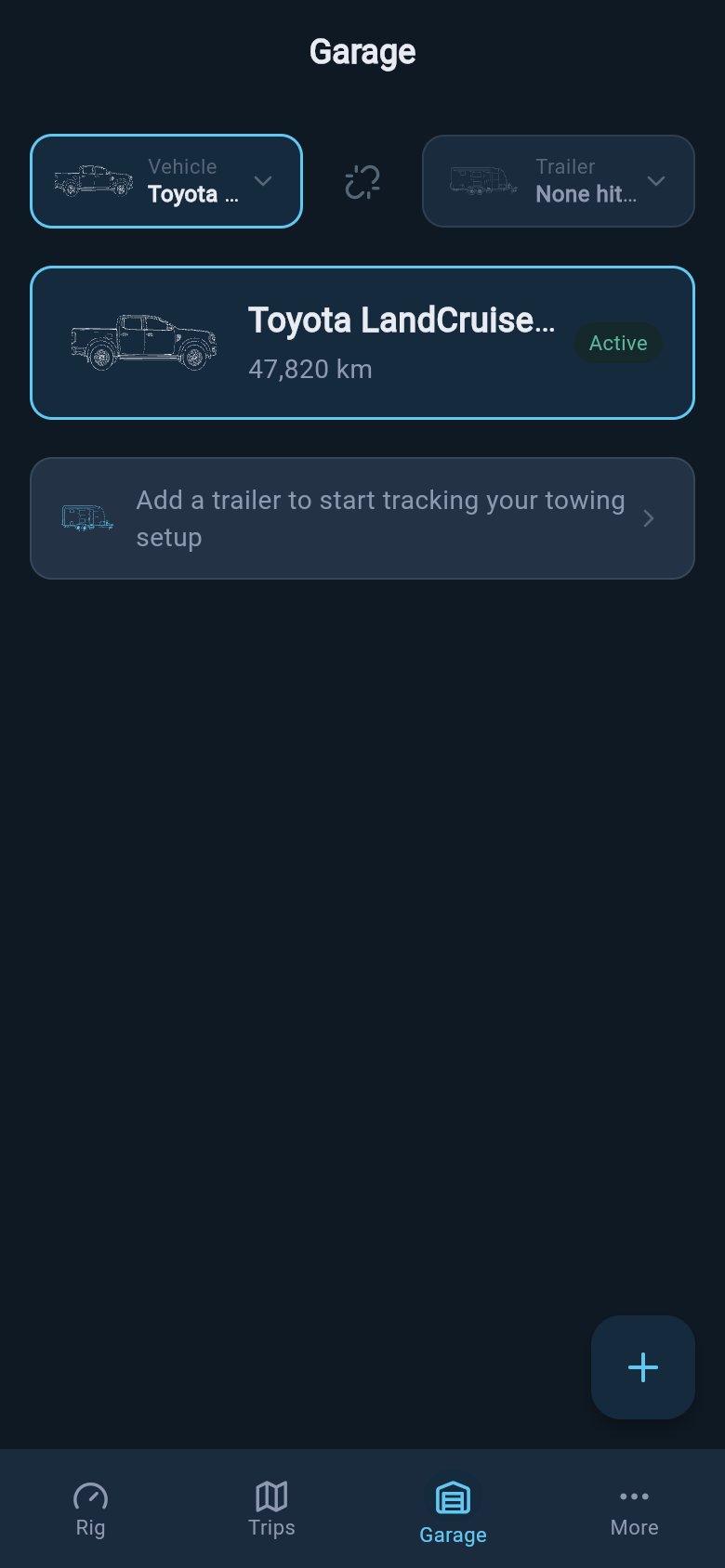
With only a tow vehicle set up, Garage prompts you to add a trailer next.
Where to go next
The garage is the hub; each setup task has its own page with step-by-step guidance. Start with whichever you need.Add a tow vehicle
Create your tow vehicle — the foundation every other check reads from. You only need a name or a make and model to begin.
Add a caravan or trailer
Add the other half of your rig so loadmate can check combined limits and stability once you hitch up.
Inside a vehicle or trailer profile
Open an asset to read its limits, baseline, compliance, and condition — and reach every setup task from one place.
Manage your vehicles and trailers
Edit details, swap a photo, or archive a rig you have sold — then restore it later if it comes back.