

Cross-check your numbers before you add loads
While you enter your readings, loadmate quietly checks that the parts add up to the whole. It does this in the background so you do not have to do the sums yourself. It looks at two simple relationships:- Your vehicle front axle plus your vehicle rear axle, checked against the vehicle total.
- Your trailer axle group plus the coupling weight, checked against the trailer total.
Link the loads that were on the scales
Next, loadmate asks which of your loads were physically on the scales when you weighed. This step matters more than it first looks. Linking a load is what tells loadmate to count it as measured. A linked load becomes part of this baseline; an unlinked one keeps counting as an estimate. So linking the right items is how your weigh-in turns into a faithful picture of your rig. Because most people weigh with everything loaded, loadmate pre-selects your eligible loads for you. Rather than ticking every item that was on board, you only need to untick the few that were not on the scales that day. For example, if you weighed before filling a water tank or before loading the bikes, untick those. A running count and weight total sits at the bottom, so you can sanity-check the figure before you continue. If the total looks far off from what you expect, that is a cue to revisit which items are ticked. If you have no loads recorded, loadmate skips this step.Review and confirm
The review screen gathers everything in one place before you commit. Treat it as your spot-and-fix moment: read it through, and if anything looks wrong, step back and correct it before saving. You will see:- Measured values. The readings exactly as you entered them, grouped by context and shown in your regional terms and units. The coupling weight appears as tow ball mass (AU), nose weight (UK), or tongue weight (US).
- Check limits. A compliance snapshot that places each measured weight against its limit, with a status and a remaining-margin readout.
- A confidence preview. A look at how your confidence badge may change once this record is saved.
- The linked-loads summary. The loads you marked as on the scales, ready to bake in.
- Notes and attachments. An optional section for a short note and up to five attachments, such as a photo of your ticket or a scale certificate.
A Close or Over status is a prompt to look again, not a verdict on you. loadmate is showing you where your numbers sit so you can decide what to do next.
Use this weigh-in for future checks: the baseline toggle
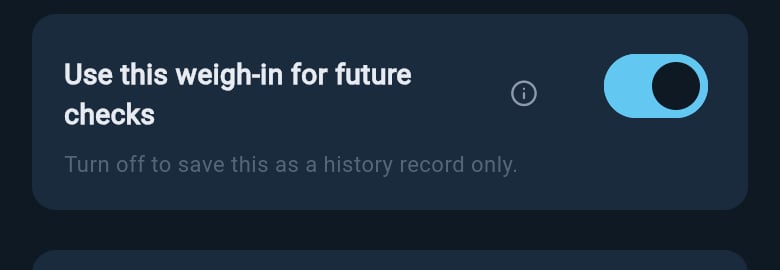
Near the save action is a toggle: Use this weigh-in for future checks. This is the one choice that decides what your weigh-in does, so make it deliberately.- On. This record becomes your active baseline. From now on, your score and compliance picture are measured against it, and changes to what you carry are tracked from this point.
- Off. This record is saved as history only. It stays in your weigh-in list as a record you can read or restore later, but it does not change your current numbers.
Save your record
When you are happy with the review, save the record. Saving your own weigh-in requires Pro. You can open the form, enter every reading, link your loads, and work all the way through the review on any plan; only the final save is held back for Pro. If a save does not go through, you will not lose anything. Your readings, linked loads, and choices stay on the screen, and you can retry the save from there.Next steps
Once your record is saved, there are two natural next reads:- To open the saved record and understand what it shows, see Read your weigh-in report.
- To learn what happens to your numbers when you change what you carry later, see After your weigh-in.
loadmate helps you work from the numbers you enter. Keep your source documents handy, and use a weighbridge, truck scale, or local authority when you need official evidence.