

Load Report is a Pro feature.
Open Load Report
You can open Load Report from a couple of places:From the items list
Tap the report icon in the top bar.
From the rig
Tap Actions, then choose Load Report.
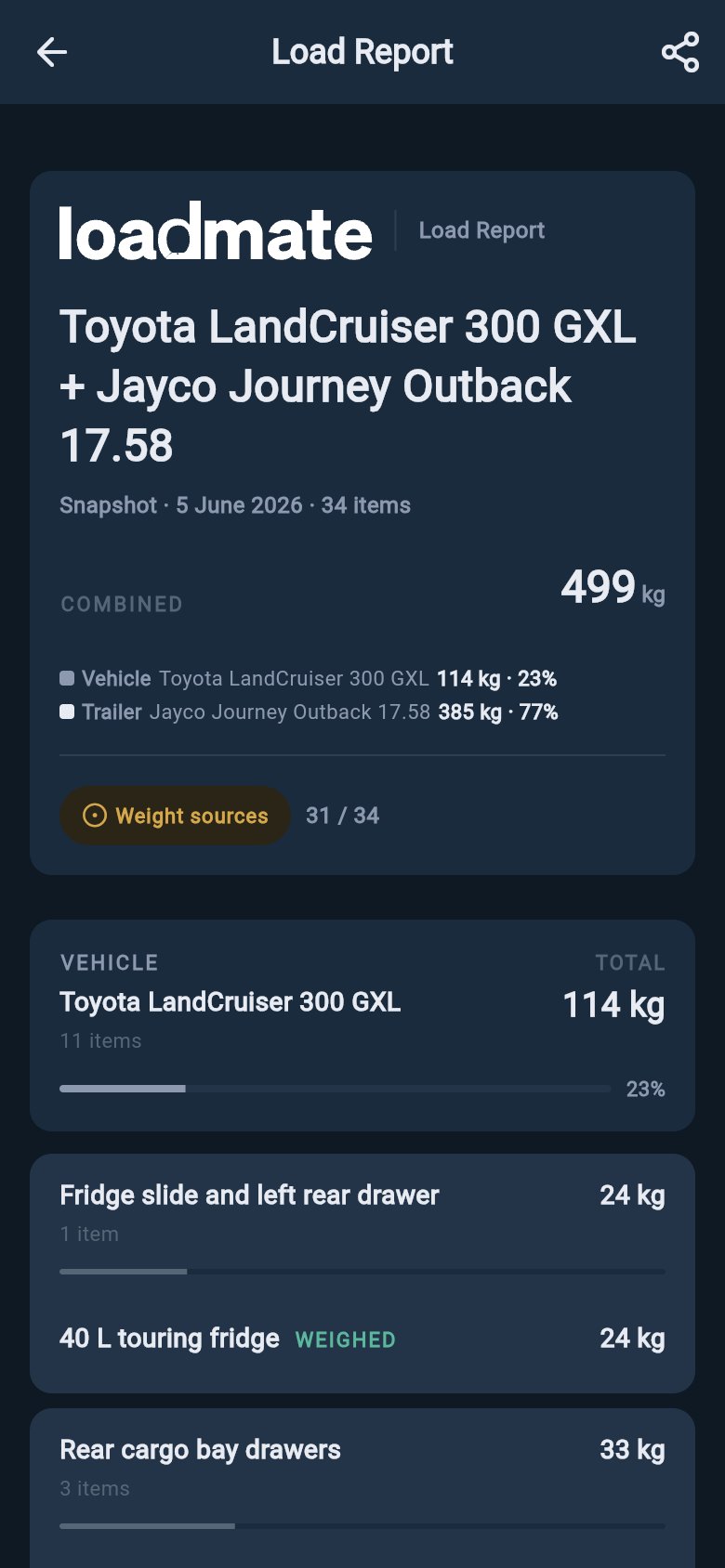
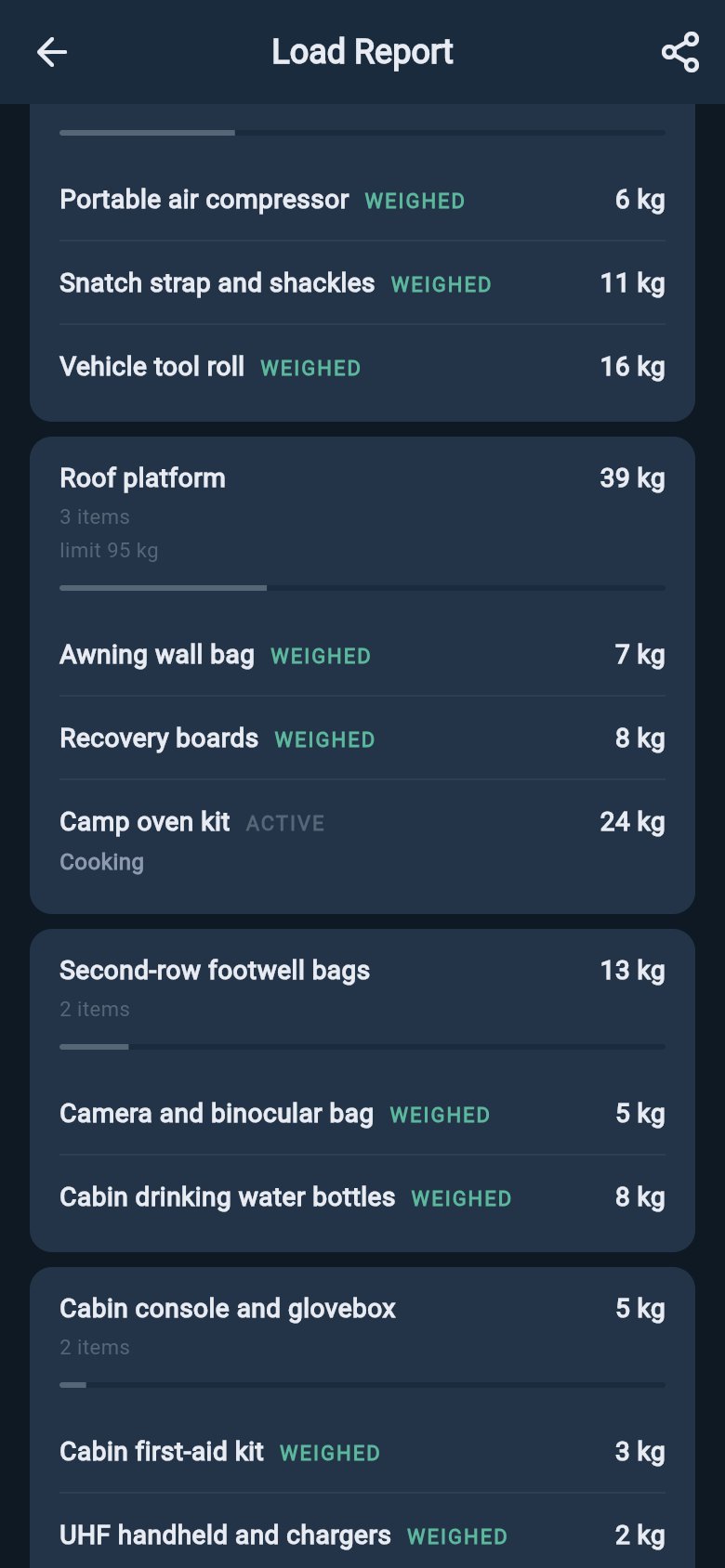
What the report shows
The report is laid out zone by zone, grouped by where the weight sits:- A header showing the rig name, the date the report was taken, the item count, and the combined weight.
- A vehicle/trailer split bar, so you can see at a glance how the load is shared between the tow vehicle and the trailer or caravan.
- Items on the tow vehicle, broken down by storage zone.
- Items on the trailer or caravan, broken down by storage zone.
- Unassigned items that still need a proper zone.
Weighed and estimated weights
The header shows how many of your items are based on a real weighed figure rather than an estimate. If everything is weighed you see a confirmation; if some items are still estimates, the report flags that and shows a weighed count out of the total. Use that as a quick accuracy check. A report built mostly from estimates is still useful for spotting where the weight sits, but it is not a substitute for a measured figure.A report is only as accurate as the loads and weights you entered. Keep tanks, trip gear, and unassigned items current before you rely on it.
Zones and limits
Inside each asset block, every storage zone shows its own subtotal and a small fill bar. If you have set a weight limit for a zone, the report shows how the zone compares to that limit, and it flags any zone that is over. Unassigned items are worth clearing first. They still add weight to the totals, but loadmate cannot place them accurately across the axles until you tell it where they sit. You can assign a zone to each one from the items list.Share or keep a copy
The app bar at the top of the report has an export action. It produces a PDF of the report so you can share it or download a copy:- On a phone or tablet, the export option opens the share sheet so you can send or save the PDF.
- On the web app, it downloads the PDF to your device.
What the report is not
Load Report is a packing and review aid built from your entered data. Use it to see what changed, where the weight sits, and which items still need attention. If you need measured weights, record a professional weigh-in. If you want the limit rows behind the current setup — your tow ball mass (nose weight in the UK, tongue weight in the US), axle loads, and the totals they roll into — open Compliance Snapshot.Add a load
Add, remove, or adjust the gear the report summarises.
Water and consumables
Set fill levels so tanks, bottles, and the fridge read at their real weight.
Load library
Browse and reuse common items when building your load list.
Compliance Snapshot
See the tow ball mass, axle loads, and totals behind the current setup.