

The dashboard and every sheet on this page open for everyone, so you can see exactly what they ask for. Starting a trip, logging a fuel stop, and saving a weight or odometer change need Pro, and demo data is read-only — you can look around a demo trip but not change it.
When the trip becomes a dashboard
While a trip is still in the future, it is a plan: a route, your dates, and a pre-trip checklist counting down the things to sort before you leave. Once the trip is underway, loadmate switches that same screen over to the during-trip dashboard described below. The dashboard has a weight banner, three quick actions, and an End trip button you can reach at any time. This is the moment loadmate begins recording real data about the journey, which is why it sits behind Pro. Before this point you are still planning. After it you are towing, and the during-trip tools are switched on.Why loadmate freezes a snapshot
The instant a trip begins, loadmate takes a departure snapshot — a frozen picture of your rig at the moment you left. It records your rig score, your total weight, how your rear axle and your coupling weight were sitting, and your odometer reading, exactly as they were at departure. The snapshot card shows four plain figures:
This matters because it lets the questions at the end of the trip be specific rather than vague. Because loadmate knows your rear axle was near its limit when you left, it can ask “how did the back end feel?” instead of a generic “how was the trip?”.
The departure snapshot is a frozen record, not a live reading. It captures how the rig was at the moment you left and does not keep updating as you drive. The weight banner just below it is the part that moves as you log changes.
The towing dashboard
Once the trip is underway, the dashboard is the screen you will come back to. It is laid out top to bottom so the most useful things are easy to reach.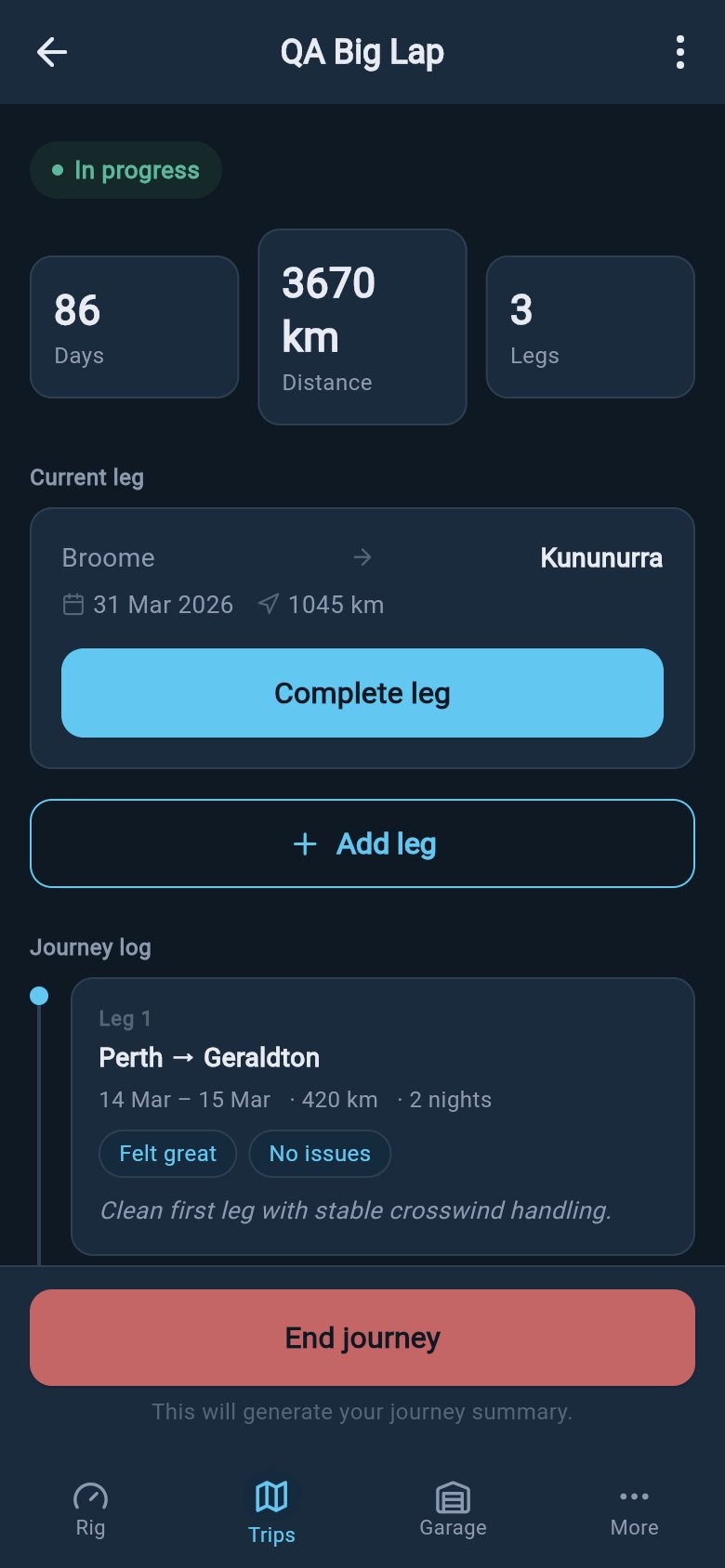
- A Current effective weight banner. “Effective weight” simply means your departure weight, plus or minus everything you have logged since. It shows the weight you left with, the running total of your changes, and where that leaves you now.
- A short readiness line, items noted at departure, recording what your pre-trip checklist still had outstanding when you set off. It only appears if anything was outstanding, and you can tap it to expand the list of those items.
- Three quick actions for the things that change on the road.
- An End trip button pinned to the bottom of the screen the whole time you are towing, so it is always one tap away when you arrive.
Log a Change
Record gear, water, or people going on or off the rig.
Log fuel stop
Note a fill so loadmate can work out your fuel economy.
Update odometer
Keep your distance accurate for service and tyre timing.
The readiness line shows a plain count — for example 2 items noted at departure — never a “2 of 5” fraction and never a progress bar. Tap it to expand the list of those items, and tap again to fold it away. It is a record of what was still outstanding when you left, so you can glance back at it without it nagging you while you drive.
Log a Change (weight)
Things move on and off your rig during a trip. You fill the water tank at camp, pick up a grandchild for part of the way, buy a week of supplies in town, drop a heavy awning at a friend’s place. Log a Change records each of these in seconds, so your score stays accurate without you having to rebuild your whole packing list.1
Open Log a Change
Tap Log a Change on the dashboard. The sheet, titled Log a Change, opens from the bottom of the screen.
2
Pick a Type
Under Type, choose what happened: Filled water, Emptied water, Bought supplies, Removed gear, Picked up passenger, Dropped off passenger, or Other. loadmate already knows whether each one adds or removes weight, so you never have to think about plus or minus signs.
3
Enter the weight change
Type the Weight change in your usual units. An estimate is fine — a full water tank, a bag of shopping, a person’s rough weight. For a passenger, loadmate even offers a sensible starting figure you can adjust.
4
Choose where on your rig
Under Where on your rig?, pick the storage zone the weight went into or came out of. Your own zones are grouped under Vehicle zones and Trailer zones. If you are not sure of the exact spot, choose Not sure / General — the change still counts toward your total weight.
5
Add a note, then save
Add an optional Notes line if you want a reminder of the detail, then tap Save change.
What if I do not know the exact weight?
What if I do not know the exact weight?
A rough estimate is far better than nothing. The point of logging a change is to keep the picture roughly right while you tow — a full tank is about the same every time, and a week’s groceries lands in the same ballpark trip after trip. You can always refine your real loads later from the Rig tab. Do not skip a heavy change just because the number is not exact.
Log a fuel stop
Logging your fills is what lets loadmate show your real fuel economy for the trip — a genuinely useful number when you are budgeting a long tow.1
Open Log fuel stop
Tap Log fuel stop on the dashboard. The sheet, titled Log fuel stop, opens. The date defaults to today; tap it to change it if you are logging an earlier fill.
2
Enter how much you put in
Enter the amount in the Litres field. This reads as gallons if your region uses imperial units.
3
Add the cost, if you like
Cost per litre and Total cost are optional. Enter the price per unit and loadmate works out the total for you, or just type the total straight in.
4
Enter the odometer reading
Type the current Odometer reading. This one is needed — it is what ties the fill to a distance, and it also keeps your vehicle’s odometer up to date for service and tyre reminders.
5
Confirm the Full tank fill?
Leave Full tank fill? on when you brimmed the tank, or turn it off for a part-fill. This is the setting that makes an economy figure possible — see the note below.
6
Add the station and save
Station / Location is optional. You can type any station or place name; when you are online it can suggest nearby places, but it works perfectly well on the text you type with no signal at all. Tap Save when you are done.
Why does loadmate need two full fills?
Why does loadmate need two full fills?
Fuel economy is worked out from the distance between two brimmed tanks and the fuel it took to top the second one back up. With only one full fill, there is nothing to measure against yet, so the dashboard’s fuel summary will say it needs at least two full fills before it shows an economy number. Once you have logged that second full tank, your figure appears — in L/100km, or MPG if your region uses imperial units. Part-fills are still recorded and added up; they simply cannot anchor an economy reading on their own.
Update odometer
The odometer is the heartbeat of your service and tyre reminders. Update odometer is a quick way to set the reading mid-trip without logging a fuel stop, so your distance-based service intervals and tyre-age countdowns stay accurate. Tap Update odometer on the dashboard. A short prompt opens with two ways forward:- Enter actual lets you type the real number off your dash under Actual reading, then tap Accept to save it.
- Skip leaves it for now. Tap it once and loadmate shows a gentle reminder that maintenance schedules depend on odometer accuracy; tap again to confirm you are skipping.
You only need to do this if you want to nudge the reading along between fills. Every fuel stop you log with an odometer reading already keeps it up to date. The end-of-trip prompt is the one that offers a ready-made projected figure to Accept; see Finish a trip and add feedback. For the full picture on odometer readings and what they drive, see Keep your odometer current.
When you arrive
When you reach the end of the day’s towing, tap End trip at the bottom of the dashboard. loadmate walks you through a short wind-down: it offers to set your final odometer, then — if you logged any weight changes — asks whether to Keep changes or Revert them, and finally invites you to note how the rig felt. None of that happens automatically behind your back; you stay in control of each step. The whole wind-down is covered in Finish a trip and add feedback.Plan a trip
Where every trip starts: destination, dates, and the rig you are towing.
Pre-trip checklist
The readiness checks that count down before you leave.
Finish and feedback
Ending a trip, the odometer and weight review, and how the rig felt.