

Find a trip in the list
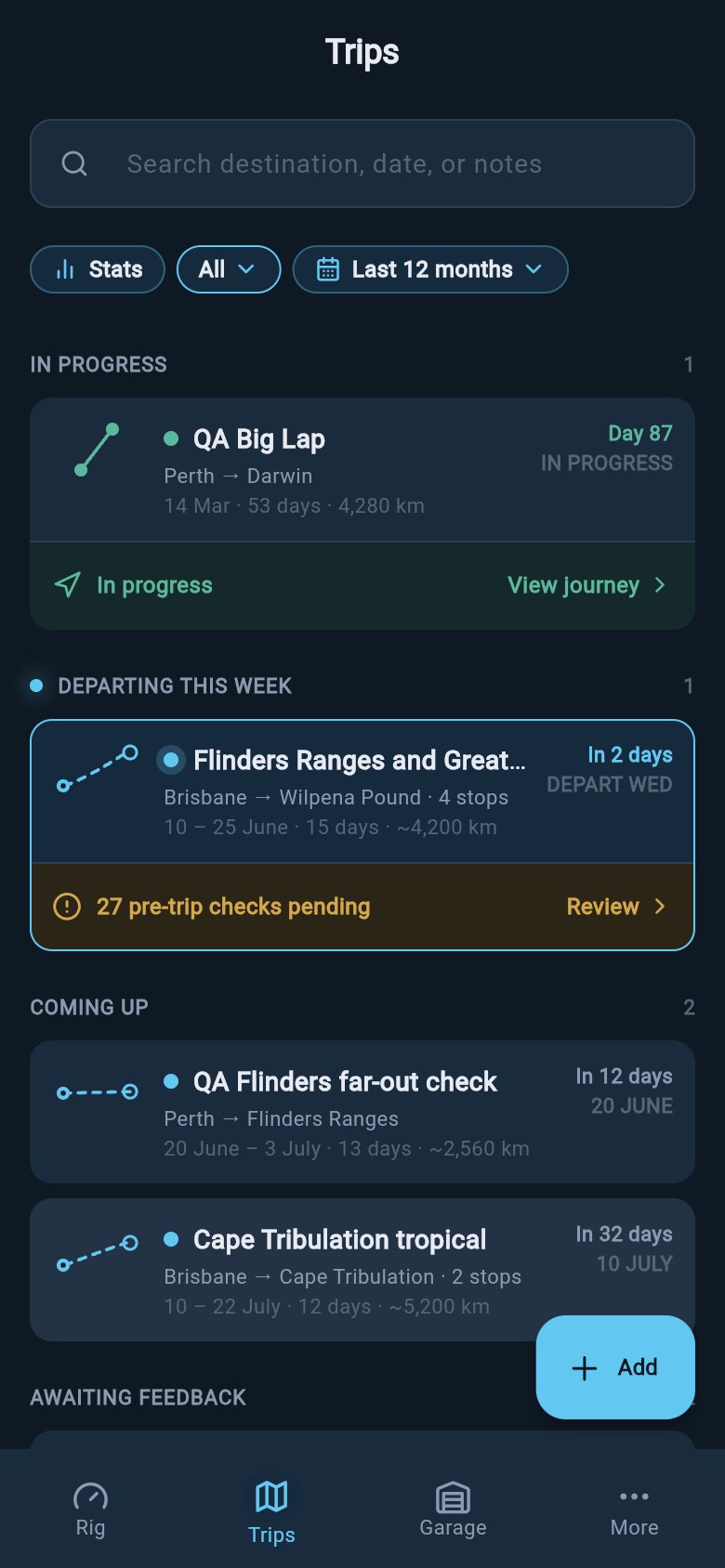
The list is grouped into sections by time. The sections always appear in the same order. Each one only shows up when it has a trip in it:- In progress — a trip you have started and not yet ended
- Departing this week — trips leaving within the next week
- Coming up — trips planned further ahead
- Awaiting feedback — finished trips waiting on your notes
- Recently completed — trips you have just returned from
- Earlier trips — older finished trips
- Cancelled — plans you called off, tucked away and collapsed until you ask to see them
On a larger screen, such as a tablet, the list and the trip you have open can sit side by side, so you can browse and read at the same time. On a phone the open trip fills the screen.
Search and filter
When the list grows, two tools help you find one trip quickly. A search box sits at the top and stays put while the rest of the list scrolls. Its placeholder reads Search destination, date, or notes. Type the town you stayed in, a date, or a word from your own trip notes, and the list narrows as you type. A small clear button removes your search when you are done. Just below it is a filter row that scrolls away with the list. It holds three controls:- A status filter that opens a short menu when you tap it: All, Upcoming, Completed, and (once you have any) Cancelled. Pick one to show only trips of that kind. Each option carries a small count. The Cancelled option only appears in the menu when you actually have a cancelled trip.
- A rig filter that reads All rigs. Tap it to narrow the list to a single vehicle or trailer setup, so you only see the trips you took with that rig. This filter only appears once you have trips across more than one rig. If all your trips belong to a single setup, there is nothing to filter, so it stays out of the way.
- A time-range chip that sets how far back the list reaches.
The time-range options
The time-range options
- Last 12 months — the default; the past year of trips
- This year — trips from the start of the current calendar year
- Last year — the previous calendar year
- All time — every trip you have ever recorded
- Custom range — pick your own start and end dates
When a trip needs you — the row action
Most rows are just there to be read. A small action button only appears on a row when that trip is waiting on you. The list stays quiet until there is something to do:- A trip that is In progress offers a button to open it again, so you can carry on where you left off.
- A finished trip that is waiting on your notes shows a Log feedback button. Tap it to record how the trip went while it is still fresh.
- A trip in the Departing this week group with outstanding pre-trip checks shows how many are pending and a Review button to work through them. Trips planned further ahead stay quiet. The readiness prompt waits until departure is close.
Rows with nothing pending have no action button at all. An absence of a button is good news, not a missing feature.
Cancelled trips
If a plan falls through, you can cancel a trip rather than throw it away. There are two ways to do this. Open the trip from the list and choose Cancel trip, or use the prompt loadmate shows when a planned trip’s dates have already passed. Cancelling keeps the record. The trip moves into the collapsed Cancelled section, out of your active and upcoming lists, but still there in your history. That is different from deleting, which removes the trip entirely. The Cancelled section stays tucked away by default. A Show cancelled trips line lets you open it when you want to look. You can also bring cancelled trips back into view by choosing Cancelled from the status filter, or by searching. An old plan is never truly lost. It is just out of the way.Your travel scorecard
Once a single rig has five or more completed trips, a Stats chip appears in the filter row. Tap it to open a scorecard inside the list. It sums up your travels with the rig you have selected in the rig filter, and shows five numbers:Trips
How many trips you have completed.
Travelled
The total distance you have recorded, in your region’s units (kilometres or miles).
On the road
The total number of days you have spent travelling.
Places visited
How many different destinations you have been to.
Longest
Your single longest trip, by distance.
The five-trip threshold counts the trips for the rig you have selected in the rig filter, not your whole account. Each rig earns its own scorecard once it has five completed trips behind it.
The Stats chip is the button that opens the scorecard. Trips is the first number inside it (how many you have completed). They sound similar, but they are different things.This scorecard is a quiet summary of your own travel, shown inside the list. It is not a year-in-review, not a shareable card, and not an export. To share a finished trip, you do that from the trip itself. See Share your trip summary.