

Do you need a weight distribution hitch?
This is a decision for your hardware, not for loadmate. The answer lives in two documents you already own: your tow vehicle’s owner manual and your coupling or hitch instructions. Both usually state, in plain terms, the coupling weight above which a weight distribution hitch is recommended or required. As a rough guide, these setups commonly benefit from one:- A heavy caravan or large trailer where the weight pressing down on the coupling is a big share of what the tow vehicle is rated to carry.
- A tow vehicle that visibly squats at the rear, or whose steering feels light, once the van is hitched.
- Any setup where your vehicle or coupling manual names a weight distribution hitch as recommended or mandatory.
- A small, light trailer — a box trailer, a tinny on a single axle, a light camper.
- Any setup your manual says should not use one. Some vehicles and some couplings are not compatible with weight distribution gear, and fitting it anyway can do harm.
Where to find the settings
A weight distribution hitch is configured on the trailer it belongs to, and it only does anything while that trailer is hitched to your tow vehicle. You reach the settings from the trailer:- Open the trailer profile and use the WDH card or quick link.
- Or, on the Rig tab, tap the WDH badge on the hitch point card to open its detail sheet, then choose Edit settings.
You can open the settings while the trailer is unhitched, but the form shows a hitch-required warning, the fields stay greyed out, and saving is blocked. loadmate needs the trailer hitched to your active tow vehicle so it can work out the effect against the real pair of vehicles. Hitch up first, then come back.
Choose your mode
The very first choice on the screen is the calculation mode, and it matters because the two modes describe two genuinely different kinds of hardware. Pick the one that matches the gear you actually own. The screen reminds you which is which: Spring bars for chain-link systems. FALR for hydraulic or percentage-based WDH setups.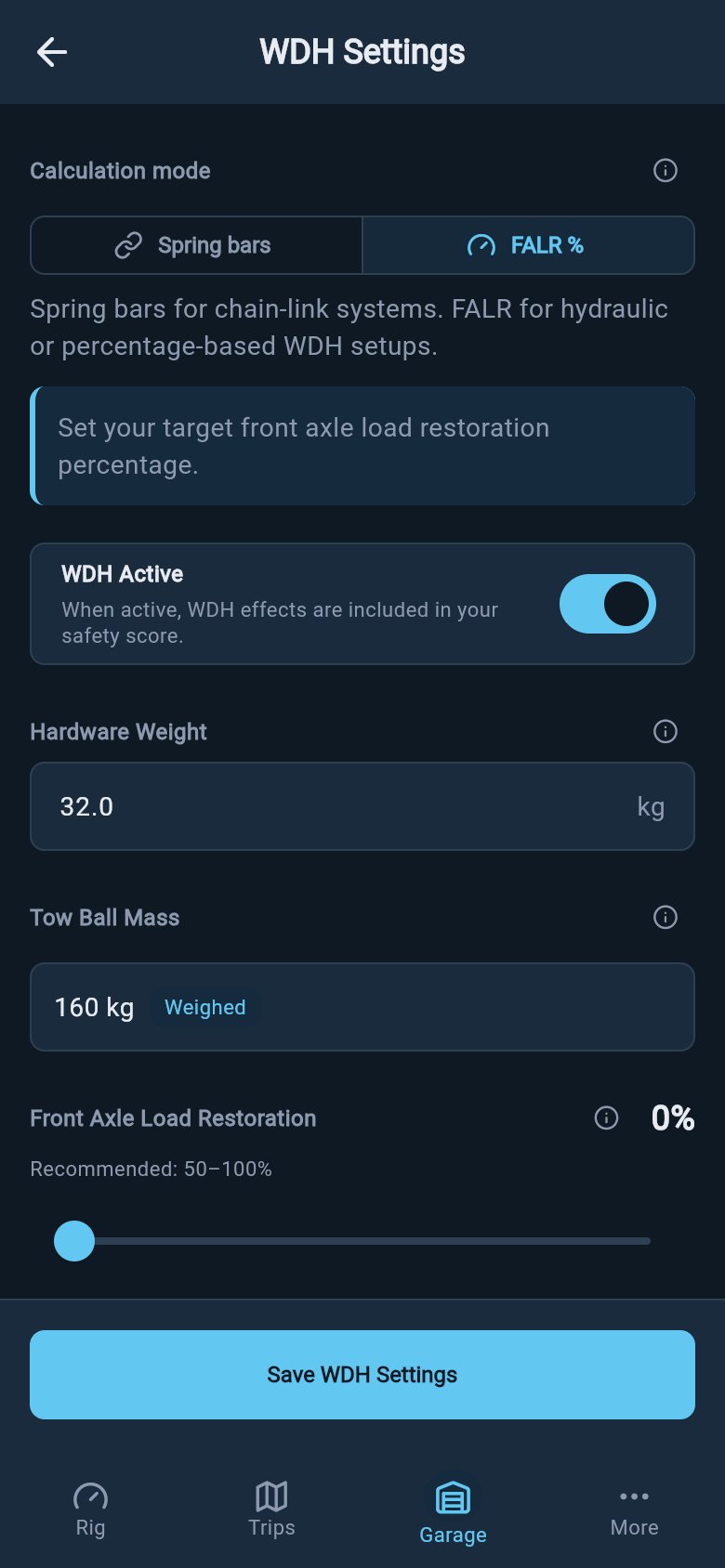
WDH settings in FALR mode
Spring bars
Choose Spring bars if your hitch is the traditional kind: steel bars (often called spring bars or load bars), chains or brackets, and a tension setting you adjust when you hitch up. This is the most common type in Australia and the UK. In this mode loadmate works the effect out from the numbers printed on your gear and setup sheet:- Bar rating — the minimum and maximum coupling weight your bars are rated for. There are two boxes, a low and a high figure.
- Bar length — how long the bars are. This one is always entered in inches, even if everything else on your screen is in kilograms or pounds, because spring bars are sold and labelled by inch length the world over. Type the inch number from the bar; loadmate does not convert it.
- Applied tension — a slider for how tight you have wound the setup, from loose to firm. Set it to roughly where you actually run it.
FALR
Choose FALR if your hitch does not have a tension knob to read off — typically a hydraulic weight distribution hitch, or any setup where your fitter or weighbridge gives you a percentage rather than a tension setting. This is the default loadmate offers US users on first setup, and the right choice for hydraulic systems anywhere. FALR stands for Front Axle Load Restoration. That is exactly what it measures: the share of the front-axle weight your vehicle lost when the van was hitched that the hitch is set up to put back. A FALR of 70% aims to restore about 70% of the front-axle weight the coupling took off. FALR works from two things:- The restoration percentage — a slider, marked Recommended: 50–100%. Set it to the figure from your fitter, your hitch maker, or your own wheel-arch or weighbridge measurement.
- The coupling weight — the weight pressing down on the tow ball, which loadmate already holds for your trailer. Depending on your region this is shown as tow ball mass (AU), nose weight (UK), or tongue weight (US). The form shows where that number came from, with a small label such as Weighed or a manufacturer source.
Enter the hardware weight
Both modes ask for the hardware weight: how much the weight distribution gear itself weighs, sitting on the trailer’s A-frame. This matters because that gear adds to the trailer’s total weight whether or not the hitch is doing its job — so recording it keeps your trailer’s loaded figures accurate. WDH product labels often print this with a decimal, like 31.5 kg, so type the number exactly as shown rather than rounding it. loadmate accepts the decimal.Read the Effect Preview before you save
As you enter your values, a live Effect Preview updates at the bottom of the screen. It is a plain-language picture of what your settings will do, shown before you commit anything. Three rows tell the story:- Front Axle — how much weight is put back onto the tow vehicle’s front axle (shown with a
+). This is the weight that brings your steering back. - Rear Axle — how much weight is taken off the tow vehicle’s rear axle (shown with a
−). This is the squat the hitch relieves. - Trailer Axle Group — how much weight is shifted onto the trailer’s own axles (shown with a
+).
loadmate needs a few measurements about your tow vehicle and trailer — the wheelbase and the hitch distances — to work the effect out. If any of those are missing while the trailer is hitched, a Missing vehicle or trailer measurements warning appears above the preview, and the three rows read zero because loadmate cannot calculate the effect yet. You enter those measurements when you set up storage zones, not on the ratings form, so the preview comes to life once your storage is configured. See Set up storage zones.
Save, and review the rig
When the figures match your gear, tap Save WDH Settings. loadmate stores your configuration on the trailer. In FALR mode it also stores the exact coupling weight the calculation was based on, so it can tell later whether the setup still matches the way the trailer is loaded.Saving a weight distribution hitch is a Pro feature, like the other changes you make to your own rig. Anyone can open the settings, read them, and explore them on the demo rig for free — saving a real change to your own trailer needs Pro. See Free and Pro.
When loadmate flags that your setup has drifted
A FALR setup is built on one particular coupling weight. If you later load the van differently and that weight moves a long way — loadmate watches for a shift of more than about 10% from the figure FALR was saved against — your hitch is no longer tuned for how the van sits now. When that happens, loadmate raises a WDH tongue weight changed item in the Rig attention list. This is FALR-mode only; spring-bar setups are not watched this way, because they do not pin themselves to a single coupling weight. Open the item, check your current coupling weight, and save the FALR settings again with the up-to-date figure.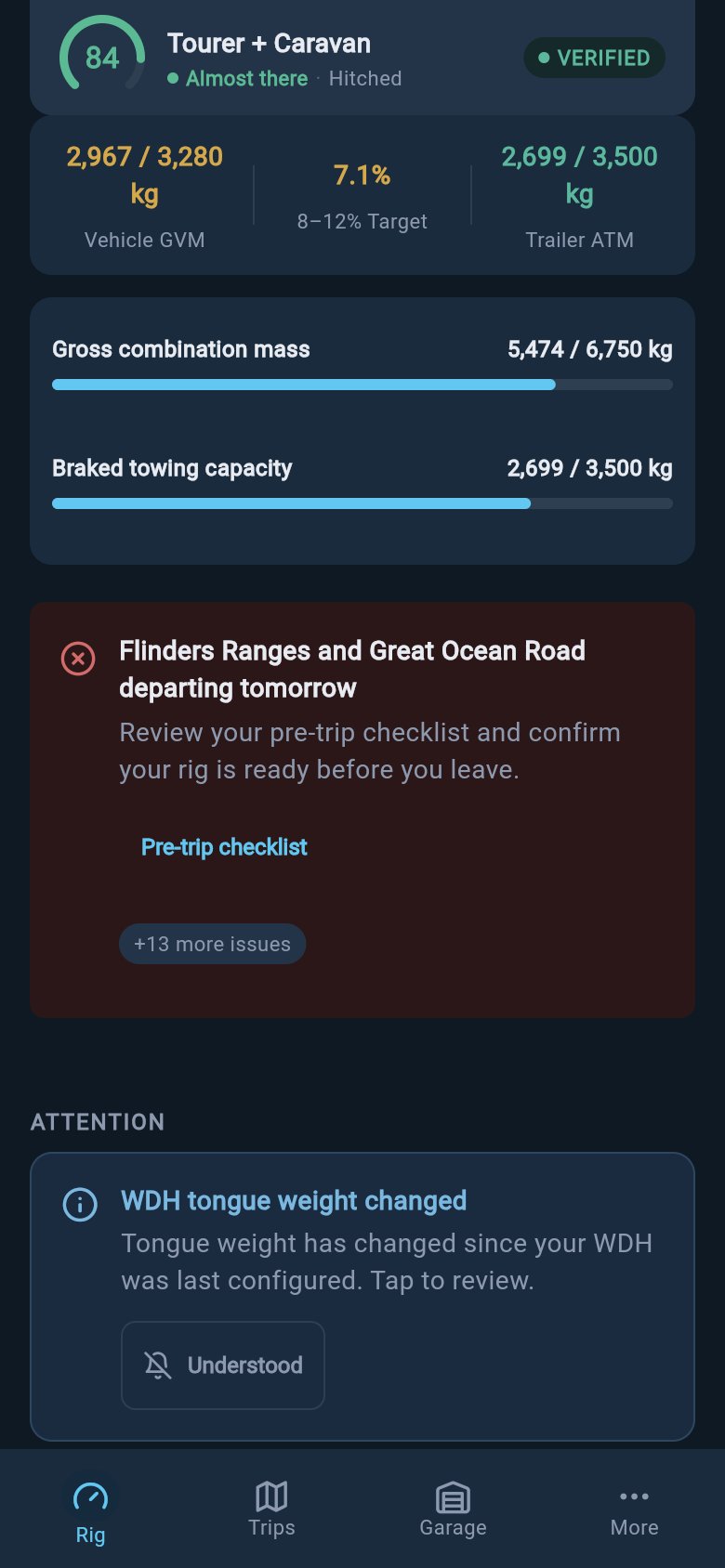
The WDH tongue-weight alert
Changing or removing it later
To change a saved setup, reopen the WDH settings from the trailer profile or the Rig detail sheet, edit the values, and save again. The Rig Score updates the next time you open the Rig tab. To take the hitch out of the picture entirely, use Remove WDH from the trailer profile or the Rig detail sheet. Removal applies straight away, with a short undo option — so an accidental tap is recoverable for a few seconds. Saving or removing a hitch on your own rig both require Pro.Where to go next
Update tow ball, nose, or tongue weight
Keep the coupling weight current so FALR stays accurate and the drift warning stays quiet.
Set up storage zones
Enter the wheelbase and trailer measurements the Effect Preview needs to show real numbers.
What is the Rig Score
See how your hitch, your weights, and your limits all feed the one safety number.
Free and Pro
Understand what you can explore for free and what saving a real change needs.