

Browse the library
The library is organised so you can find the right job without scrolling endlessly. Filter by the asset it applies to, the tow vehicle or the trailer, then narrow by category, such as brakes, gas, electrical, or service. Within each category the jobs are grouped together, and safety jobs are listed first so the items that protect you on the road are the first ones you see.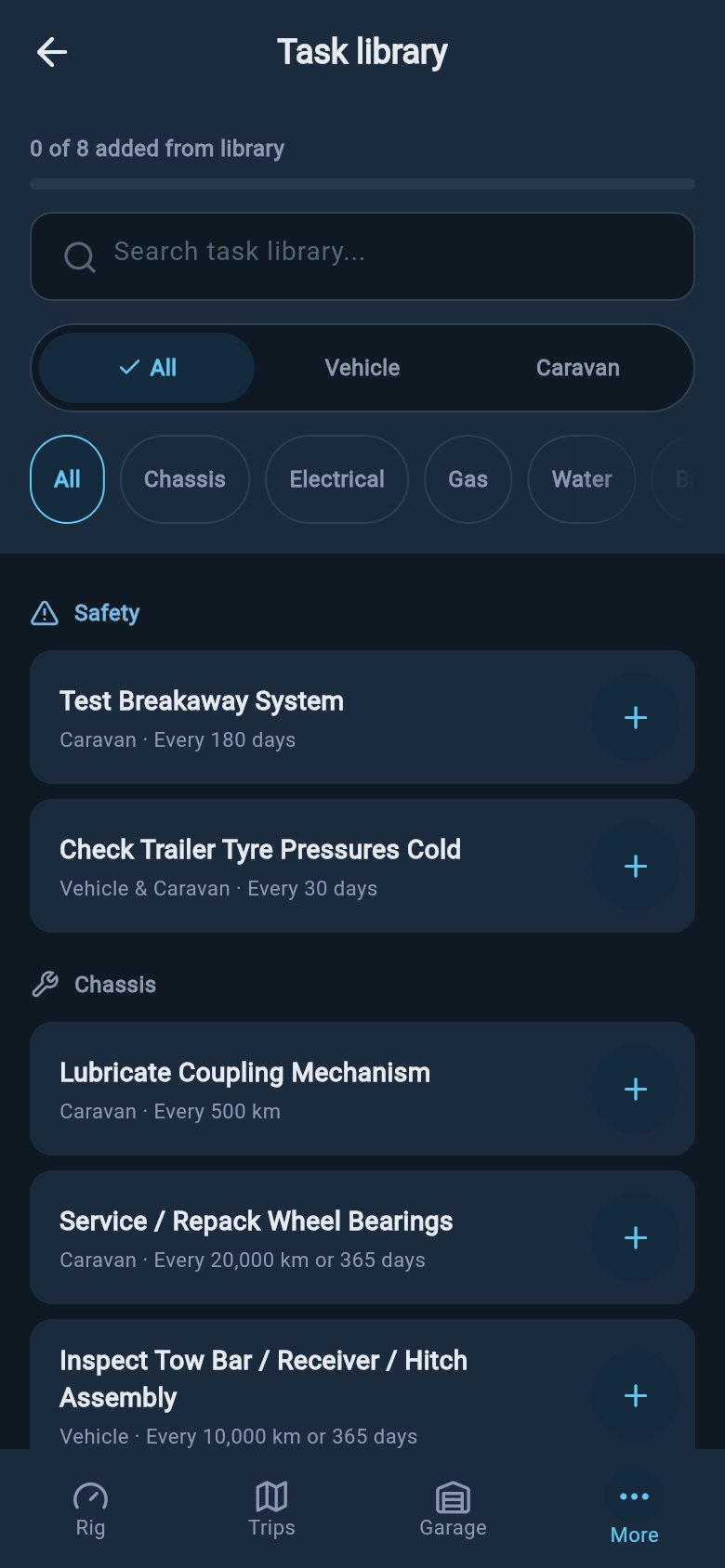
The trailer jobs are labelled to match your region. In Australia and the United Kingdom the trailer is shown as your Caravan; in the United States it is shown as your Trailer. The job itself is the same whichever label you see.
Items tuned to your region
The library shows the jobs that apply where you tow, so you are not offered paperwork or checks that belong to another country. The clearest example is the Australian gas certificate, also known as a safety inspection renewal, which appears for Australian users and is hidden from everyone else. Most jobs, including the breakaway-system test and the bearing repack, are useful everywhere and are shown to all regions.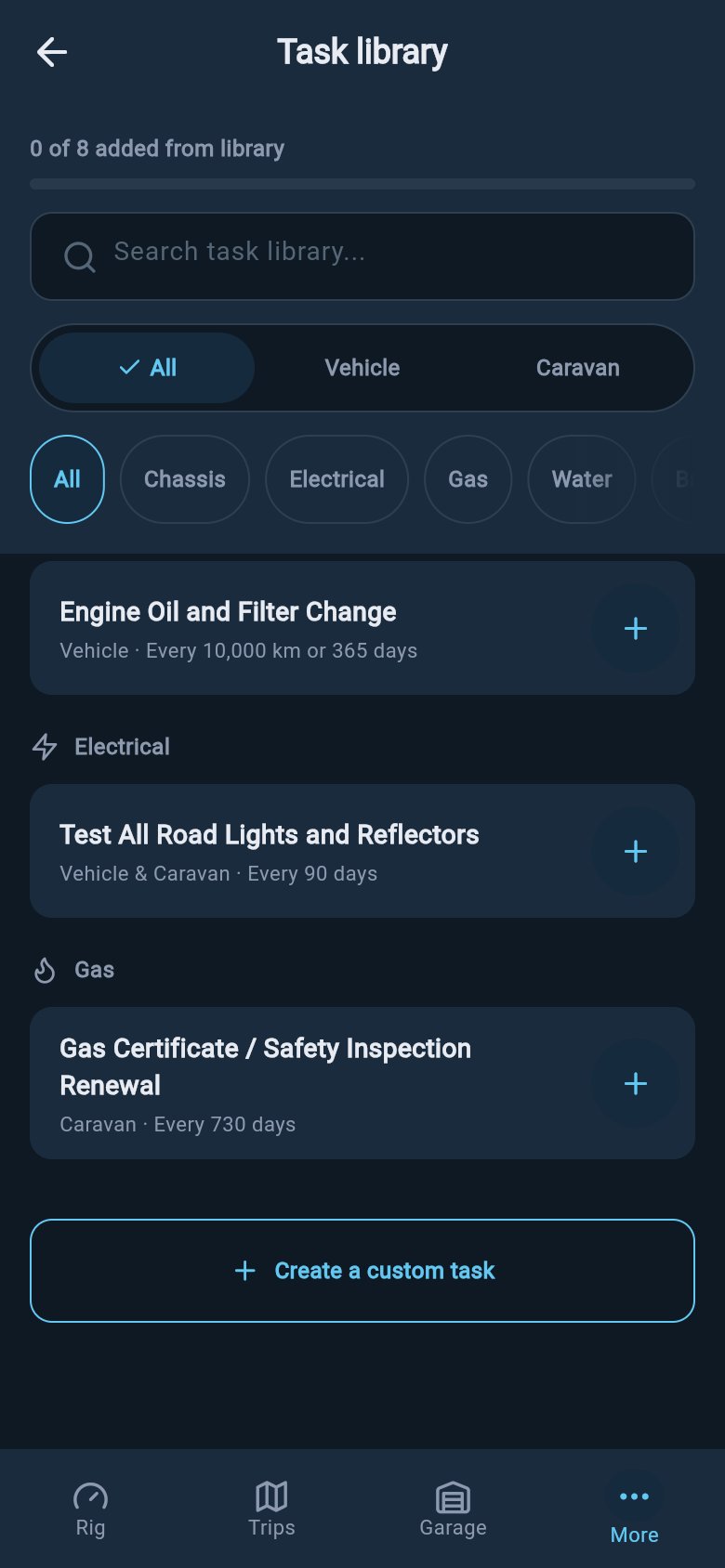
You do not choose your region on this screen. loadmate reads the region you set when you created your account, and shows the matching jobs and the matching wording for distances and trailer terms. If something looks out of place for where you live, check your region in account settings.
Add a library task
When a job looks right for your rig, tap it to open a short confirmation sheet. The sheet shows the job’s name, a plain description of what it covers, and its suggested schedule, so you can see exactly what you are about to add before you commit to it. Adding from the library is the quick path: the sensible defaults are already filled in, and you can accept them as they stand.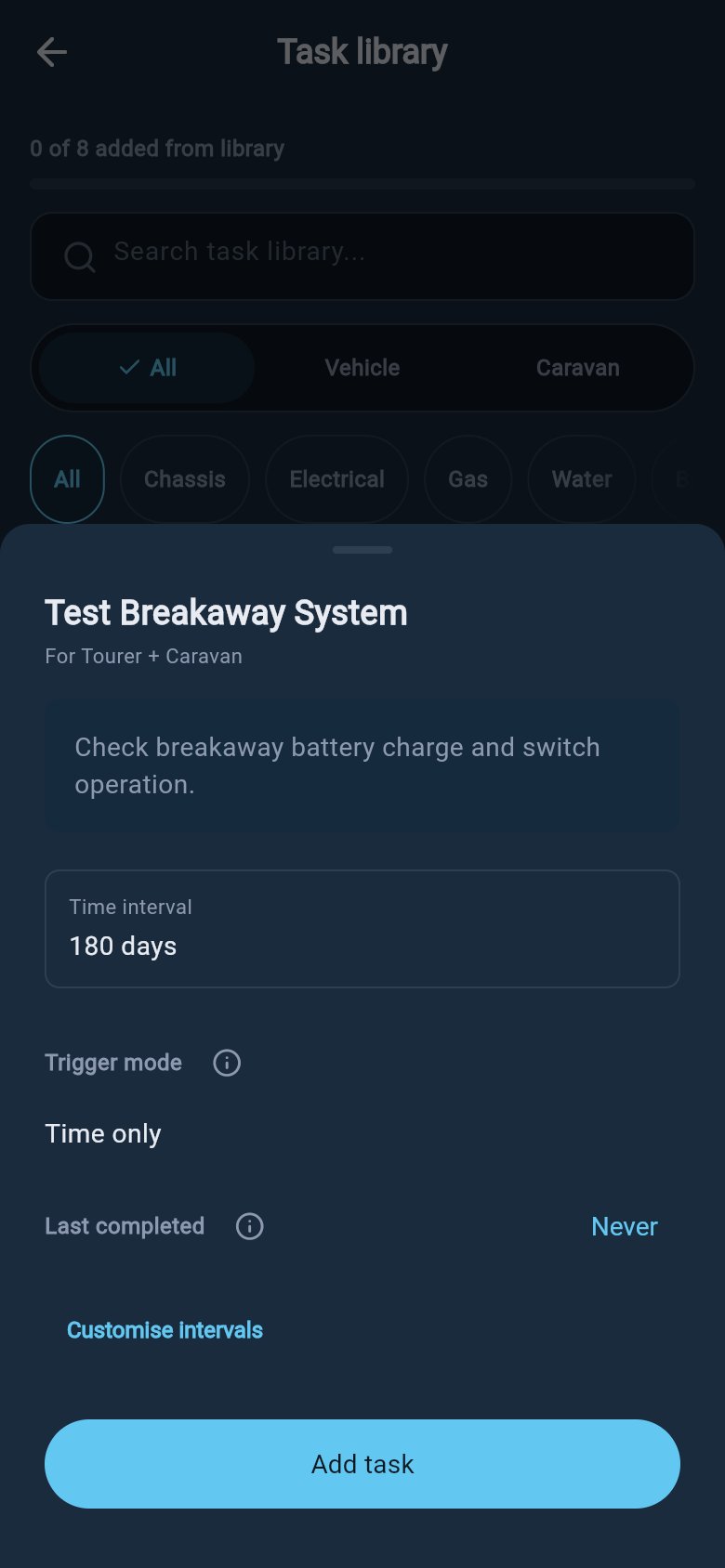
1
Check the interval
The interval is how often the job comes around, shown as a distance (kilometres, or miles for United States users), a time in days, or both. A bearing repack might be set to every 10,000 kilometres, while a gas certificate might be set to every 12 months. You can accept the suggested figures, or open Customise intervals to enter your own.
2
Check how it counts down
The trigger mode decides which interval brings the job due. Whichever first brings it due as soon as either the distance or the time is reached, Distance only counts down on kilometres alone, and Time only counts down on days alone. Pick the one that matches how the job is actually scheduled on your rig.
3
Set the last-completed point
If you know when the job was last done, enter that date, and the odometer reading if you have it. This gives the countdown an accurate starting point, so the next-due date and distance are calculated forward from real work rather than from today. If the job has never been done, you can leave this set to never.
Create a custom task
If you keep a routine the library does not list, you can build it yourself with Add custom task. This is the place for the job that is particular to your rig or your habits, anything from flushing the water system on your own schedule to a one-off reminder to renew a membership before your next big trip. A custom task counts down and behaves exactly like a library task once it is saved.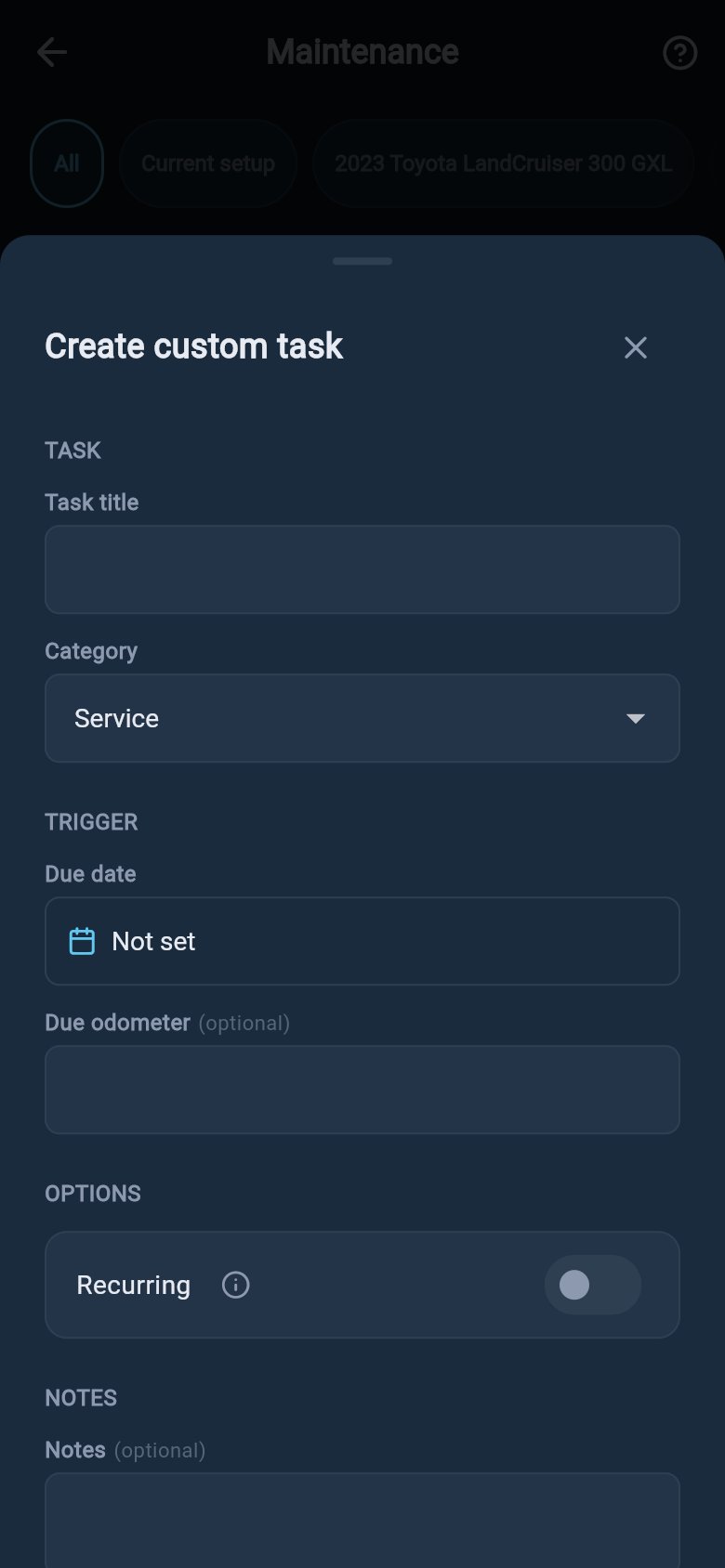
A recurring job
Turn Recurring on for anything you do again and again. The sheet then asks for an interval, a distance, a time in days, or both, and a trigger mode that decides which one brings it due, exactly the same choices as a library task. You can also enter when the job was last done, as a date and an odometer reading, to give the countdown a real starting point. You need to set at least one interval before you can save.A one-off reminder
Leave Recurring off for a task you only need to be reminded about once. Instead of an interval, you give it a target: a due date, a due odometer, or both. loadmate works out for itself whether to count down on time, on distance, or on whichever comes first, based on what you entered. A one-off task is tidied away once you mark it done, rather than rolling forward to a next interval.A before-every-tow check
The form also carries a Check before every tow toggle. Turn it on and the task becomes a pre-trip check instead of a countdown job: it appears on every planned trip’s checklist to be ticked off per trip, and it never goes overdue — its date and odometer fields become optional while the toggle is on. This is the right shape for walk-around items like “coupling secured” or “hatches latched”. There is also a quicker way to add the common ones in bulk: see Set up your pre-trip checks. Add any notes you want to keep with the task, then save. Saving a custom task needs Pro in the same way as a library task, and the task joins your list with its countdown running.What if the library already has something close?
What if the library already has something close?
It is usually worth checking the library first, even for a job you think is unusual, because the seeded list runs to well over a hundred common jobs across both the vehicle and the trailer. A library job comes with a sensible interval and description already filled in, which saves you setting everything up by hand. Reach for a custom task when nothing in the library is a fair match, or when the routine is genuinely your own.
What to do next
Once your jobs are in, the day-to-day work happens in your task list, where you complete jobs, snooze the ones that can wait, and watch the countdowns.Track and complete tasks
See overdue, due-soon, and on-track jobs in one place, mark them done, and snooze what can wait.
Set up the service schedule
Set your major-service interval so loadmate counts down to your next service.
Log a completed service
Record finished work with its date, odometer, cost, and notes.
Service & Tasks overview
See how the schedule, tasks, and history fit together in one hub.