

Open the schedule and set your interval
Open the schedule from the Service & Tasks hub: from the More tab, choose Service & Tasks, then tap the service schedule card. If you have not set one yet, the card invites you to set it up; once a schedule exists, the same card lets you edit it. The sheet that opens asks for a few plain things, and you only fill in the ones that apply to how your service is measured.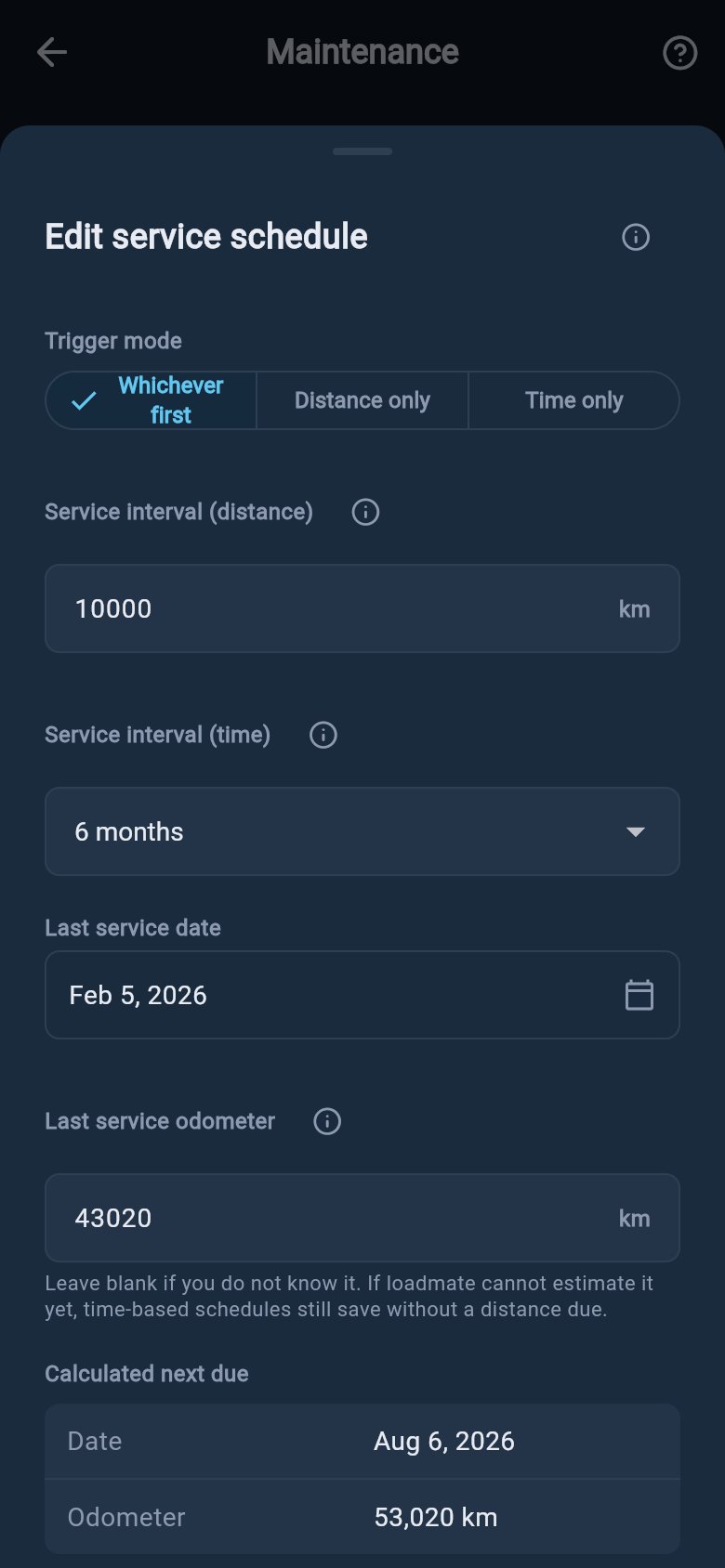
1
Choose how it counts down
Pick whether the service is due by distance, by time, or by both. This is the first choice on the sheet, and it decides which of the fields below you need to fill in. The next section explains the three options in detail.
2
Enter the distance interval
If your service is measured by distance, type how far apart the services are, in kilometres (miles for US users), such as 10,000. This field only appears when your countdown uses distance.
3
Enter the time interval
If your service is measured by time, choose the number of months between services from the list, such as 6, 12, or 24. If your interval is not one of the listed options, pick Custom and type your own number of months.
4
Anchor it to your last service
Enter the date of your last completed major service, and its odometer reading if you have it. This is the starting point loadmate counts forward from, so the next-due figure lines up with the work you have already had done. The date cannot be in the future.
5
Save the schedule
Tap Save schedule. loadmate works out your next-due date and odometer from the interval and the last-service anchor, and starts showing the countdown on the hub. If you are editing an existing schedule, you can also tap Clear schedule to remove it.
If you leave the last-service odometer blank on a distance schedule, loadmate fills in a trip-based estimate from your logged trips where it can, so you are not stuck if you do not have the exact reading to hand.
Choose how it counts down
A major service can fall due because enough time has passed, because you have covered enough distance, or because either one has arrived. loadmate lets you choose which of these drives your countdown using the trigger mode selector at the top of the sheet. The three options carry the labels below, and the right choice depends on how your manufacturer states the interval.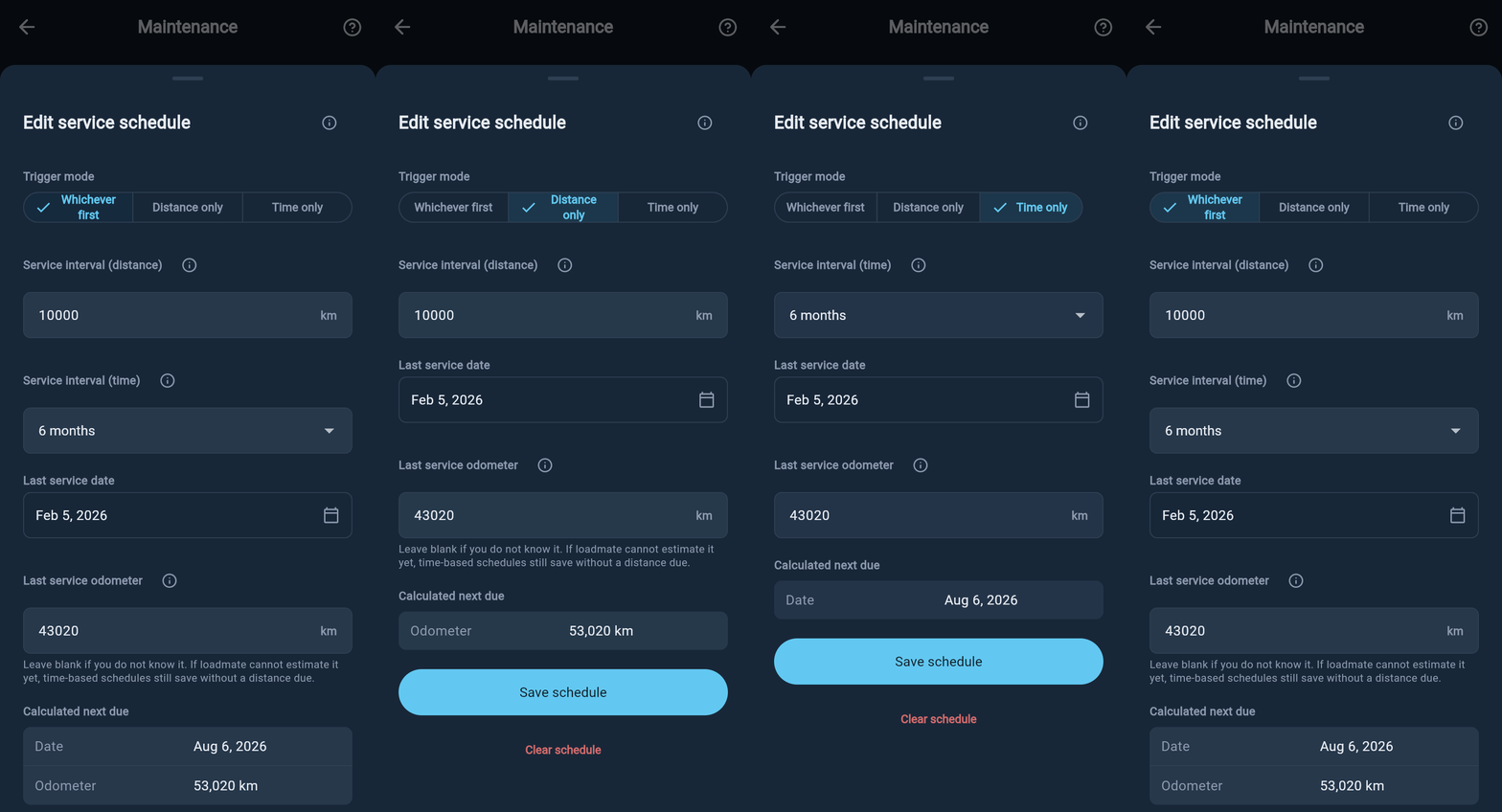
Whichever first
Whichever first
The service is due as soon as either the distance or the time arrives, whichever comes around first. This is the default, and it matches the most common way handbooks are written. For example, “every 10,000 km or 12 months, whichever comes first” means a van that sits in the driveway over winter still becomes due on the 12-month mark even though it has barely moved, while a van that tours hard reaches the distance first. You fill in both the distance and the time interval for this mode.
Distance only
Distance only
The service is due purely on distance, and time does not enter into it. Choose this when your interval is stated only in kilometres or miles, such as “service every 10,000 km”. You fill in the distance interval and loadmate ignores the calendar. Because this mode leans entirely on distance, it relies on your odometer being reasonably current.
Time only
Time only
The service is due purely on elapsed time, and distance does not enter into it. Choose this for jobs tied to the calendar rather than how far you travel, such as an annual service for a van that does low distances. You choose the number of months and loadmate counts the days forward from your last service.
Your next service, worked out for you
Once your interval and last-service anchor are in, loadmate does the arithmetic. It adds your time interval to the last-service date to give the next-due date, and adds your distance interval to the last-service odometer to give the next-due odometer. You can see both figures previewed on the sheet before you save, so there are no surprises. After saving, they appear as a countdown on the service schedule card on the hub, ticking down as the date approaches and as you cover distance.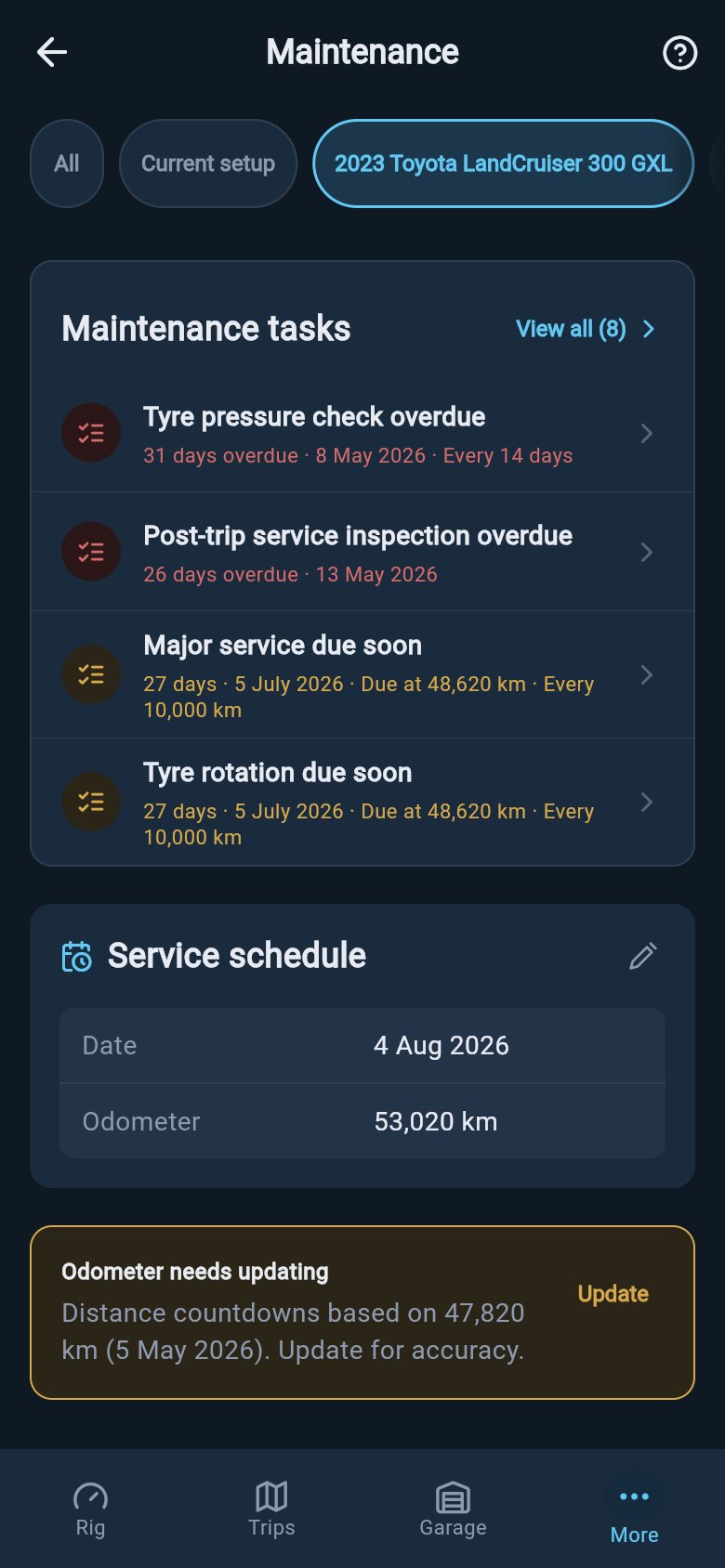
Why the odometer matters here
A distance countdown is only as good as the latest odometer reading behind it. If loadmate is working from a reading taken thousands of kilometres ago, the “next due” distance figure drifts away from where you really are. You do not have to update the odometer as a separate chore, because it stays current as a side effect of logging services, completing tasks, and finishing trips. When a reading does go stale, the hub shows a gentle reminder so you can refresh it; see Odometer reminders and estimates for when that happens and how loadmate estimates in between.Time-only schedules are unaffected by a stale odometer, since they count the calendar rather than distance. If your schedule uses distance at all, keeping the reading current keeps the countdown accurate. See Keep your odometer current for how and when to update it.
Log a service
Record a completed major service so the schedule re-anchors and your next-due figures roll forward.
Keep your odometer current
Understand why the reading drives every distance countdown, and how loadmate keeps it fresh.
Service & Tasks overview
See how the schedule sits alongside tasks, the task library, and your service history.