

Your vehicle and trailer, side by side
When you are hitched, service history brings your tow vehicle and trailer together into a single list, ordered by date with the newest service at the top. You do not have to switch between assets to see the whole picture: a brake service on the caravan and an oil change on the tow vehicle sit in the same timeline, in the order they happened. Each row shows the type of service, a small chip telling you whether it belongs to the vehicle or the trailer, the date, the odometer reading, the workshop or provider if you recorded one, and the cost if you entered it.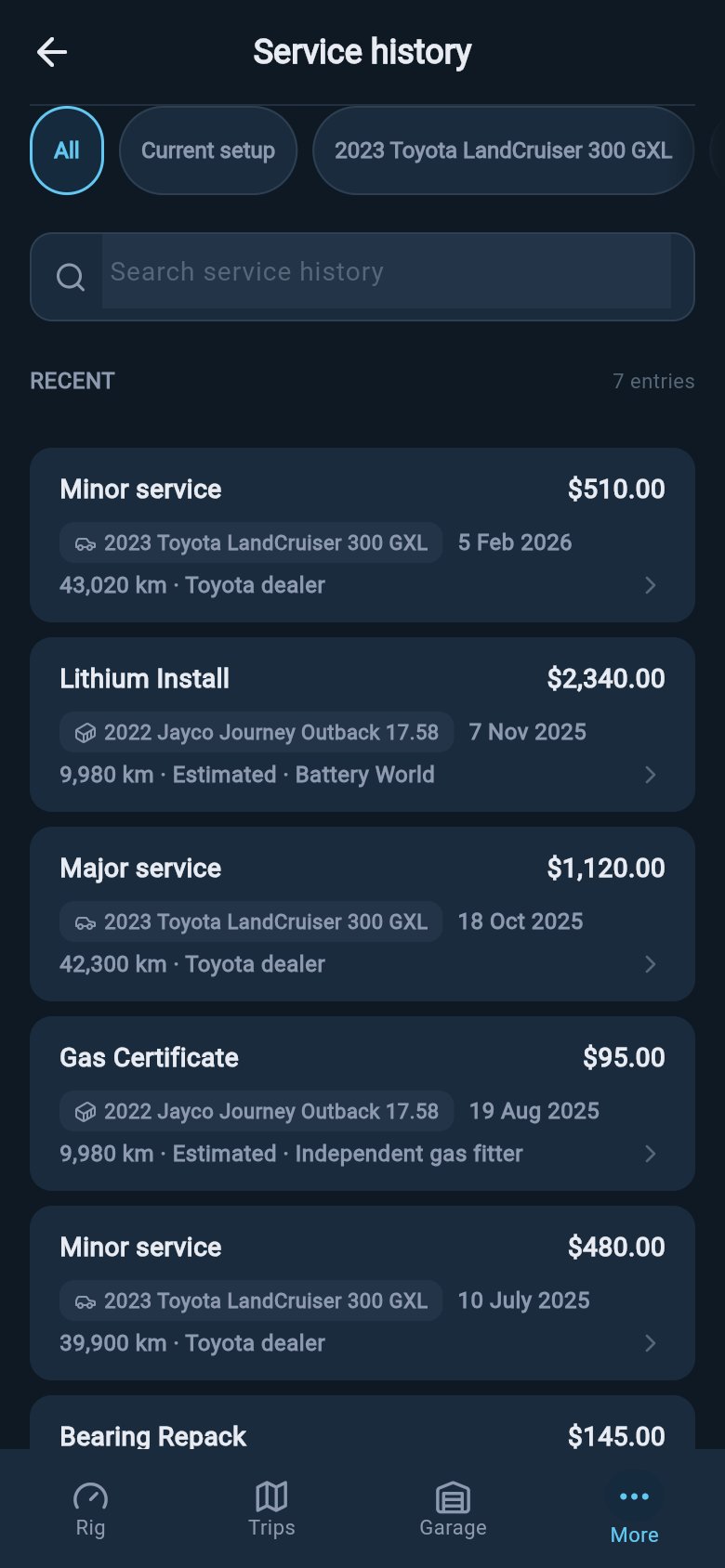
If an odometer reading was worked out from your trips rather than typed in by hand, the row shows a small “Estimated” badge next to it. That simply tells you the figure is a careful estimate, not a reading you entered yourself. You can see every reading, and where each one came from, on Your odometer history.
Open a record to read, edit, or delete
Tap any row to open the full service record. The detail view opens as a panel and lays out everything you captured: the service type and a line telling you when it was logged and at what odometer, then a Service details card showing the date, the odometer, the cost if you recorded one, and the provider if you named one. Below that, a Next service due card shows the date and odometer your schedule is currently counting down to, and if you added notes or photos of a receipt, those appear underneath.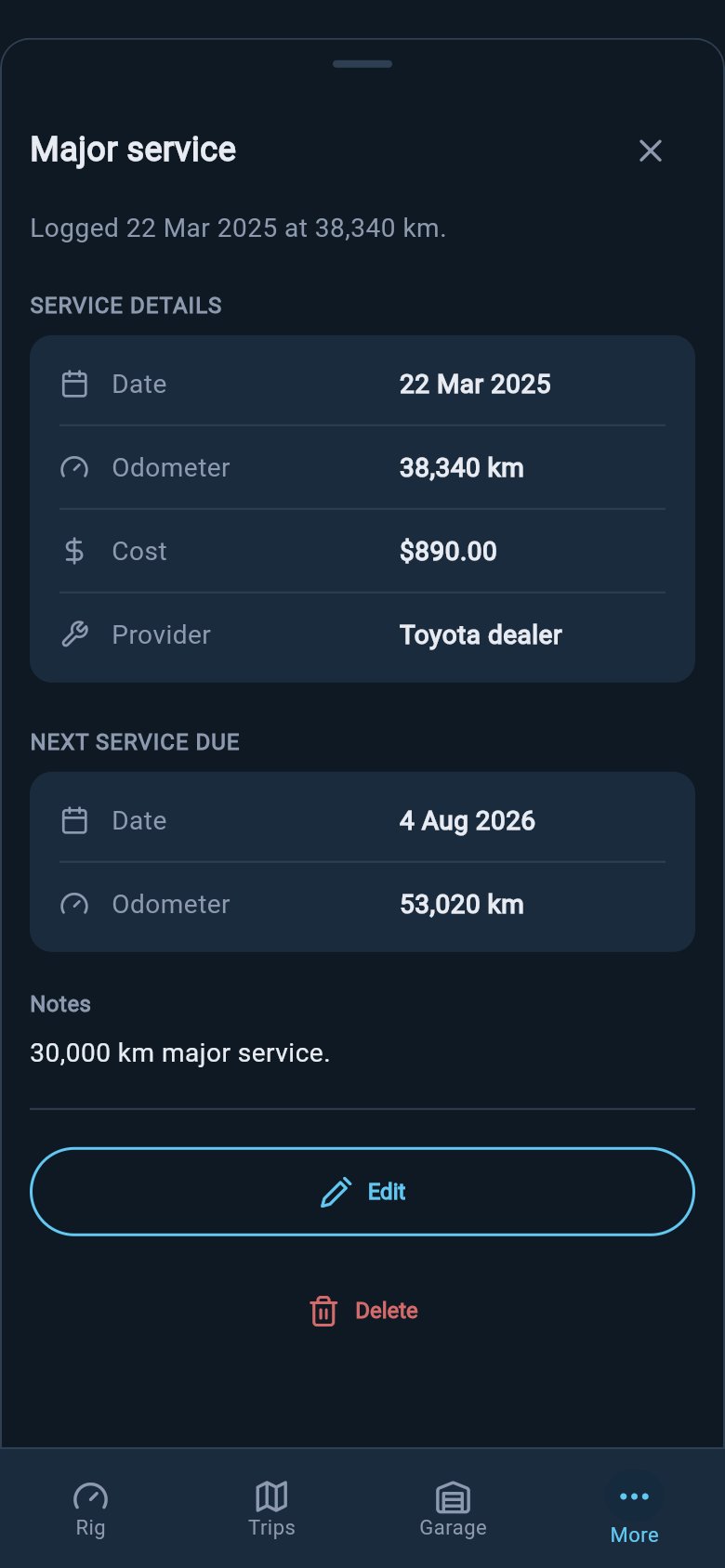
On the demo rig the records are there to explore and you can open any of them, but they are fixed examples. Editing and deleting are switched off for demo data, so you can look without changing anything.
Using your history for warranty and resale
A complete service history is worth keeping for the moments when someone asks you to prove the rig has been looked after. A warranty claim often turns on showing that scheduled servicing was done on time, and a buyer weighing up your van will pay more for a rig with a clear, unbroken record than for one with a shoebox of faded receipts. Because your history survives a lost folder and travels with you, it is there when you need to point to it. Be clear about what this record is and is not. Service history captures completed work only: the services you have already had done and logged. It is not a booking diary and it does not reach out to anyone. loadmate keeps the record and counts down to your next service, but it does not book appointments, contact mechanics, or deal with workshops or outside service providers on your behalf. Arranging the work, and keeping any original paperwork your warranty or buyer might ask to see, stays in your hands. For tracking cover and faults alongside your servicing, see Warranty coverage and issues.Your units follow your region
Distances in your history follow the region you set, not your device’s language. If your region is Australia, the United Kingdom, or Europe, odometer readings show in kilometres (km). If your region is the United States, they show in miles (mi). You do not convert anything yourself; loadmate stores every reading the same way underneath and shows it in the units you expect.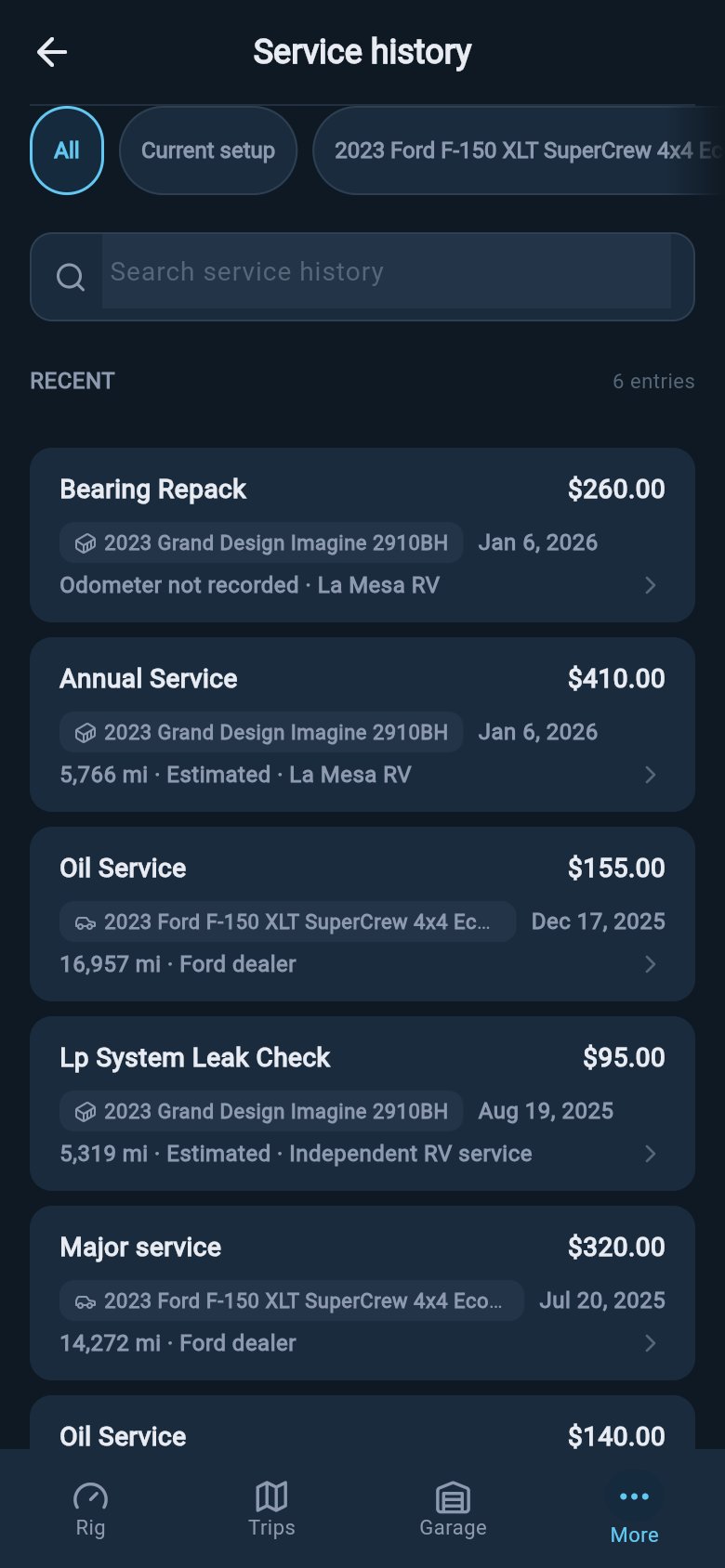
Log a service
Record a completed service so it appears here and your schedule rolls forward.
Service & Tasks
See your schedule, tasks, and recent history together on the maintenance hub.
Your odometer history
See every odometer reading behind these services, and trace or fix one.