

loadmate keeps your records and counts down to what is due. It does not book appointments, contact a workshop, or arrange anything on your behalf. Reminders appear on your rig’s attention list and through your device’s notifications, and booking the work stays in your hands.
What the hub shows you
Once you are set up, the Service & Tasks hub reads from the top down as a quick status of your rig. Each section answers a different question, so a glance tells you whether anything needs your attention before your next trip.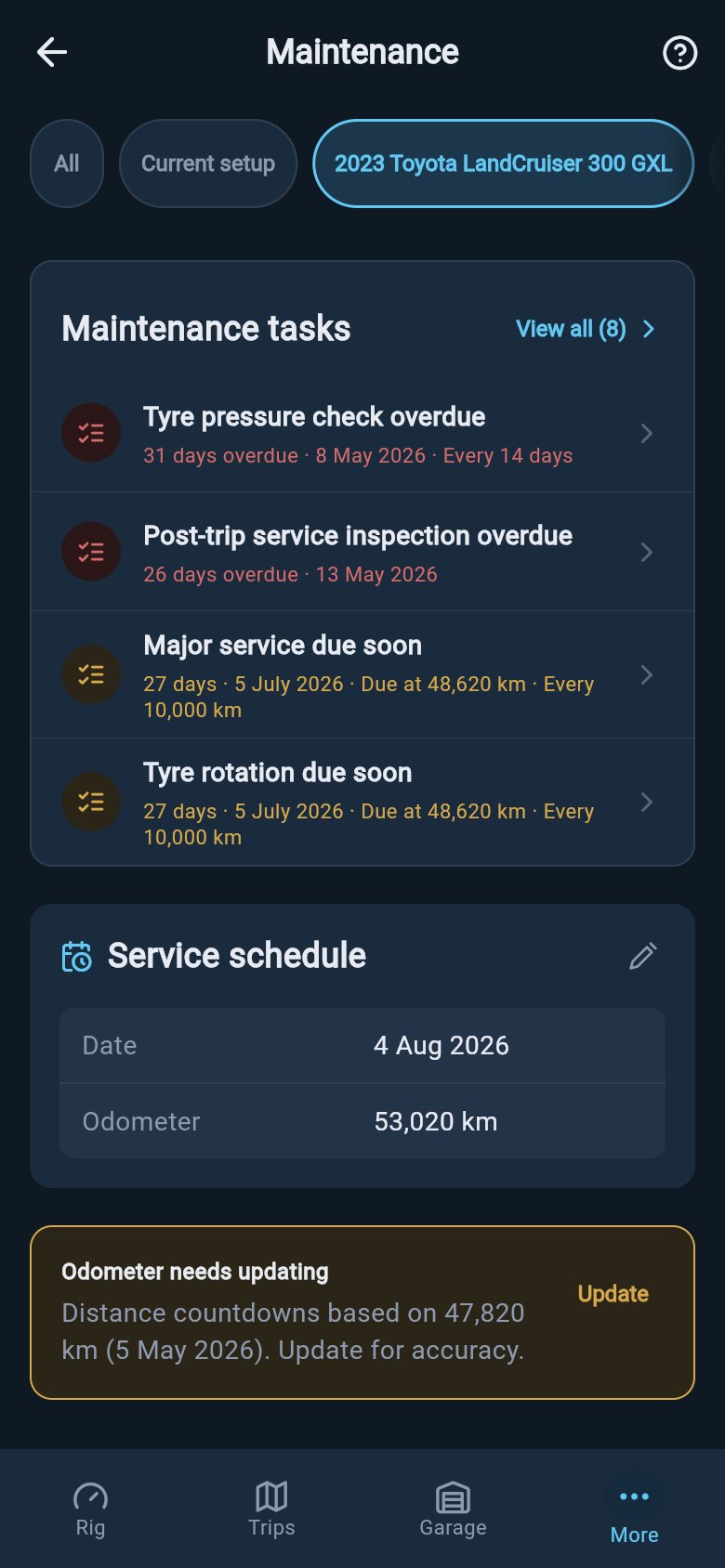
- Your tasks at a glance. A summary of the maintenance jobs you track, showing how many are overdue, due soon, or on track, with a way to open the full list. This is where recurring jobs like greasing the hitch or repacking bearings count down towards their next due point.
- Your service schedule. The next major service for the asset, shown as a countdown by distance, by time, or by whichever comes first. It tells you when the next service falls due so you do not have to remember the manufacturer’s interval and work back from your last receipt.
- A reminder if your odometer reading is old. A gentle banner appears near the schedule when your latest distance reading has gone stale, because every distance-based countdown depends on it. More on this below.
- Your recent service history. A short preview of the last few services you have logged, newest first, with a way to open the complete history.
Your first-time setup checklist
The first time you open Service & Tasks, you will not see a blank screen. Instead, the hub shows a short setup checklist titled Set up maintenance tracking, with a small progress chip and a “takes about a minute” estimate. It walks you through the few things loadmate needs before it can count down to what is due.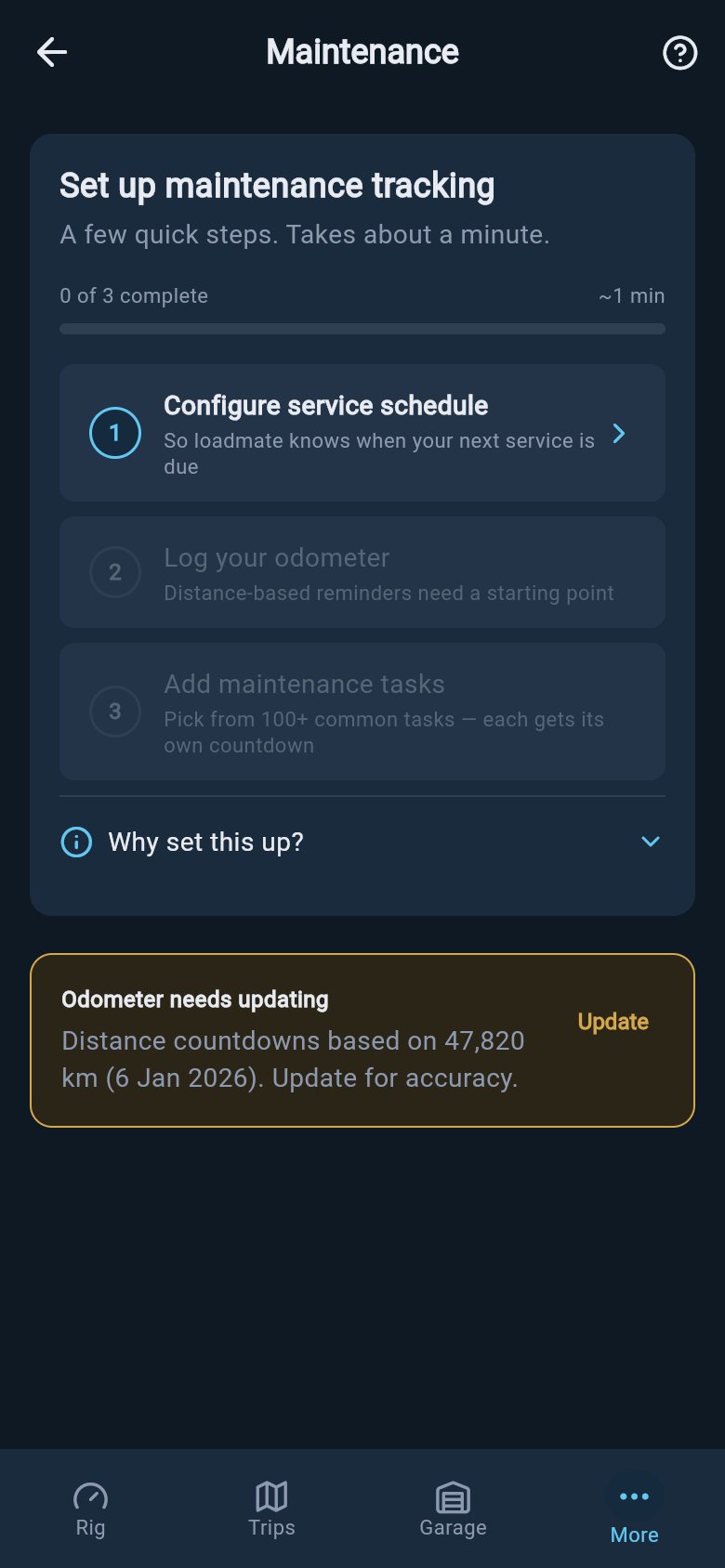
1
Configure a service schedule
Set your major-service interval — for example every 10,000 km (or every 6,000 miles for US users), every 12 months, or both. This is what lets loadmate know when your next service is due and count down to it. This step is marked done once an interval is saved.
2
Add maintenance tasks
Pick the jobs you want to track. You can choose from a library of over 100 common caravan and tow-vehicle tasks, each with sensible default intervals, or add a custom one of your own. This step is marked done once you have added a task, or simply opened the task library to look — so browsing first does not hold you up.
3
Log your odometer
Give loadmate a recent distance reading as a starting point. Distance-based reminders need somewhere to count from, so this step appears whenever your schedule or any of your tasks counts down by distance. It is marked done when your latest reading is recent.
Once the last step is ticked, you will see a brief “you are all set” confirmation, and then the checklist tidies itself away so your schedule, tasks, and history take its place. If one of those inputs later slips — say a reading goes stale again — the checklist quietly comes back to point you at what to top up. It is there to help, not to nag.
When your odometer reading goes stale
Your odometer is the heartbeat of every distance-based countdown. When the reading you last gave loadmate gets old, the hub shows a gentle reminder near the schedule card that your distance countdowns are based on an ageing figure and would be more accurate with a fresh one. Nothing breaks in the meantime; the reminder is simply asking you to keep the numbers accurate.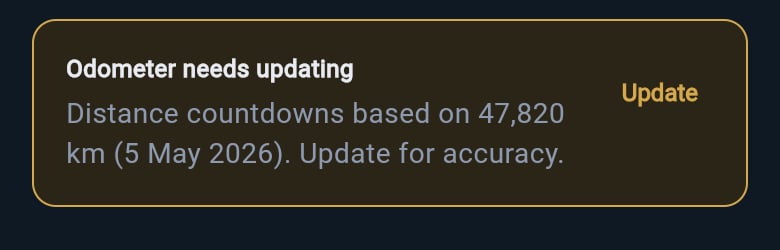
Get help any time
If you would like a plain-English refresher on how the whole section works, tap the help icon in the top corner of the hub. It opens a short sheet titled How maintenance tracking works that explains the moving parts without any jargon.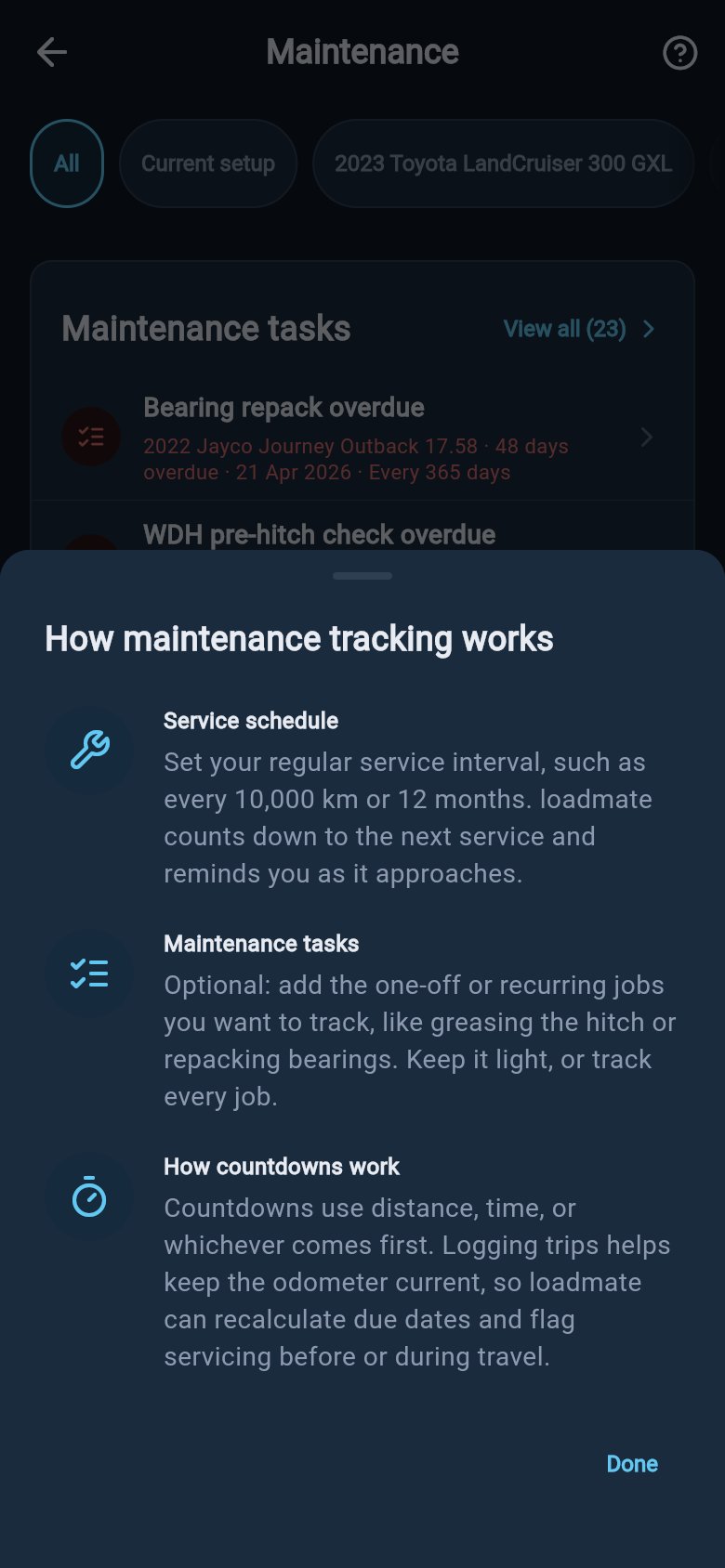
- Service schedule — setting your regular service interval, such as every 10,000 km or 12 months, and how loadmate counts down to the next one and reminds you as it approaches.
- Maintenance tasks — adding the one-off or recurring jobs you want to track, like greasing the hitch or repacking bearings. You can keep it light or track every job; it is up to you.
- How countdowns work — how reminders use distance, time, or whichever comes first, and how logging trips keeps your odometer current so loadmate can recalculate due dates and flag servicing before or during travel.
Where to go next
Service & Tasks ties several smaller pieces together. Each one has its own page with step-by-step guidance, so head to whichever you need.Set a service schedule
Set your major-service interval by distance, time, or whichever comes first, so loadmate can count down to the next service.
Add maintenance tasks
Pick from the task library or create your own, so each job gets its own countdown.
Track and complete tasks
Work through overdue, due-soon, and on-track jobs, mark them done, and snooze the ones that can wait.
Log a service
Record completed work with its date, odometer, and notes, and keep your schedule and history aligned.
Review service history
Look back over every service you have recorded, for warranty evidence or your own peace of mind.
Keep your odometer current
Understand why the odometer matters and how to keep distance countdowns accurate.
Saving changes on your own rig requires Pro. You can explore the whole hub — the schedule, the task library, your tasks, and your history — as a free, lapsed, or demo user; only saving a real change asks you to upgrade. Demo data stays visible so you can look around, but it cannot be altered.