

Sign out closes the session, not the account
Signing out is the everyday, reversible choice. Use it when you are stepping away rather than leaving for good — setting up a new phone, lending the device to someone, or tidying up who has access. Nothing is deleted. You can sign back in with the same method any time.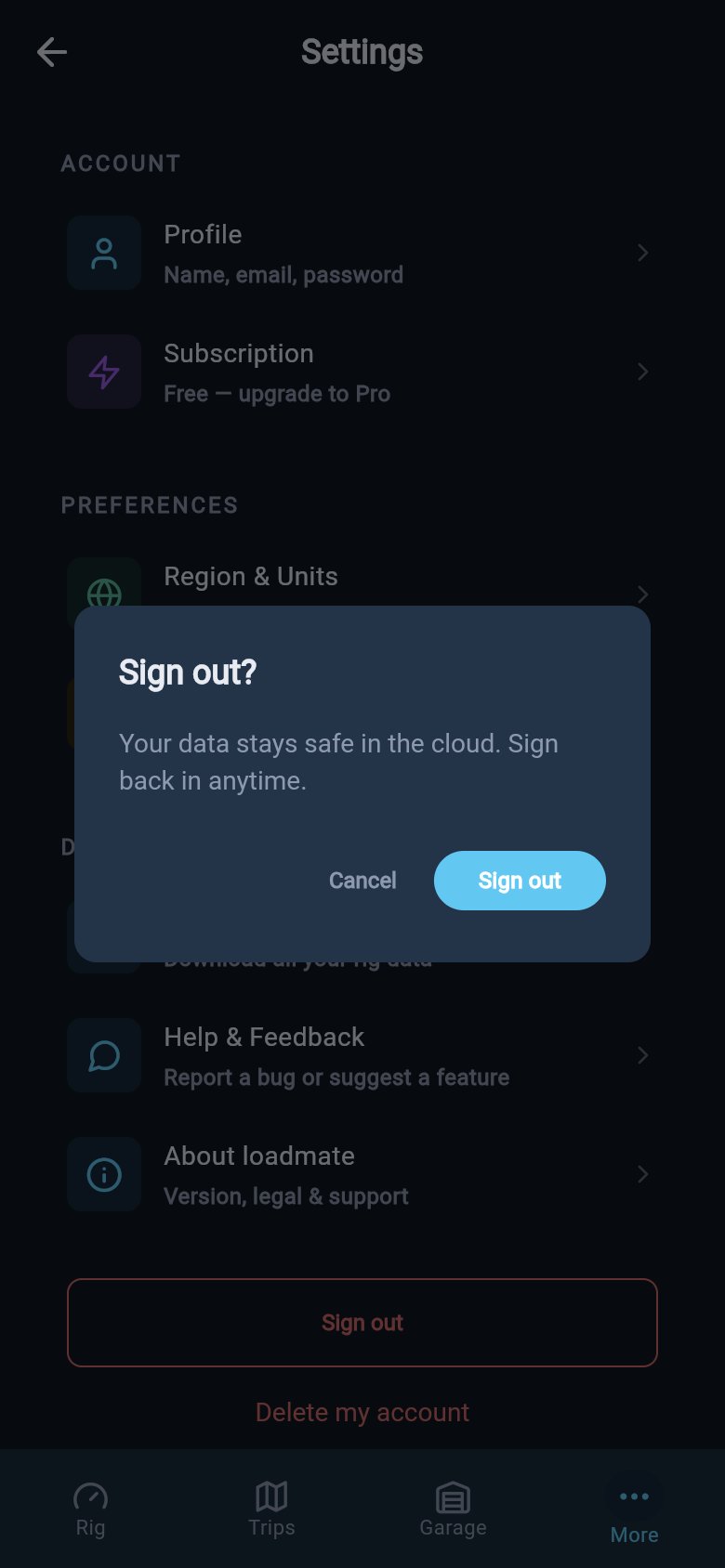
Signing out only closes the session — your records stay safe in the cloud.
1
Open the bottom of your Settings list
From the More tab, tap Settings, then scroll to the bottom. Sign out is the outlined button near the foot of the list.
2
Confirm you want to sign out
Tapping it opens a short check titled Sign out?, reassuring you that your data stays safe in the cloud and you can sign back in anytime. Tap Sign out to confirm, or Cancel to stay signed in.
3
Sign back in whenever you like
Once you confirm, loadmate returns you to the start screen. Your account and every record on it are untouched — sign in again with the same method and everything is exactly where you left it.
Signing out is open to everyone — free, lapsed, or exploring the demo rig. It only ends the current session; it never touches your saved records.
Deleting your account is permanent
Deleting your account is the final choice, and it is meant to feel different. The control is the red Delete my account text directly below the Sign out button, at the bottom of your Settings list. There is no heading above these two. They sit together at the foot of the list, so take a moment to be sure which one you are tapping.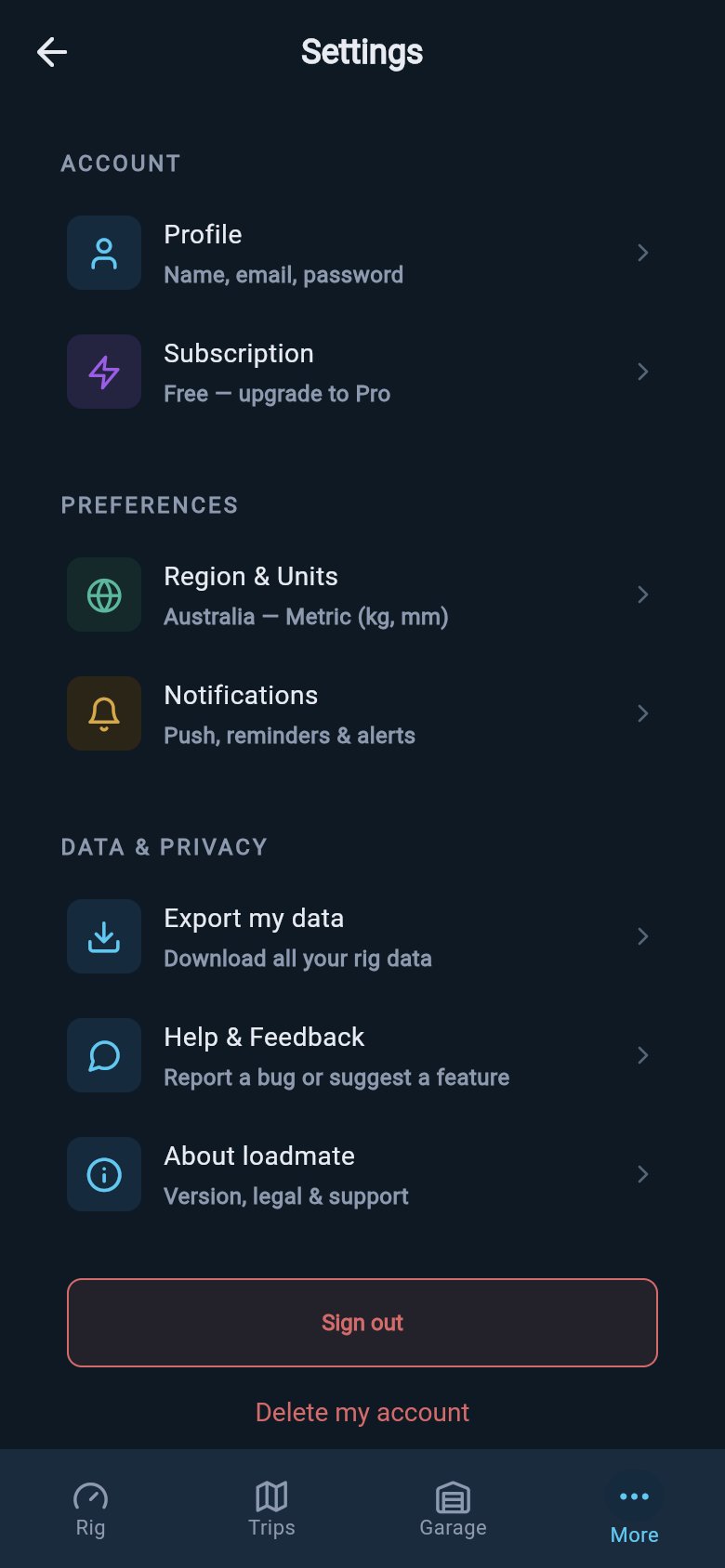
Both actions sit together at the foot of your Settings list — Sign out above, Delete my account below.
Before loadmate will delete the account
loadmate puts a few calm safety checks in front of deletion so it cannot happen by accident. You may see one or more of these on the confirmation step, depending on your account.Your email must be verified
If your email address has not been verified yet, the Delete my account button stays greyed out and a note appears: Verify your email before you can delete your account. This safeguard confirms you really hold the email on the account before anything is erased. Once your email is verified, the button becomes active. You can verify it from your profile. Reach out through Help & feedback if you get stuck.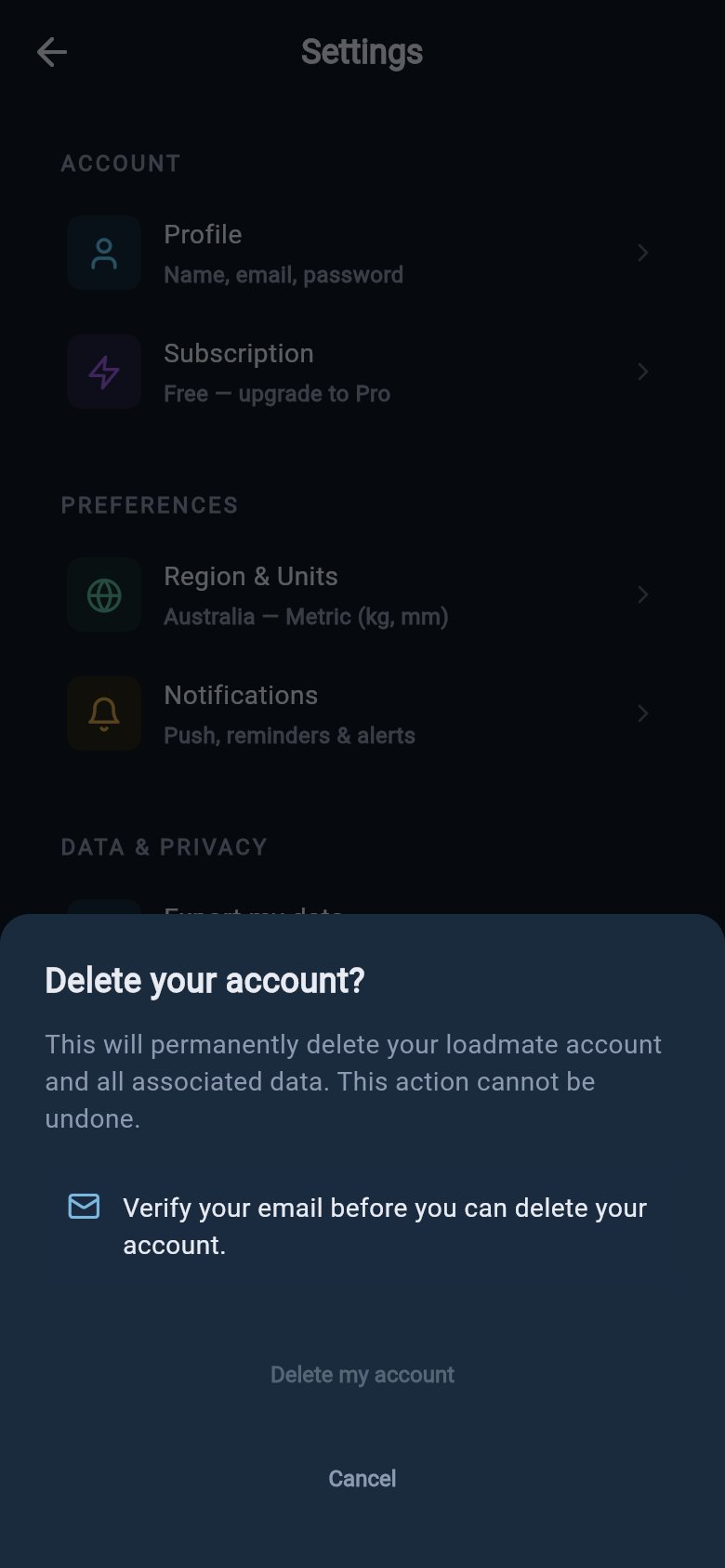
Until your email is verified, the Delete my account button stays greyed out.
An active subscription keeps running
If you have an active Pro subscription, a caution note reminds you that deleting your account will not cancel your subscription — manage it in the App Store first (it names Google Play or your store instead, depending on where you subscribed). Where the store allows it, a Manage subscription link sits just below to take you straight to the store’s subscription page.This note is a reminder, not a barrier. You can still delete your account with a subscription running. But deleting the account does not cancel store billing. loadmate cannot stop, refund, or manage your store subscription for you. That is handled by the App Store or Google Play. If you want billing to stop, cancel it in the store before or after you delete. Otherwise it keeps charging.
Confirming it’s you
When the checks above are clear and you tap the active Delete my account button, loadmate asks you to confirm it’s you before going ahead. What you see depends on how you sign in:- If you sign in with a password, you reach a Confirm it’s you step asking you to sign in again to continue. Type your password into the field — you can tap the show/hide control to check it — then tap Confirm.
- If you sign in with Google or Apple, you tap a single Sign in with Google (or Sign in with Apple) button to re-confirm through your provider.
- If you sign in with a magic link (the email sign-in link, with no password), a note appears that says this step isn’t available from this screen yet. Tap Got it to close it. Deletion through a magic-link account is not finished in the app today, so if this is you, please get in touch through Help & feedback and the team will help you remove your account.
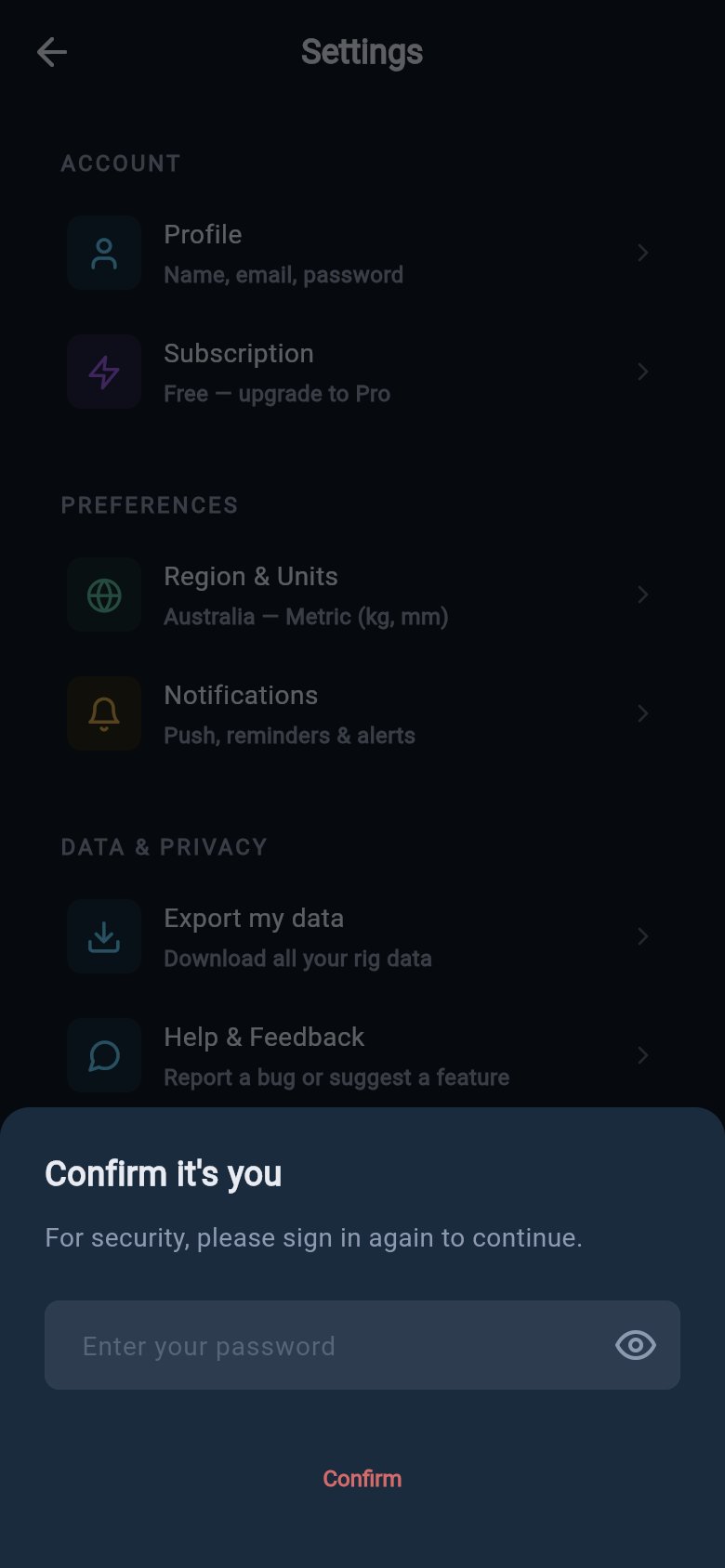
Password accounts must re-confirm before account deletion can continue.
What deletion removes
When deletion goes ahead, your loadmate account and all the records saved on it are permanently removed. In plain terms, that means everything you have built up in the app goes with the account:- Your vehicles and trailers
- Your loads and weigh-ins
- Your planned trips
- Your maintenance and service history
- Your warranty records
The confirmation screen
Once deletion finishes, loadmate shows a final screen with a green tick and the heading Your account has been deleted. It thanks you for using loadmate and confirms that your account and all associated data have been permanently removed.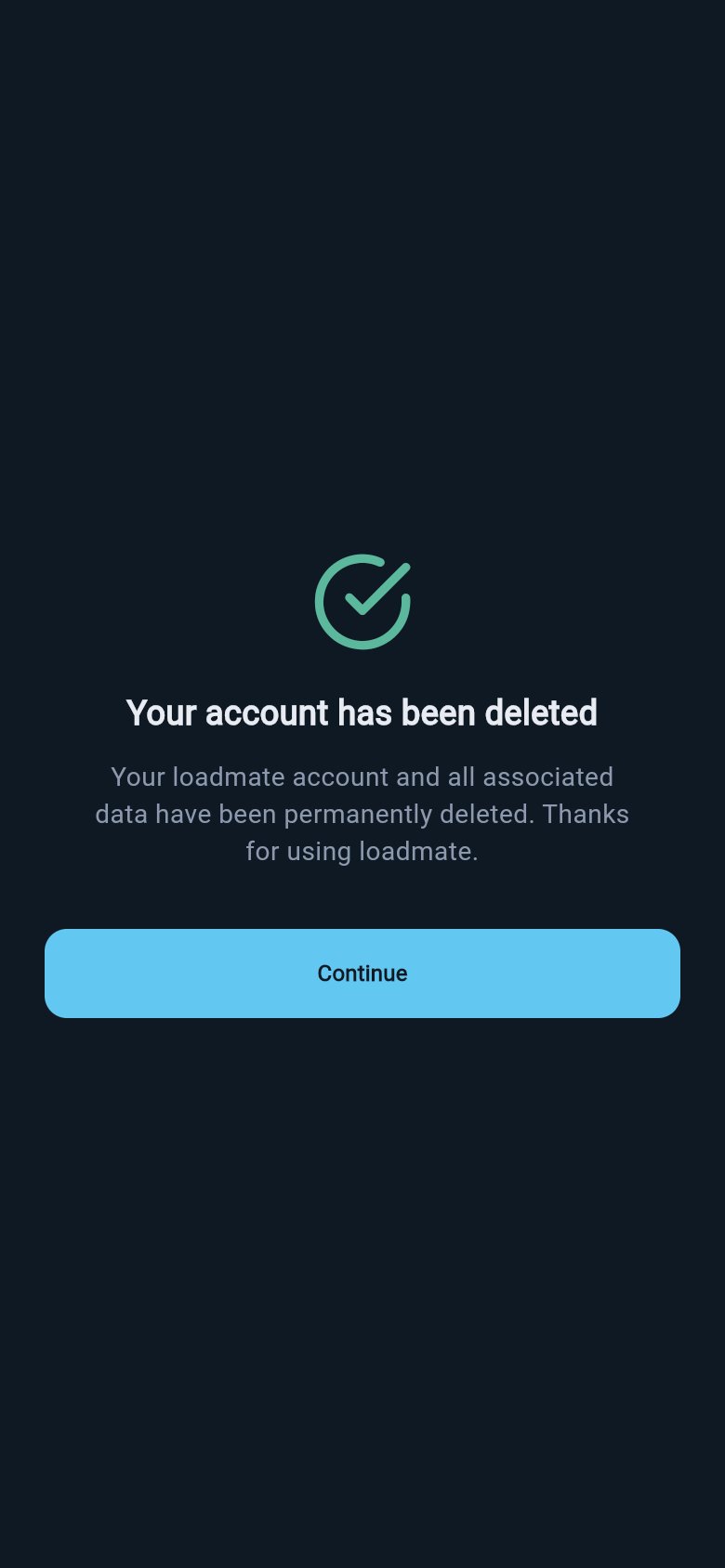
The final screen confirms the account is gone — Continue returns you to the start.
Where to go next
If you were heading for delete but only want a break from the app, sign out instead. And if a subscription is what you really want to change, sort that out in the store first.Manage your subscription
Change or cancel Pro billing in the store, separately from your loadmate account.
Region and units
Set the region and units loadmate uses across the app.
Notifications
Choose which reminders and alerts loadmate sends you.
Help and feedback
Get in touch if you need help verifying your email or removing a magic-link account.