

Where to find your settings
Everything to do with your account sits behind the More tab. Open it, then tap Settings. The first group you see is headed ACCOUNT, and the top row there is Profile — its smaller line reads Name, email, password, which is exactly what it holds. Tap that row to open your profile.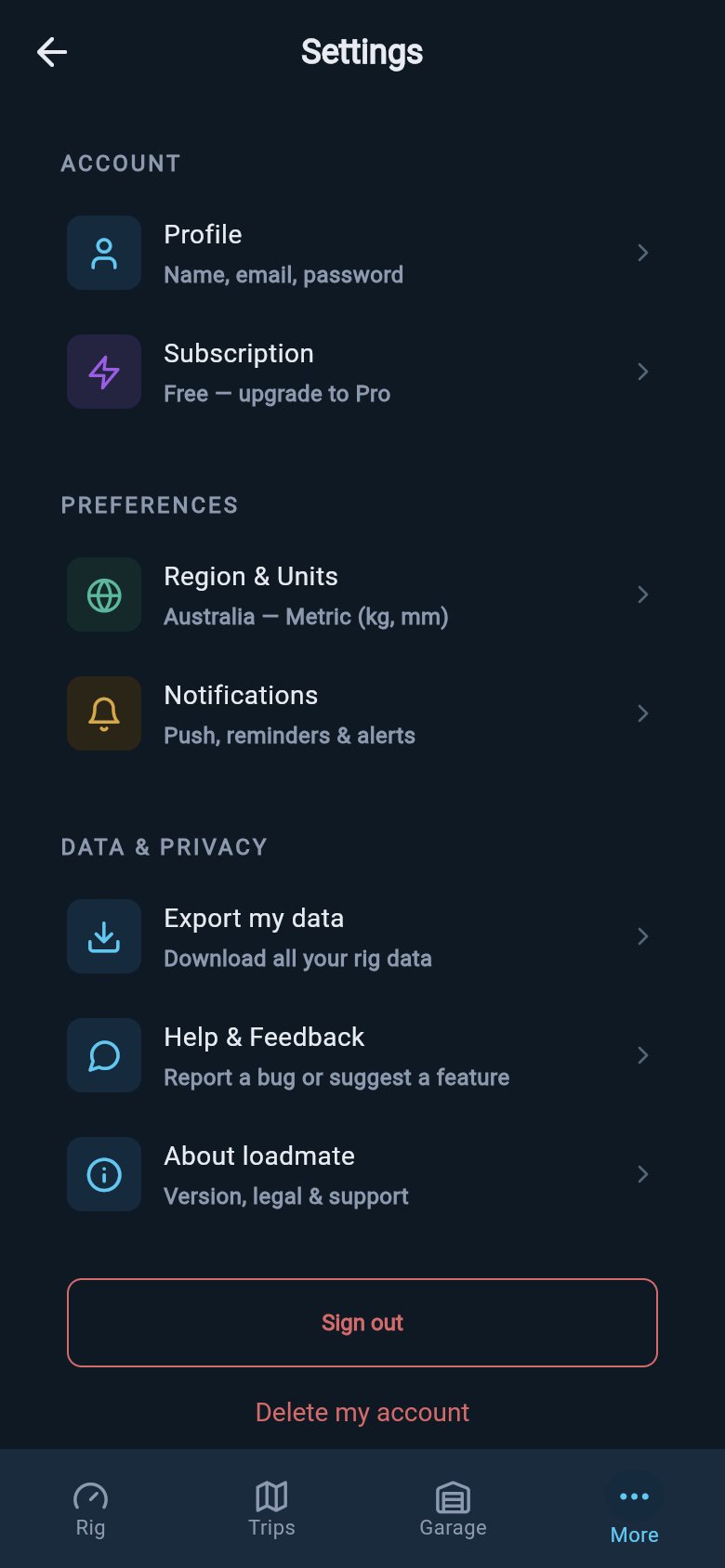
Open the More tab, then Settings — Profile sits at the top of the ACCOUNT group.
The Subscription row sits just below Profile in the same group, but it has its own page. If you came here to check or manage your plan, head to Your subscription instead.
Your name and email
The Profile screen opens with a small circle showing your initials, taken from your display name. Further down, under a Profile heading, are two fields you can edit.- Display name is the name loadmate uses for you. It needs to be between 2 and 50 characters.
- Email address is where loadmate reaches you. It has to look like a real email address — a name, an @ sign, then a domain.
If your email has not been confirmed yet, a gentle banner may sit at the top of the Profile screen with a Verify email link. You can tap it whenever suits you. Confirming your email matters for a few sensitive actions, which are covered on Your data and account.
Changing your email
Changing your email is a little more careful than changing your name, and for good reason — your email is how you get back in. You will notice a small line under the email field that reads Changing email requires re-authentication. That is loadmate’s plain way of saying it will ask you to confirm it is really you before the change goes through.1
Edit your email and tap Save
Type your new email into the Email address field, then tap Save.
2
Confirm it's you
A sheet titled Confirm it’s you appears, with the line For security, please sign in again to continue. If you sign in with a password, you type your password here. If you sign in with Google or Apple, you tap a single Sign in with Google or Sign in with Apple button instead.
3
Done
Once you have confirmed, loadmate saves the new email and shows the Profile saved message.
If you signed in with a magic link, changing your email isn’t available from this screen yet. Instead of the confirmation sheet, you will see a message titled This step isn’t available, explaining that this account uses a magic link instead of a password. The word “yet” is the app’s own — it is a known gap, not a permanent one.
The ways you sign in
This is the part that saves the most head-scratching. Near the top of the Profile screen, under the Account heading, loadmate tells you plainly how you currently sign in:- If you have a password, you see a tappable Change password row.
- If you signed in with a magic link, you see Signed in with a magic link.
- If you signed in with Google or Apple, you see Signed in with Google or Signed in with Apple.
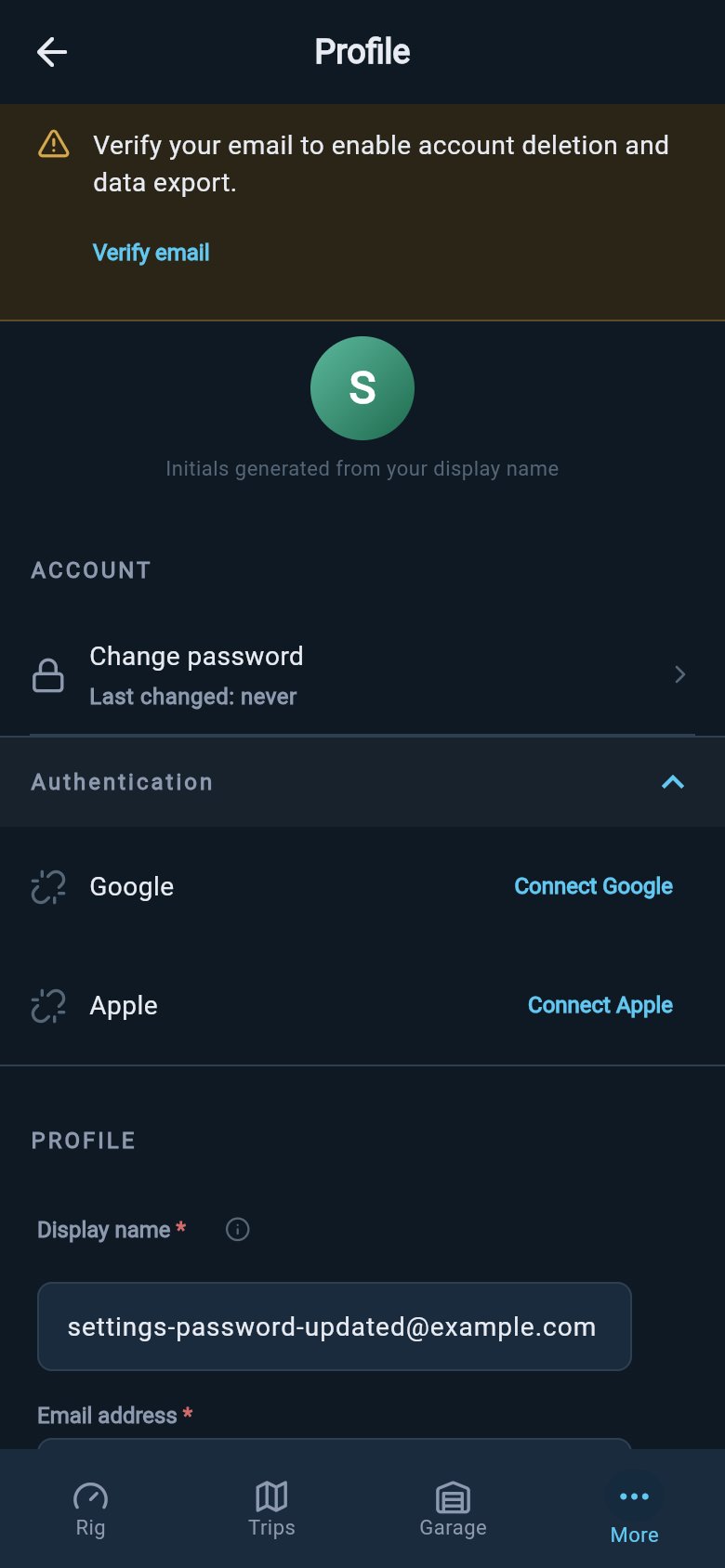
loadmate shows how you sign in now, and the Authentication list lets you connect or disconnect Google and Apple.
You must always keep at least one way to sign in. If only one method is connected, its Disconnect button is greyed out, and tapping it shows You must have at least one sign-in method. That is loadmate quietly protecting you from accidentally locking yourself out.
Changing your password
If you sign in with a password, the Change password row under Account takes you to a simple screen with three fields.1
Current password
Type the password you use now.
2
New password
Type the password you would like to switch to. The helper line reminds you it needs to be at least 8 characters.
3
Confirm new password
Type the new password once more to be sure it matches.
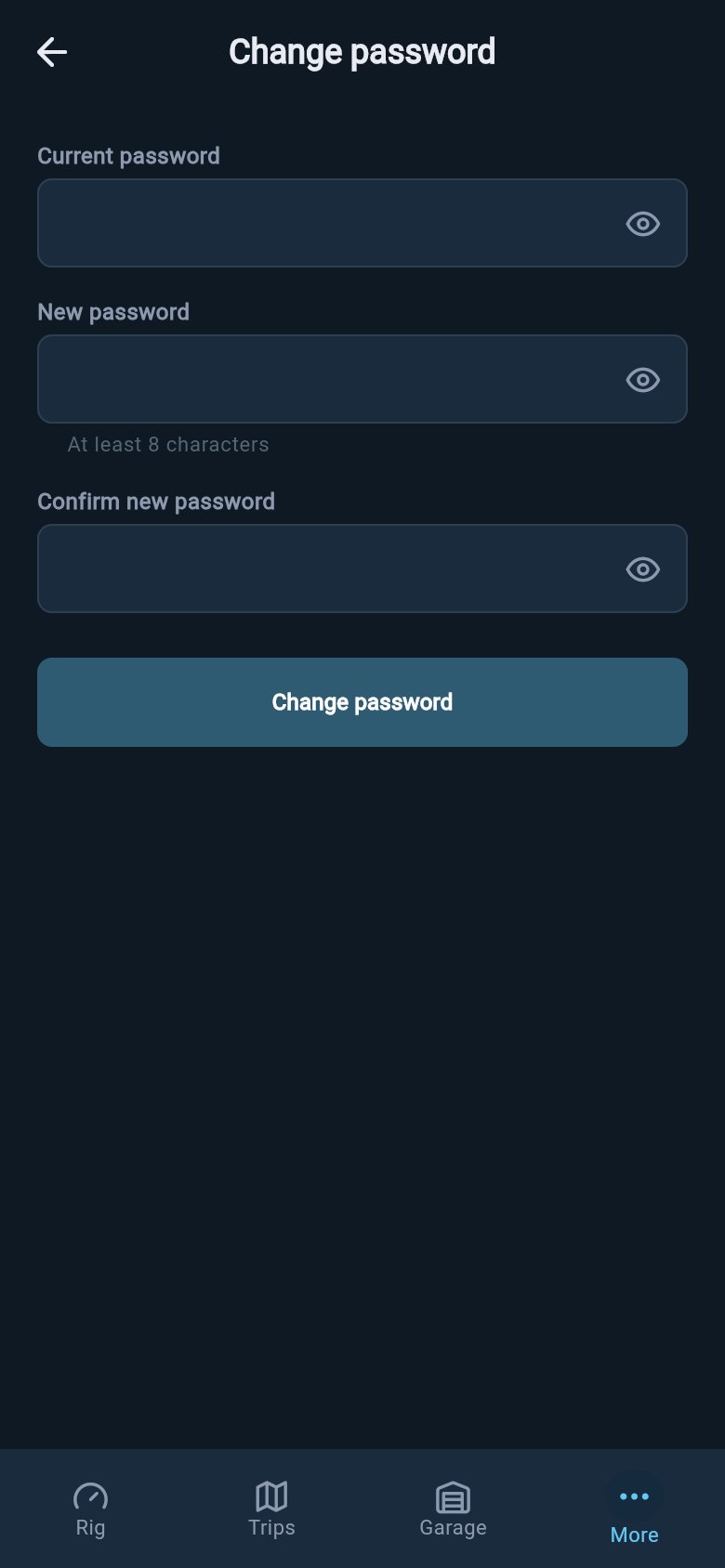
Changing your password takes your current password, a new one of at least 8 characters, and a confirmation.
The Change password row only appears if you actually have a password. If you signed in with a magic link, Google, or Apple, you will see a Signed in with… line in its place rather than a password screen — there is no password to change, so there is nothing missing.
Where to go next
Your profile is the front door to the rest of your account. These pages cover the settings that sit alongside it.Your subscription
Check your plan, see what Pro unlocks, and manage your subscription.
Region and units
Set your region so loadmate shows the right units and terminology for you.
Notifications
Choose which reminders and alerts loadmate sends you, and how.
Sign out or delete your account
Sign out on this device, or delete your account when you need to.