

Check your plan status
Open the Subscription screen from your settings. loadmate names your plan and, where it applies, when it renews. There are three things the screen might show you under CURRENT PLAN:- Free — listed as a research tool, with an upgrade card below it. You can read your status, look at your rig, and explore freely, but saving changes to your own rig is a Pro feature.
- loadmate Pro — your active subscription, with a renewal line that reads Renews followed by the date your plan next bills. That date is shown in the format for the region you chose in loadmate.
- Lifetime — a one-off purchase that never renews. The plan still reads loadmate Pro, with the line Lifetime — No renewal needed below it. Because there is nothing to renew, there is no store link to manage.
Your renewal date is shown in your chosen region’s date format, but the price and currency come from the store, not from loadmate. Changing your region inside loadmate changes how figures are displayed; it does not change what the store charges you or when.
Restore a purchase
If you have already bought Pro but loadmate shows you as Free — most often after reinstalling the app or setting up a new phone or tablet — you do not need to buy it again. The Restore purchases link, near the bottom of the Subscription screen, relinks the Pro you already own. Restore works with the store account that is already signed in on your device. loadmate does not choose or switch accounts for you, so it is worth a quick check first.1
Confirm the right store account
On an iPhone or iPad, open the device Settings, tap your name at the top, and check it is the Apple Account that bought Pro. On an Android phone or tablet, open the Google Play store, tap your profile picture, and confirm the right Google Account is selected. If the wrong account is signed in, switch it there — that part lives in your device’s own settings, not inside loadmate.
2
Tap Restore purchases
Back in loadmate, tap Restore purchases. The subtitle reminds you: Reinstalled? Tap to restore your Pro access. loadmate checks your connection, then asks the store to confirm what you own.
3
Read the result
If your purchase is found, loadmate shows Purchases restored and your Pro access comes back. If nothing is found, it shows No purchases found to restore. — usually a sign you are signed in to the wrong store account, so go back and check the first step.
Restoring needs a connection. If you are offline, loadmate shows a no-connection message rather than failing quietly — reconnect and tap Restore purchases again.
Manage or cancel in the store
When your plan is active loadmate Pro, the Subscription screen shows a link to manage it. On an iPhone or iPad it reads Manage subscription in App Store Settings; on an Android device it reads Manage subscription in Google Play Subscriptions. Tapping it opens the store’s own subscription page, where you can change your payment method, switch plans, or cancel.This link appears only when you are on an active loadmate Pro plan. A Lifetime purchase never renews, so it shows no manage link — there is nothing to cancel or renew. Cancelling, refunds, and payment changes all happen in the store itself; loadmate simply opens the right page for you.
When a renewal fails
If a renewal payment does not go through — an expired card is the usual culprit — your plan lapses. loadmate shows a caution banner at the top of the Subscription screen that reads Your Pro subscription couldn’t renew. Update your payment method to continue. Nothing is deleted. Your rig, your history, and everything you have recorded stay exactly where they are, and you can still open the app and read it all. What pauses is saving new changes, until the payment is sorted out. On a phone or tablet, the banner includes a Manage subscription link straight to the store, so you can update your card and pick up where you left off.Buying happens in the apps, not on the web
Subscribing to Pro happens inside the loadmate apps on a phone or tablet — not in the browser. If you open loadmate on the web, the Subscription screen shows a card that reads Purchases are available on the iOS and Android apps. Open loadmate on your phone or tablet to subscribe. Restoring a purchase is also app-only.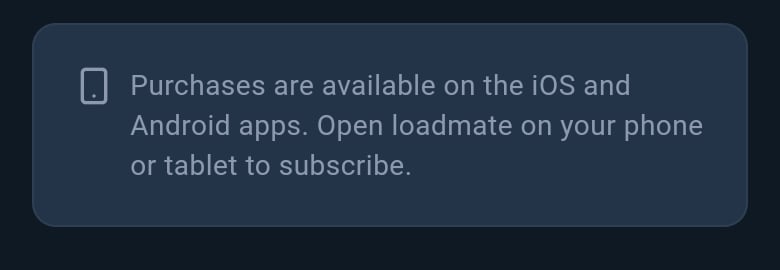
On the web, loadmate points you to the phone or tablet apps to subscribe.
If your status looks wrong
Sometimes loadmate can look as though it has forgotten your Pro — usually right after a reinstall, a new device, or a lapsed payment. Work through these in order. Most of the time the first or second step fixes it.1
Check your connection
loadmate confirms your subscription with the store over the internet. If you are offline or on a weak signal, your status can read low. Reconnect, then close and reopen the Subscription screen. There is more on connection issues on No connection.
2
Confirm the store account, then restore
Make sure your device is signed in to the same store account that bought Pro, then tap Restore purchases. This is the single most common fix after a reinstall or a device change.
3
Still not right? Contact support
If your status is still wrong after a good connection and a restore, get in touch with support at hello@loadmate.io and tell us what you see on the Subscription screen.
Where to go next
Your plan decides what you can save, so it is worth knowing how the pieces fit together. These pages cover the rest.Free and Pro, compared
See exactly what comes with Free and what Pro unlocks, so you can decide what suits the way you travel.
Create your account
Set up the account that holds your rig and carries your Pro access across your devices.
No connection
Understand what loadmate does when you are offline, and why a weak signal can affect your plan status.
loadmate never processes your payment, cancels your plan, or issues refunds — Apple and Google handle all of that through the store account that bought Pro. loadmate only shows your status, opens the right store page, and relinks a purchase you already own. Your recorded data stays safe whatever your plan is doing.