> ## Documentation Index
> Fetch the complete documentation index at: https://docs.loadmate.io/llms.txt
> Use this file to discover all available pages before exploring further.
# Finish a trip and add feedback
> Ending a trip in loadmate: confirm your odometer, keep or revert weight changes, and rate how the rig felt, so service timing and your Rig Score stay current.
Ending a trip asks you for two small things: the distance you drove, and how the rig felt. loadmate uses both. The distance keeps your service timing, your weights, and your Rig Score up to date. The feel gives you a useful note for next time. Nothing here is busywork, and there is no jargon to learn.
You can open every form and look around for free. Saving is the part that needs Pro: ending the trip, keeping weight changes, submitting feedback, adding a follow-up, duplicating, cancelling, or deleting. Demo data stays read-only, so you can explore without changing anything.
## End the trip
While a trip is in progress, one button waits at the bottom of the trip: **End trip**. It only appears once a trip is under way. An upcoming trip has no "End trip" button, and there is no "Start trip" button to look for here either.
Tap **End trip** when you are home and unhitched. loadmate then walks you through three short steps, in order: the odometer reading, a quick weight review (only if you logged weight changes on the road), and then feedback.
Open the trip and tap **End trip** at the bottom. This only appears while the trip is in progress.
loadmate offers the projected reading. Accept it, type the real one, or skip.
If you logged changes while away, you decide whether they stay in your setup.
Tell loadmate how the rig felt — or tap to be reminded another time.
### The odometer prompt
The first thing you see is **Update odometer**. loadmate already knows roughly how far you travelled, so it offers a projected reading for your tow vehicle and asks if that looks right. You have three choices:
* **Accept** — take the projected figure. This is the quick path when the trip went as planned.
* **Enter actual** — type the real number off your dashboard into the **Actual reading** field. Use this when you want it exact.
* **Skip** — move on without recording anything this time.
This small question is the main link between your trips and the rest of loadmate. The reading keeps your service reminders, tyre dates, and warranty timing accurate, with no need to jot down mileage by hand. That is why skipping it shows a gentle reminder: those reminders depend on your odometer being right. For how the reading is used and updated afterwards, see [Keep your odometer current](/maintenance/keep-odometer-current).
loadmate guards against winding the odometer back by accident. If the number you enter is lower than the reading already on file, it does not just accept it. It stops, shows you both readings, and offers to keep the latest one it holds or to correct the original setup figure. You choose. Nothing changes quietly behind your back. You can review or fix any reading later on [Your odometer history](/maintenance/odometer-history).
There is a nice touch for caravanners here. When you confirm the tow vehicle reading, your **trailer's own odometer advances automatically** by the distance of this trip. You do not get a second prompt for it. Your caravan keeps its own service, tyre, and warranty history, even if you tow it behind a different vehicle next season.
A caravan or trailer wears with the distance it travels, not the distance a particular tow vehicle has done. By advancing the trailer's reading on its own, loadmate can age its tyres and time its servicing on its real distance, whichever vehicle is on the front. If you sell the tow vehicle and buy another, the caravan's history stays intact.
### Keep or revert weight changes
This step only appears if you logged weight changes while you were away: filling or emptying water, buying supplies, dropping off gear, and so on. If you did, loadmate shows **Trip weight changes** and asks one plain question. Keep these changes in your load setup, or revert to how it was before the trip?
* **Keep changes** — writes the changes you made on the road into your normal packing setup, then refreshes your Rig Score to match. Choose this when the new arrangement is how the rig will travel from now on. For example, you finally added that second water tank for good.
* **Revert** — leaves your usual setup exactly as it was before the trip. Choose this when the changes were just for this trip, like extra supplies you have since used up.
There is no wrong answer here, and nothing is locked in. If you keep changes and later wish you had not, you can adjust the loads yourself from your loads list any time.
## Add post-trip feedback
After the odometer and weight steps, loadmate brings you to the feedback screen with one question. Feedback is never required, and there is no rush. If now is not the moment, tap **Later**, and loadmate keeps the trip flagged so it can remind you. The window stays open for 30 days after the trip finishes, which is plenty of time to get home, unpack, and think about how it went.
### How did the trip feel?
The feedback starts with **How did the trip feel?** and three simple choices:
* **Smooth** — the rig behaved itself.
* **Mixed** — mostly fine, but one or two things stood out.
* **Rough** — something genuinely concerned you.
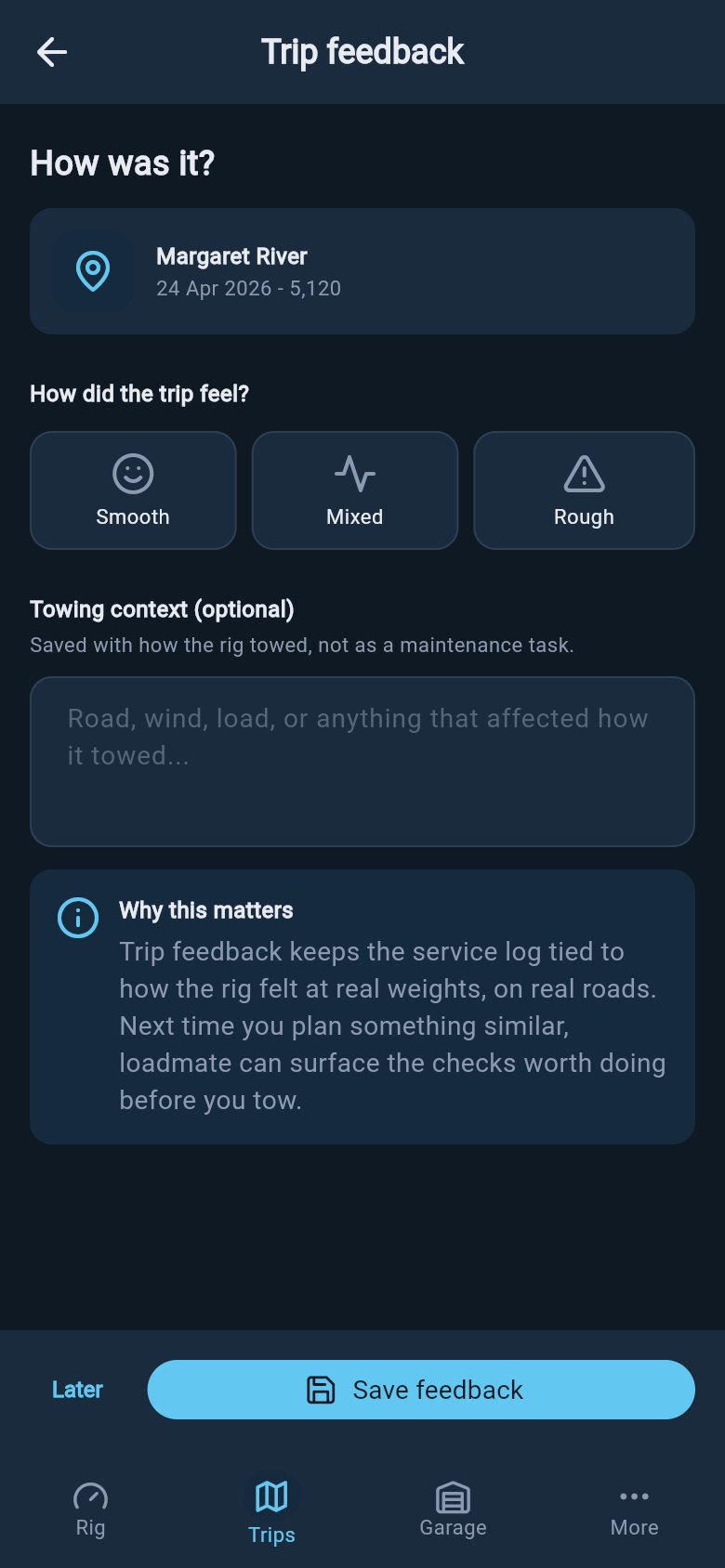 Your choice shapes what loadmate asks next. **Rough** adds one extra question, **How serious was it?**, so loadmate can tell the difference between something you merely noticed and something that felt unsafe. **Smooth** and **Mixed** keep it short and do not ask about seriousness.
### Tell us what happened
On **Mixed** and **Rough**, loadmate shows a list of plain-language things you might have felt: sway or wandering, light steering, rear sag, braking that felt wrong, brake grab or pull, bouncing or pitching, tyre or wheel heat, engine or transmission strain, hitch or coupling noise, scraping or clearance, and load that moved. There is also a **Something else** row for anything not on the list. (On Mixed the heading reads *Anything stand out?*; on Rough it reads *What happened?*.) Tap whichever ones match. Nothing is required, so skip the lot if nothing in particular stood out.
Tap a row to expand it, and loadmate asks three quick questions about that one thing:
* **When did it happen?**
* **How did you respond?**
* **Did it settle?**
The choices match the symptom you picked. What you would have done about sway is not what you would have done about soft braking, so the buttons differ. Each expanded row also has an **Add a note about this** link, in case you want to jot a detail in your own words for that one symptom.
These answers do more than fill a log. Once you submit, loadmate compares what you felt against how your rig was actually set up on that trip and explains the connection on the completed trip — in plain words, with your own numbers. When your setup looked right, it says so. Answering never commits you to any action.
### Tyre or hub heat, and "Something else"
Two of the rows ask slightly different questions:
* **Tyre or wheel heat** asks **Which wheel?** (Trailer wheel, Vehicle wheel, or Not sure) and **What did you observe?** This is where you record a smell, smoke, a tyre-pressure (TPMS) alert, or a hot hub when you touched it.
* **Something else** is for anything the list does not cover. It needs a short note before you can save, so loadmate knows what you mean.
If you saw damage, or noticed heat or a smell, it travels along as a mark on the relevant symptom row, not a separate row of its own. You record it once, in the place it belongs.
### Anything different about this trip?
Tucked into the symptom step is an optional question: **Different from how you usually pack?** It lets you mark a one-off, such as a fully loaded car for a big shop or a heavier-than-usual water fill. That way the trip reads as a special case next to whatever you flagged, rather than a permanent change in how the rig behaves. Leave it alone if the trip was a normal one.
### Add a maintenance follow-up (optional)
On any of the three answers, Smooth, Mixed, or Rough, you can add a follow-up if something deserves a closer look. Tap **Add a maintenance follow-up**, and loadmate asks four small things:
1. **What needs checking?** — name it in plain words, such as "fridge stopped working".
2. **Where should it be saved?** — Tow vehicle, Trailer, Hitch or coupling, or Not sure.
3. **Maintenance area** — Brakes, Tyres or wheels, Suspension or sway, Engine or drivetrain, Electrical, or Something else.
4. **Choose follow-up** — what should happen next.
That last step shows you the consequence of each choice before you pick it:
| Choice | What it does |
| --------------------------------- | ------------------------------------------------------------------------------------ |
| **Remind me before the next tow** | Creates a maintenance task and shows it in your pre-trip checklist for the next tow. |
| **Roll into the next service** | Creates a maintenance task for the asset you chose. No pre-trip alert. |
| **Just keep a record** | Saves the note on this trip's feedback only. No task, no alert. |
A maintenance task is only ever created when **you** choose one of the task-creating follow-ups here. Feedback on its own never creates a task in the background. If you pick **Just keep a record**, or skip the follow-up entirely, no task is made. The note simply stays with the trip.
Separately from this card, some of the things you can flag are always worth a professional look: a brake that grabbed, a symptom that never settled, anything involving damage, heat, or a smell. When your answers match one of those, the completed trip shows a **Worth a workshop check** card listing the reasons in plain words, with an **Add to Maintenance** button. That is still a button you tap — nothing goes into Maintenance until you choose it. See [Your completed trip](/trips/completed-trip) for how that card works.
## What feedback is for
When you submit feedback, loadmate quietly saves a snapshot of your rig exactly as it was on that trip: the weights, the balance, the setup. So if you report sway, heavy braking, or heat, that report carries the real state of the rig from that day. Months later, when you compare trips or show a mechanic, the picture is the true one from the time it happened, not whatever your rig looks like today. A vague memory of "it felt off near the hills" becomes something you can actually look back on.
That snapshot now works for you straight away. On the completed trip, each thing you flagged carries a small **Why this can happen** section that reads your symptom against the rig you actually towed that day. Report sway, and loadmate checks what your tow-ball weight was carrying — nose weight or tongue weight in your region's words — against the steady band for your setup, and tells you what it found in one plain sentence. When the numbers point somewhere, you get the usual fix. When your setup looked right, it says exactly that, and points to the things it cannot see, like wind or tyre pressures. And when a smooth trip's numbers genuinely back it, the trip earns a quiet "That steadiness was you." For the full read-back, see [Your completed trip](/trips/completed-trip).
## Edit, plan similar, cancel, or delete a trip
From the trip itself you have a few housekeeping actions. Each one needs Pro.
Change the dates, destination, notes, or the rig on the trip. Use **Edit** when the plan shifts or you got a detail wrong.
Copies this trip into a fresh one with new dates, so a favourite route is ready to go again without re-entering everything.
For a trip you have not taken yet. **Cancel trip** marks it as cancelled and tucks it into a tidy, collapsed Cancelled list. Nothing is lost; it just steps out of the way. (You will not see this on a trip you have already finished.)
Removes the trip and its details for good. loadmate asks you to confirm first, because this one cannot be undone.
Try it now: open a finished trip, tap into its feedback, and choose **Smooth**, **Mixed**, or **Rough** — even just to see the questions. You can tap **Later** and come back to it any time.
Once the trip is wrapped up, you can pass it on as a quick line of text. See [Share a trip summary](/trips/share-trip-summary) (a picture card and a PDF are coming in a later version). To revisit the route, the feel, and your notes any time, open the [completed trip](/trips/completed-trip). For everything that happens while you are still on the road, such as logging changes, fuel stops, and odometer updates mid-trip, see [During your trip](/trips/during-your-trip).
Your choice shapes what loadmate asks next. **Rough** adds one extra question, **How serious was it?**, so loadmate can tell the difference between something you merely noticed and something that felt unsafe. **Smooth** and **Mixed** keep it short and do not ask about seriousness.
### Tell us what happened
On **Mixed** and **Rough**, loadmate shows a list of plain-language things you might have felt: sway or wandering, light steering, rear sag, braking that felt wrong, brake grab or pull, bouncing or pitching, tyre or wheel heat, engine or transmission strain, hitch or coupling noise, scraping or clearance, and load that moved. There is also a **Something else** row for anything not on the list. (On Mixed the heading reads *Anything stand out?*; on Rough it reads *What happened?*.) Tap whichever ones match. Nothing is required, so skip the lot if nothing in particular stood out.
Tap a row to expand it, and loadmate asks three quick questions about that one thing:
* **When did it happen?**
* **How did you respond?**
* **Did it settle?**
The choices match the symptom you picked. What you would have done about sway is not what you would have done about soft braking, so the buttons differ. Each expanded row also has an **Add a note about this** link, in case you want to jot a detail in your own words for that one symptom.
These answers do more than fill a log. Once you submit, loadmate compares what you felt against how your rig was actually set up on that trip and explains the connection on the completed trip — in plain words, with your own numbers. When your setup looked right, it says so. Answering never commits you to any action.
### Tyre or hub heat, and "Something else"
Two of the rows ask slightly different questions:
* **Tyre or wheel heat** asks **Which wheel?** (Trailer wheel, Vehicle wheel, or Not sure) and **What did you observe?** This is where you record a smell, smoke, a tyre-pressure (TPMS) alert, or a hot hub when you touched it.
* **Something else** is for anything the list does not cover. It needs a short note before you can save, so loadmate knows what you mean.
If you saw damage, or noticed heat or a smell, it travels along as a mark on the relevant symptom row, not a separate row of its own. You record it once, in the place it belongs.
### Anything different about this trip?
Tucked into the symptom step is an optional question: **Different from how you usually pack?** It lets you mark a one-off, such as a fully loaded car for a big shop or a heavier-than-usual water fill. That way the trip reads as a special case next to whatever you flagged, rather than a permanent change in how the rig behaves. Leave it alone if the trip was a normal one.
### Add a maintenance follow-up (optional)
On any of the three answers, Smooth, Mixed, or Rough, you can add a follow-up if something deserves a closer look. Tap **Add a maintenance follow-up**, and loadmate asks four small things:
1. **What needs checking?** — name it in plain words, such as "fridge stopped working".
2. **Where should it be saved?** — Tow vehicle, Trailer, Hitch or coupling, or Not sure.
3. **Maintenance area** — Brakes, Tyres or wheels, Suspension or sway, Engine or drivetrain, Electrical, or Something else.
4. **Choose follow-up** — what should happen next.
That last step shows you the consequence of each choice before you pick it:
| Choice | What it does |
| --------------------------------- | ------------------------------------------------------------------------------------ |
| **Remind me before the next tow** | Creates a maintenance task and shows it in your pre-trip checklist for the next tow. |
| **Roll into the next service** | Creates a maintenance task for the asset you chose. No pre-trip alert. |
| **Just keep a record** | Saves the note on this trip's feedback only. No task, no alert. |
A maintenance task is only ever created when **you** choose one of the task-creating follow-ups here. Feedback on its own never creates a task in the background. If you pick **Just keep a record**, or skip the follow-up entirely, no task is made. The note simply stays with the trip.
Separately from this card, some of the things you can flag are always worth a professional look: a brake that grabbed, a symptom that never settled, anything involving damage, heat, or a smell. When your answers match one of those, the completed trip shows a **Worth a workshop check** card listing the reasons in plain words, with an **Add to Maintenance** button. That is still a button you tap — nothing goes into Maintenance until you choose it. See [Your completed trip](/trips/completed-trip) for how that card works.
## What feedback is for
When you submit feedback, loadmate quietly saves a snapshot of your rig exactly as it was on that trip: the weights, the balance, the setup. So if you report sway, heavy braking, or heat, that report carries the real state of the rig from that day. Months later, when you compare trips or show a mechanic, the picture is the true one from the time it happened, not whatever your rig looks like today. A vague memory of "it felt off near the hills" becomes something you can actually look back on.
That snapshot now works for you straight away. On the completed trip, each thing you flagged carries a small **Why this can happen** section that reads your symptom against the rig you actually towed that day. Report sway, and loadmate checks what your tow-ball weight was carrying — nose weight or tongue weight in your region's words — against the steady band for your setup, and tells you what it found in one plain sentence. When the numbers point somewhere, you get the usual fix. When your setup looked right, it says exactly that, and points to the things it cannot see, like wind or tyre pressures. And when a smooth trip's numbers genuinely back it, the trip earns a quiet "That steadiness was you." For the full read-back, see [Your completed trip](/trips/completed-trip).
## Edit, plan similar, cancel, or delete a trip
From the trip itself you have a few housekeeping actions. Each one needs Pro.
Change the dates, destination, notes, or the rig on the trip. Use **Edit** when the plan shifts or you got a detail wrong.
Copies this trip into a fresh one with new dates, so a favourite route is ready to go again without re-entering everything.
For a trip you have not taken yet. **Cancel trip** marks it as cancelled and tucks it into a tidy, collapsed Cancelled list. Nothing is lost; it just steps out of the way. (You will not see this on a trip you have already finished.)
Removes the trip and its details for good. loadmate asks you to confirm first, because this one cannot be undone.
Try it now: open a finished trip, tap into its feedback, and choose **Smooth**, **Mixed**, or **Rough** — even just to see the questions. You can tap **Later** and come back to it any time.
Once the trip is wrapped up, you can pass it on as a quick line of text. See [Share a trip summary](/trips/share-trip-summary) (a picture card and a PDF are coming in a later version). To revisit the route, the feel, and your notes any time, open the [completed trip](/trips/completed-trip). For everything that happens while you are still on the road, such as logging changes, fuel stops, and odometer updates mid-trip, see [During your trip](/trips/during-your-trip).