> ## Documentation Index
> Fetch the complete documentation index at: https://docs.loadmate.io/llms.txt
> Use this file to discover all available pages before exploring further.
# Your profile and sign-in
> Manage your loadmate profile to update your display name and email, change your password, and connect or disconnect Google and Apple sign-in.
Your account details and the ways you sign in live in one place. This is where you keep your name and email correct, and where you control how you get back into loadmate next time. If you set loadmate up months ago, the most common stumble is not remembering *how* you signed in last time — a password, a Google account, an Apple account, or a one-tap magic link sent to your email. This page shows you which one you are using, so getting back in is never a guessing game.
Nothing on this page costs extra. Updating your name, changing your email or password, and connecting another sign-in method are all open to everyone, whether you are on the free plan, lapsed, or a Pro subscriber.
## Where to find your settings
Everything to do with your account sits behind the **More** tab. Open it, then tap **Settings**. The first group you see is headed **ACCOUNT**, and the top row there is **Profile** — its smaller line reads *Name, email, password*, which is exactly what it holds. Tap that row to open your profile.
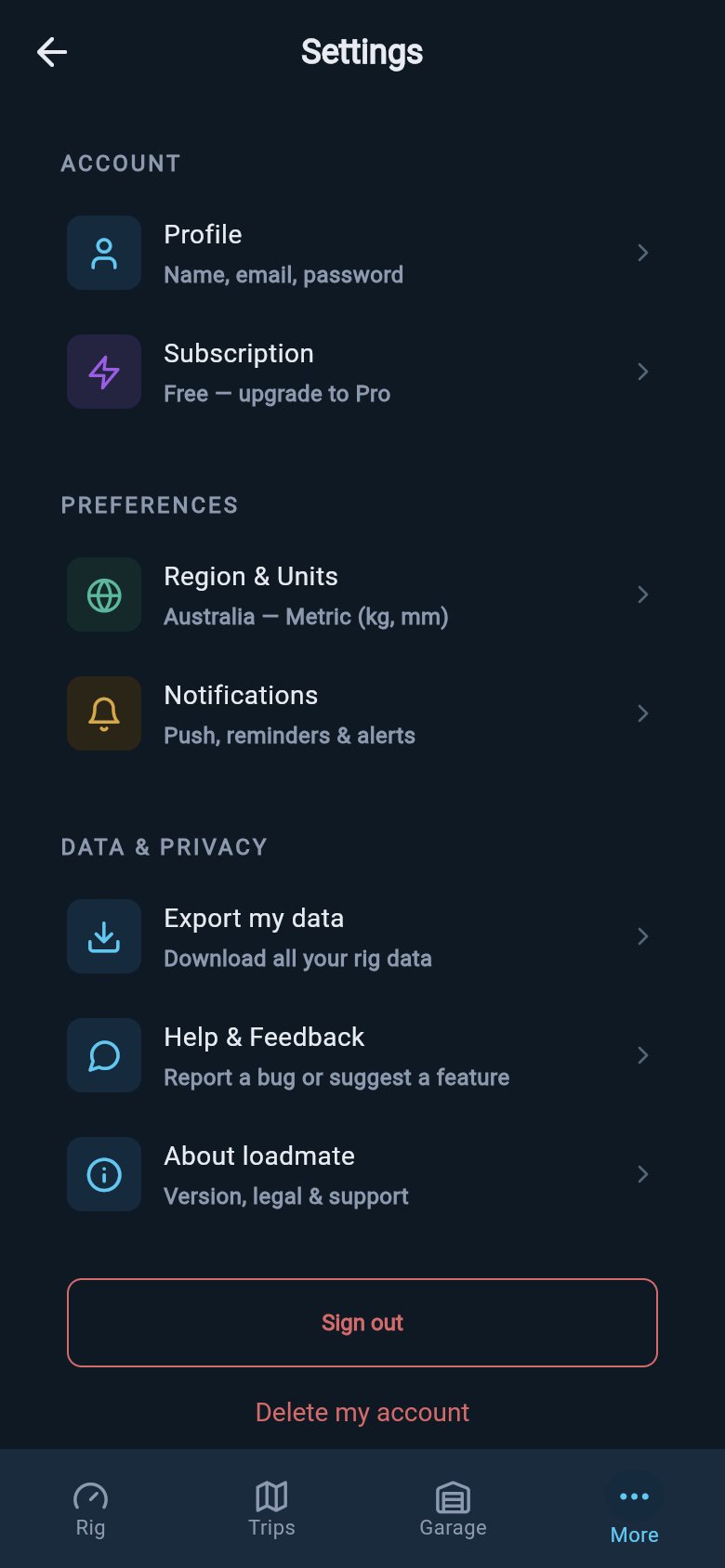 The **Subscription** row sits just below Profile in the same group, but it has its own page. If you came here to check or manage your plan, head to [Your subscription](/pricing-account/manage-subscription) instead.
## Your name and email
The Profile screen opens with a small circle showing your initials, taken from your display name. Further down, under a **Profile** heading, are two fields you can edit.
* **Display name** is the name loadmate uses for you. It needs to be between 2 and 50 characters.
* **Email address** is where loadmate reaches you. It has to look like a real email address — a name, an @ sign, then a domain.
A **Save** button only appears once you have changed something, so you cannot save by accident while you read. Make your edit, tap **Save**, and loadmate confirms with a short *Profile saved* message.
If your email has not been confirmed yet, a gentle banner may sit at the top of the Profile screen with a **Verify email** link. You can tap it whenever suits you. Confirming your email matters for a few sensitive actions, which are covered on [Your data and account](/account-settings/sign-out-delete-account).
## Changing your email
Changing your email is a little more careful than changing your name, and for good reason — your email is how you get back in. You will notice a small line under the email field that reads *Changing email requires re-authentication*. That is loadmate's plain way of saying it will ask you to confirm it is really you before the change goes through.
Type your new email into the **Email address** field, then tap **Save**.
A sheet titled **Confirm it's you** appears, with the line *For security, please sign in again to continue.* If you sign in with a password, you type your password here. If you sign in with Google or Apple, you tap a single **Sign in with Google** or **Sign in with Apple** button instead.
Once you have confirmed, loadmate saves the new email and shows the *Profile saved* message.
This confirmation step is nothing more than signing in again. loadmate is not checking your identity with anyone else or making a decision on your behalf — it simply wants to be sure it is you sitting there before it changes something as important as your email.
If you signed in with a magic link, changing your email isn't available from this screen yet. Instead of the confirmation sheet, you will see a message titled **This step isn't available**, explaining that this account uses a magic link instead of a password. The word "yet" is the app's own — it is a known gap, not a permanent one.
## The ways you sign in
This is the part that saves the most head-scratching. Near the top of the Profile screen, under the **Account** heading, loadmate tells you plainly how you currently sign in:
* If you have a password, you see a tappable **Change password** row.
* If you signed in with a magic link, you see **Signed in with a magic link**.
* If you signed in with Google or Apple, you see **Signed in with Google** or **Signed in with Apple**.
It is a direct reflection of what is connected to your account, nothing more. Whether you *have* a password at all depends on how you first signed up — so if you set loadmate up with Google, there simply is no password to change, and that is normal.
Below that is an **Authentication** section you can tap to expand. It lists **Google** and **Apple**. Next to each one you will see either a connect button — **Connect Google** or **Connect Apple** — to add that way of signing in, or a **Disconnect** button to remove it.
The **Subscription** row sits just below Profile in the same group, but it has its own page. If you came here to check or manage your plan, head to [Your subscription](/pricing-account/manage-subscription) instead.
## Your name and email
The Profile screen opens with a small circle showing your initials, taken from your display name. Further down, under a **Profile** heading, are two fields you can edit.
* **Display name** is the name loadmate uses for you. It needs to be between 2 and 50 characters.
* **Email address** is where loadmate reaches you. It has to look like a real email address — a name, an @ sign, then a domain.
A **Save** button only appears once you have changed something, so you cannot save by accident while you read. Make your edit, tap **Save**, and loadmate confirms with a short *Profile saved* message.
If your email has not been confirmed yet, a gentle banner may sit at the top of the Profile screen with a **Verify email** link. You can tap it whenever suits you. Confirming your email matters for a few sensitive actions, which are covered on [Your data and account](/account-settings/sign-out-delete-account).
## Changing your email
Changing your email is a little more careful than changing your name, and for good reason — your email is how you get back in. You will notice a small line under the email field that reads *Changing email requires re-authentication*. That is loadmate's plain way of saying it will ask you to confirm it is really you before the change goes through.
Type your new email into the **Email address** field, then tap **Save**.
A sheet titled **Confirm it's you** appears, with the line *For security, please sign in again to continue.* If you sign in with a password, you type your password here. If you sign in with Google or Apple, you tap a single **Sign in with Google** or **Sign in with Apple** button instead.
Once you have confirmed, loadmate saves the new email and shows the *Profile saved* message.
This confirmation step is nothing more than signing in again. loadmate is not checking your identity with anyone else or making a decision on your behalf — it simply wants to be sure it is you sitting there before it changes something as important as your email.
If you signed in with a magic link, changing your email isn't available from this screen yet. Instead of the confirmation sheet, you will see a message titled **This step isn't available**, explaining that this account uses a magic link instead of a password. The word "yet" is the app's own — it is a known gap, not a permanent one.
## The ways you sign in
This is the part that saves the most head-scratching. Near the top of the Profile screen, under the **Account** heading, loadmate tells you plainly how you currently sign in:
* If you have a password, you see a tappable **Change password** row.
* If you signed in with a magic link, you see **Signed in with a magic link**.
* If you signed in with Google or Apple, you see **Signed in with Google** or **Signed in with Apple**.
It is a direct reflection of what is connected to your account, nothing more. Whether you *have* a password at all depends on how you first signed up — so if you set loadmate up with Google, there simply is no password to change, and that is normal.
Below that is an **Authentication** section you can tap to expand. It lists **Google** and **Apple**. Next to each one you will see either a connect button — **Connect Google** or **Connect Apple** — to add that way of signing in, or a **Disconnect** button to remove it.
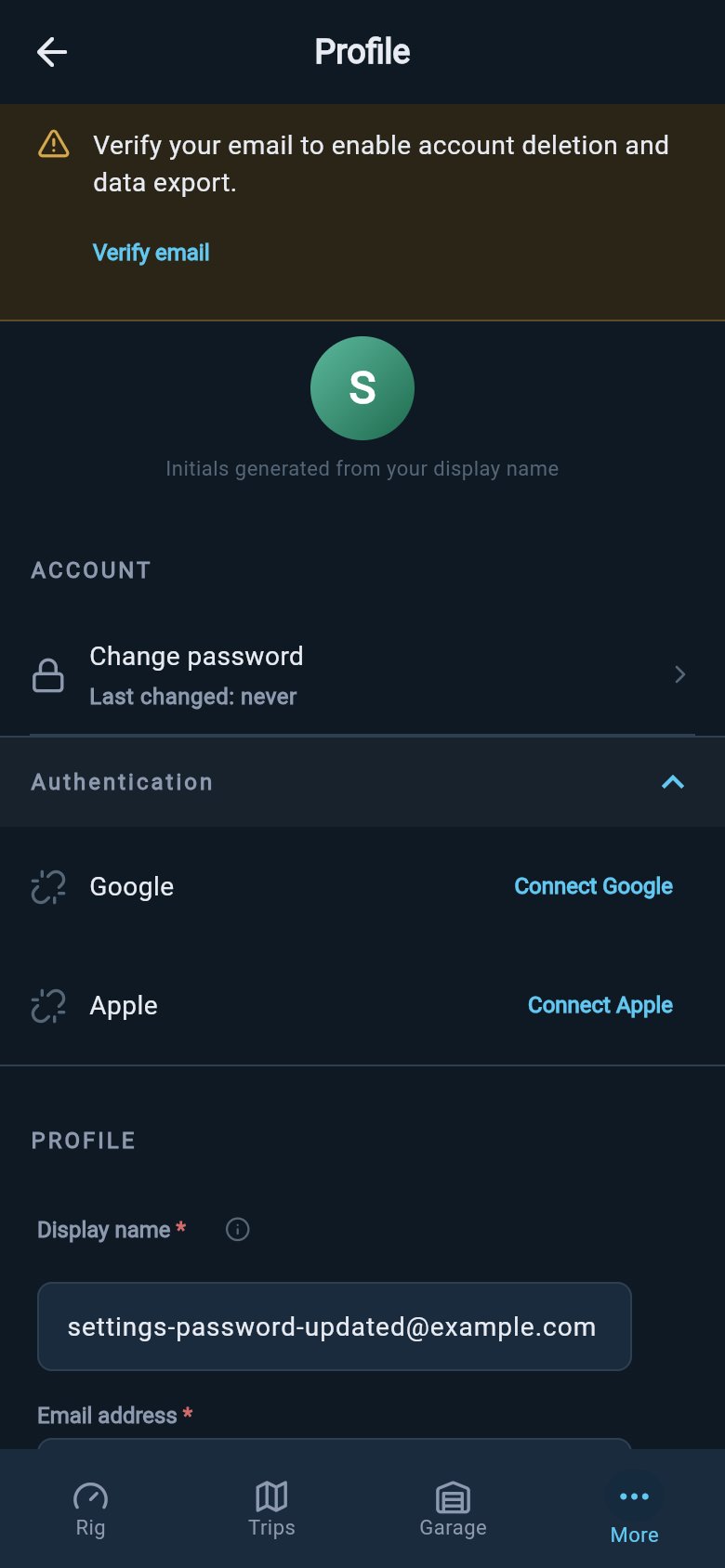 Connecting a second method is a good habit. If you ever lose access to one — a forgotten password, or an old email — having a backup way in means you are never locked out.
You must always keep at least one way to sign in. If only one method is connected, its **Disconnect** button is greyed out, and tapping it shows *You must have at least one sign-in method.* That is loadmate quietly protecting you from accidentally locking yourself out.
## Changing your password
If you sign in with a password, the **Change password** row under **Account** takes you to a simple screen with three fields.
Type the password you use now.
Type the password you would like to switch to. The helper line reminds you it needs to be **at least 8 characters**.
Type the new password once more to be sure it matches.
The save button only becomes active once your current password is filled in, your new one is long enough, and the two new entries match. When you save, loadmate confirms with *Password changed*. If the current password you entered was wrong, it tells you plainly — *Incorrect current password. Try again.* — and lets you have another go.
Connecting a second method is a good habit. If you ever lose access to one — a forgotten password, or an old email — having a backup way in means you are never locked out.
You must always keep at least one way to sign in. If only one method is connected, its **Disconnect** button is greyed out, and tapping it shows *You must have at least one sign-in method.* That is loadmate quietly protecting you from accidentally locking yourself out.
## Changing your password
If you sign in with a password, the **Change password** row under **Account** takes you to a simple screen with three fields.
Type the password you use now.
Type the password you would like to switch to. The helper line reminds you it needs to be **at least 8 characters**.
Type the new password once more to be sure it matches.
The save button only becomes active once your current password is filled in, your new one is long enough, and the two new entries match. When you save, loadmate confirms with *Password changed*. If the current password you entered was wrong, it tells you plainly — *Incorrect current password. Try again.* — and lets you have another go.
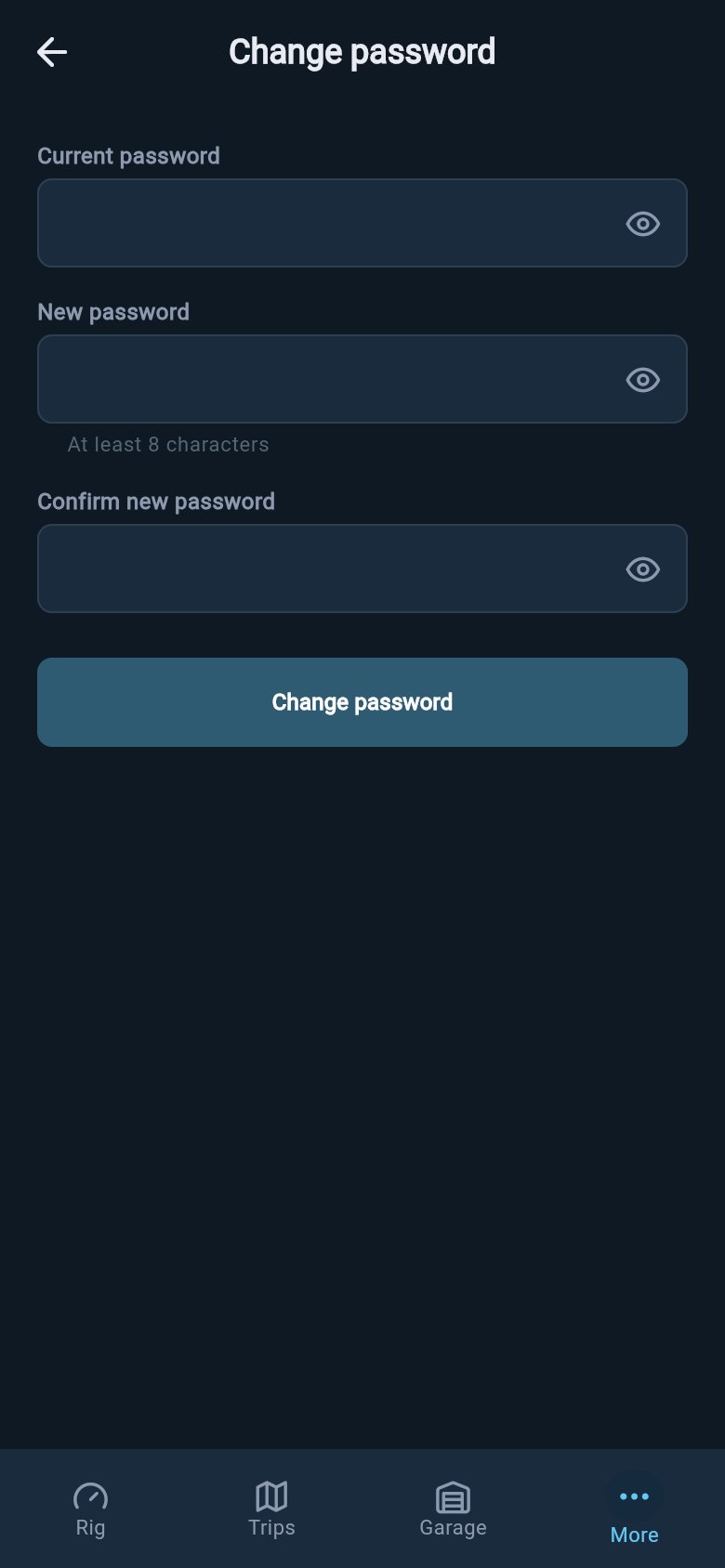 The Change password row only appears if you actually have a password. If you signed in with a magic link, Google, or Apple, you will see a *Signed in with...* line in its place rather than a password screen — there is no password to change, so there is nothing missing.
Your data stays safe in the cloud, and these changes only affect how you sign in — never the rig details, weights, or history you have built up in loadmate.
## Where to go next
Your profile is the front door to the rest of your account. These pages cover the settings that sit alongside it.
Check your plan, see what Pro unlocks, and manage your subscription.
Set your region so loadmate shows the right units and terminology for you.
Choose which reminders and alerts loadmate sends you, and how.
Sign out on this device, or delete your account when you need to.
The Change password row only appears if you actually have a password. If you signed in with a magic link, Google, or Apple, you will see a *Signed in with...* line in its place rather than a password screen — there is no password to change, so there is nothing missing.
Your data stays safe in the cloud, and these changes only affect how you sign in — never the rig details, weights, or history you have built up in loadmate.
## Where to go next
Your profile is the front door to the rest of your account. These pages cover the settings that sit alongside it.
Check your plan, see what Pro unlocks, and manage your subscription.
Set your region so loadmate shows the right units and terminology for you.
Choose which reminders and alerts loadmate sends you, and how.
Sign out on this device, or delete your account when you need to.